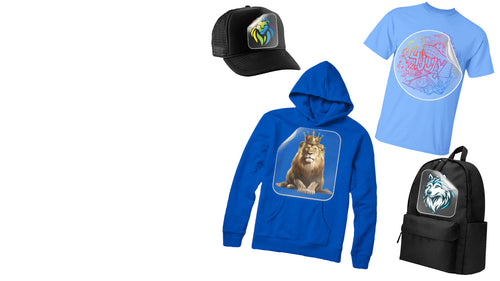
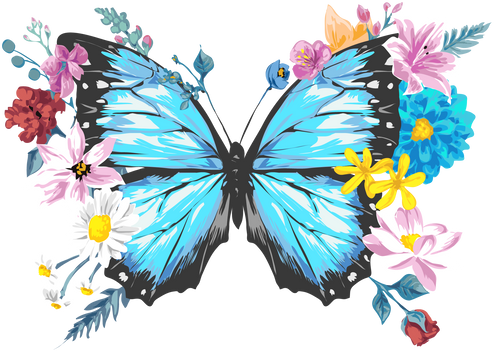
Transparent pixels carry no ink, so only the artwork prints and anything left in the file becomes part of the transfer. DTF stands for direct-to-film: we print your design onto a clear carrier film, and you press it onto the garment. Our guide on what is a DTF transfer walks through that process from file to fabric.
PNG is the file type that holds a transparent background, while a flattened JPG fills those pixels with solid color. A small flaw in one file repeats on every garment, so a stray halo that looks minor on screen can turn into delays and reprints across hundreds of shirts. Fewer reprints also means less waste, and our answer to are DTF transfers sustainable explains how DTF cuts waste in the first place.
How to Remove Background for DTF Before You Order
A clean cutout decides whether the transfer looks finished, and four steps get you there.
Start With the Highest-Resolution Source
A cutout is only as sharp as the original. Open the layered or vector file instead of a screenshot or a compressed web image, and set the artboard to the size you plan to print at 300 DPI. Low-resolution sources hide their flaws until the background comes off, and then jagged edges show up around every curve and letter. Vector files scale without quality loss, which makes them the safest starting point for logos and text.
Cut the Background and Clean the Edges
Use the selection or background-removal tool in your editor, then delete the background layer. Painting white over it leaves white in the file. Zoom in and clear fringe pixels and light halos along the edge, since they show most on dark garments. Check the counters of letters such as O, A and B, where stray specks and leftover boxes hide most often.
Handle Semi-Transparent Pixels and Soft Edges
Soft shadows, glows and low-opacity gradients are the riskiest parts of a DTF file, and they may print unevenly. Flatten them to solid color, or build the effect into the artwork with solid tones. Hard edges tend to reproduce more predictably than feathered ones, so press one test transfer of any soft effect before you commit to quantity. If a shadow matters to the look, redraw it as a solid-color shape so it prints as part of the design.
Export a Transparent PNG DTF File
Save the cleaned artwork as a PNG with transparency turned on. Our file guidance calls for at least 300 DPI at the final print size, and PNG with a transparent background works great. A flattened JPG cannot hold transparency, so never export a cutout that way. For a bulk batch, name each file with the design and size so nothing gets mixed up when sheets are built.
DTF White Background Problems and White Ink
A white background and white lettering look alike on screen but print for different reasons, and the file needs to tell them apart.
Why a DTF White Background Prints as a Solid Box
A white fill is a color like any other, so a printer with white ink capability may print it as white ink rather than treating it as empty background. Our breakdown of what are DTF transfers made of explains the film, ink and adhesive layers, and a white box in your file gets printed, powdered and pressed like the rest of the artwork. Delete the white.
Printing DTF on Black and Other Dark Garments
Yes, DTF prints on black. DTF transfers work on light and dark fabrics, and our prints are vibrant and durable with accurate color reproduction across every print run. Intentional white artwork, such as white lettering, prints as white ink, which is a different job from a background white you want gone. Some print workflows can drop white ink and let the garment color show through, so ask your printer how white is handled before a run.
Check DTF Artwork Transparency Before a Bulk Run
A few minutes of checking catches the problems that cost the most once a run is printed.
Place the PNG over a dark layer and a bright layer in your editor, since halos and hidden white show against one or the other. Zoom in along every edge and check small text and thin lines, which can break up when they are too fine.
Then judge the artwork against the real garment. Dark colors can disappear on a black tee, and light colors can wash out on white. Fabric matters too: our guide on what fabrics can be used with DTF transfers covers cotton, polyester, blends, canvas and denim. Polyester and cotton-polyester blends both take DTF, so the same transparent PNG works across them, but check the artwork colors against each garment color before you order. Because both fabric types take DTF, one clean set of PNGs works for either, whether you use the Builder, the standard sheets or the artwork service.
Press one test transfer before you order multiples. A single sample shows how the edges, white and colors behave on the finished garment.
Our Gang Sheet Options for Clean Transparent Files
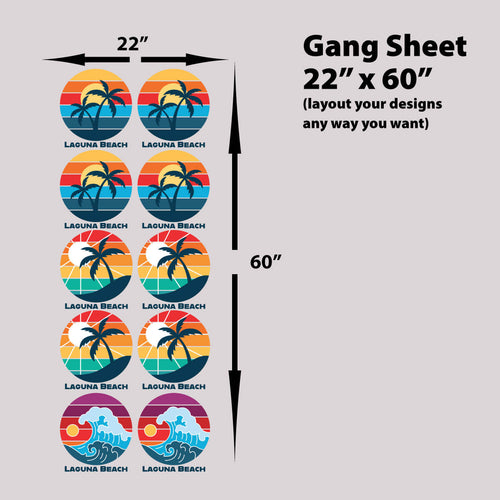
Once the PNGs are clean, gang sheets put many designs on one film, so a whole batch is laid out and ordered together.
Premium Hot Peel DTF Gang Sheet Builder
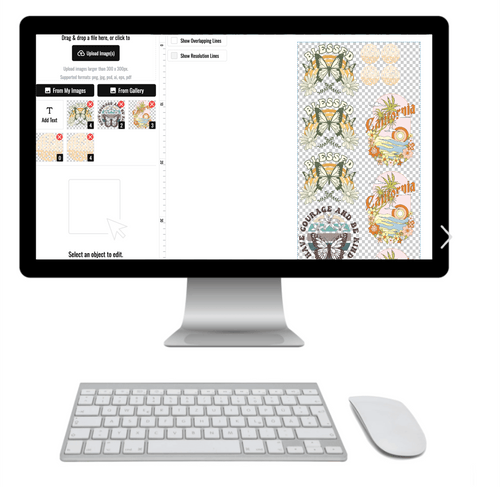
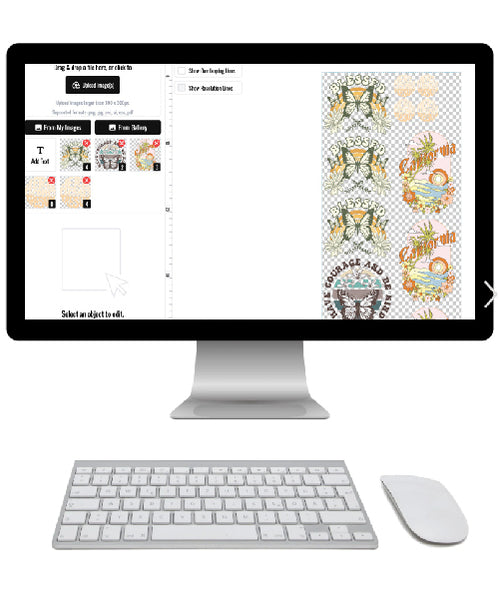
The Premium Hot Peel DTF Gang Sheet Builder is where you lay out your own designs on one sheet. A clean transparent PNG uploads straight into the Builder, where you size each design and set quantity, so you control placement and spacing for your own files. The hot peel transfer presses and peels in seconds, with no setup, no mess and no complicated processes.
Premium Hot Peel DTF Gang Sheets
Premium Hot Peel DTF Gang Sheets are the ready-to-order sheets, the pick for repeat runs when you would rather not lay out a sheet each time. Once a transparent PNG is final, the same file can go onto each reorder. The prints last 100+ washes, and we offer wholesale pricing for bulk orders, with color matching technology for accurate color across repeat runs.
We Create a Gang Sheet for You
Our We create a Gang Sheet for you service is backed by a team of DTF specialists and design experts when your files are not ready. It sits alongside our other gang sheet options, so you can pick the level of help each run needs. For help with your files, call, text, email or chat with our team seven days a week at 833-350-5466.