
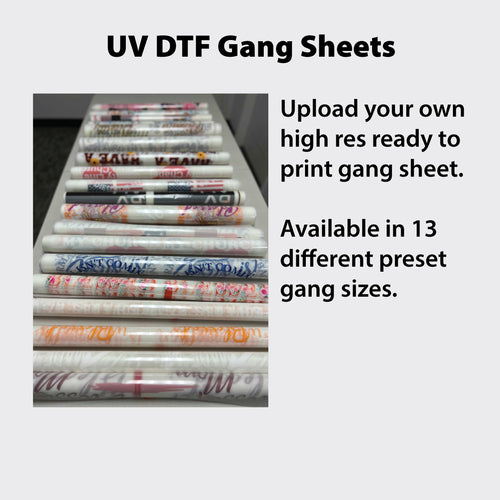
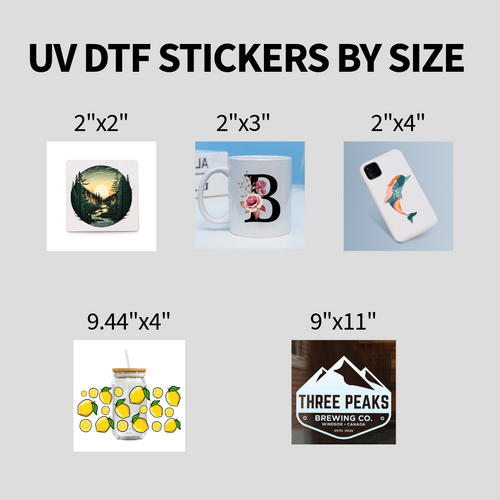



You upload a design that looks crisp on screen, let a gang-sheet builder arrange it, and expect the transfer to look just as good on a shirt. Then a fine line disappears, a color shifts, or the artwork takes up more sheet than you planned. The press didn't create every problem. Many were set by decisions made before the file ever reached production.
Good heat transfer design connects the artwork to the garment, the transfer process, and the printable sheet. File setup, color, sizing, substrate, layout, and pressing conditions all affect what comes off the press. Treat them as one workflow, and you're less likely to waste film, time, or a customer's favorite blank.
Why Heat Transfer Design Starts Before You Press
A customer uploads a logo and watches it land in a gang-sheet builder. The preview looks tidy, so the order feels ready. But the preview can't tell you whether the source file is too small, whether the design has a transparent background, or whether the intended garment can tolerate the application settings. Those details decide whether a clean-looking layout becomes a clean print.
In a DTF workflow, design isn't just drawing. It includes preparing the file, choosing colors that reproduce predictably, deciding whether artwork should be vector or raster, setting the final size, arranging designs on the sheet, and accounting for how the transfer will bond to a particular textile. Each decision affects the next. A logo that needs cleanup can change its print footprint, and that footprint can change how efficiently the rest of the sheet fits.
Start with the production destination
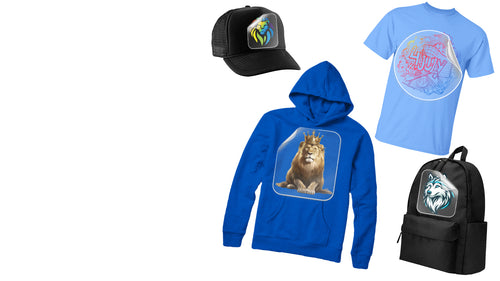
A design meant for a cotton tee isn't automatically ready for a polyester performance shirt or a fleece hoodie. The fabric's construction and finish affect how heat and pressure reach the adhesive, so production planning needs to identify the intended garment rather than assume one setup suits everything. For application settings, operators should follow the transfer-material supplier's instructions and confirm them on the actual press and substrate, as described in the USCutter heat-press manual.
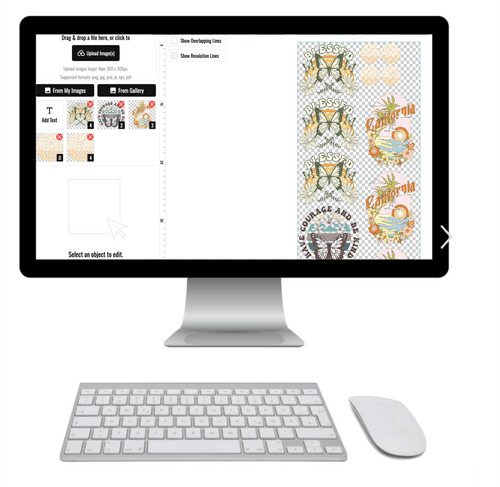
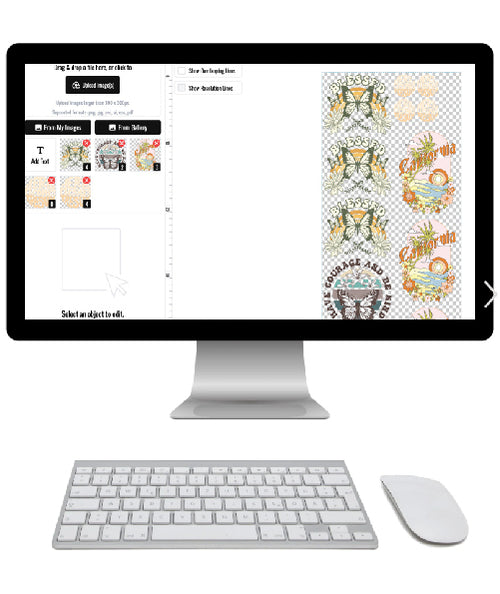
The same production-first thinking applies to layout. Lion DTF Transfers' Auto-build gang sheet builder lets customers arrange multiple designs into a shared sheet, making it easier to account for size and material use before pressing. The builder is useful, but it can't correct a blurry logo, guess the garment, or decide whether a design needs a different application setting.
Production rule: Prepare the art for its destination, then build the sheet around the finished art. Don't use layout to hide file problems.
When designers treat artwork, substrate, and sheet planning as connected choices, the press becomes the final step in a considered workflow, not the place where preventable mistakes first show up.
File Setup and Color Profiles That Print What You Designed
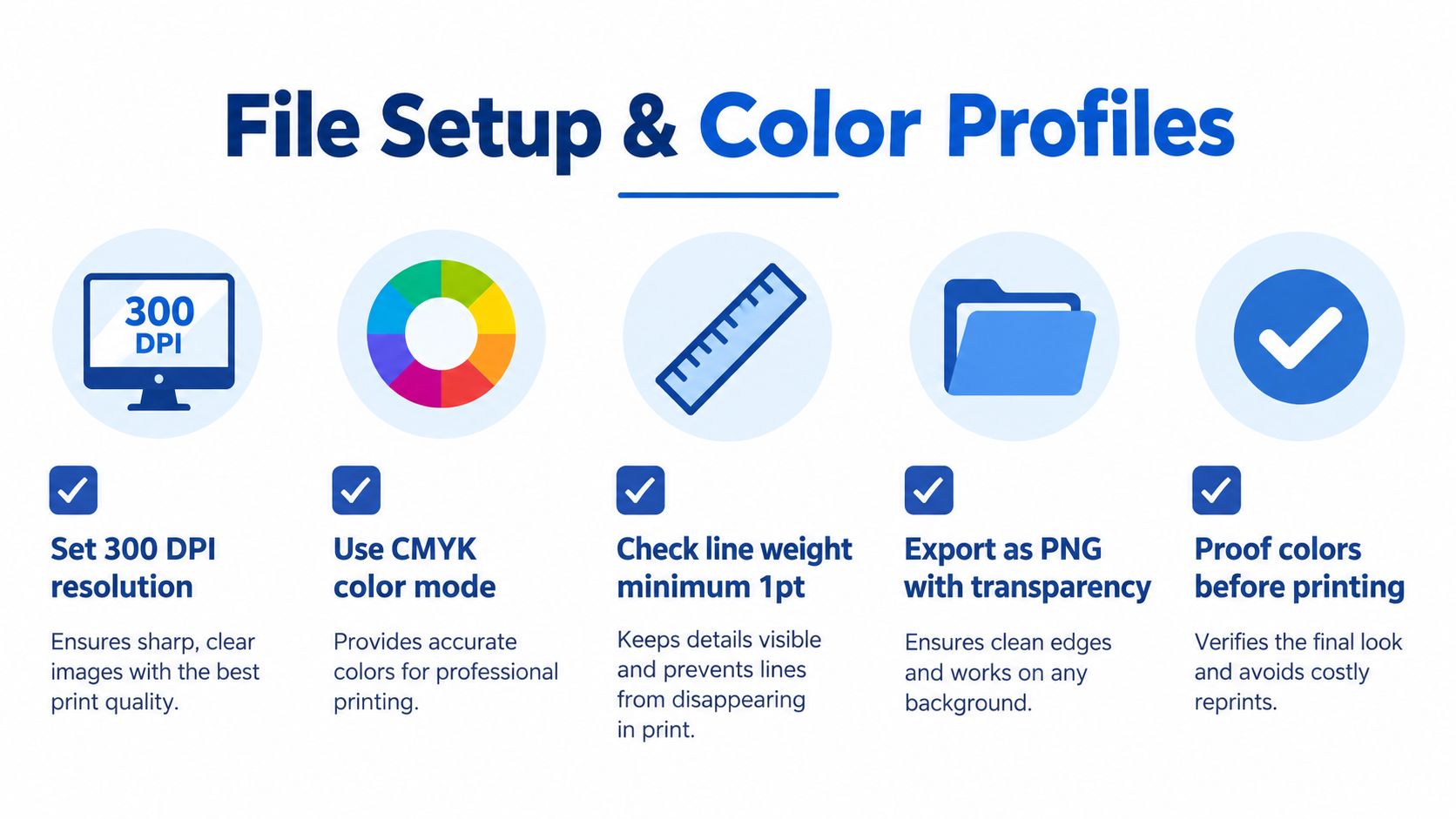
A file can look sharp on a monitor and still print soft, muddy, or unexpectedly transparent. Before uploading, check the artwork at its final print size, confirm its color mode, and make sure the background behaves as intended. Those checks are more useful than relying on a file's name or preview alone.
Audit the file before upload
- Check effective resolution: Inspect raster artwork at its intended size. Enlarging a small image doesn't create missing detail; it makes the pixels more visible.
- Choose the right format: PNG is useful for transparent artwork. Keep a layered or high-quality master file when you may need to revise the design later.
- Inspect the background: Confirm that empty areas are transparent, not filled with a white rectangle that will print as part of the art.
- Review thin details: Very fine strokes and tiny gaps can become difficult to reproduce on fabric. Zoom in on edges and make sure each detail is intentional.
- Proof the color: The monitor is not a guaranteed preview of the finished transfer. Review the file in the production workflow and approve a proof when color matters.
Color space and ICC profiles need a little care. A file's RGB or CMYK label alone doesn't guarantee a particular result: the RIP software, printer setup, ink, and color-management profile all influence conversion. Don't convert repeatedly just because the screen looks different after each change. Instead, follow the printer's production requirements and learn how the ICC profile affects DTF printing.
Keep transparency and edges deliberate
A transparent PNG is convenient for artwork with an irregular silhouette, but transparency must be clean. Remove stray pixels around the design, check that soft edges are intentional, and avoid flattening a working file until you've preserved a usable master. Anti-aliased edges can help curves look smoother than hard, jagged pixel boundaries, but an unwanted halo around the artwork can also become visible.
The practical definition of print-ready is simple: the file has the right artwork, at the intended size, with clean edges and a background that behaves as expected. A clear preview and a quick file audit beat discovering a problem after the transfer has been produced.
Vector vs Raster and How to Vet Vectorization
Vectors are a strong choice for logos, lettering, and geometric artwork because they can scale without the pixelation that affects raster images. But a vector file isn't automatically clean. A poor trace can turn a simple mark into a tangle of rough curves, stray points, and uneven strokes that's harder to print than the original.

Choose the format for the artwork
A high-resolution raster is often perfectly suitable for a photo, a painted illustration, or artwork with complex shading. Vectorization doesn't improve photographic detail; it may instead simplify it in ways the designer didn't intend. For a logo or wordmark, though, a clean vector can make resizing and editing easier. The choice depends on the art, not on a blanket rule that one format is always superior.
When a customer sends a flat JPG, assess the image before tracing. If its lettering is blurred or its edges are already damaged, auto-tracing may preserve those defects rather than repair them. A designer may need to redraw the artwork or ask for a better source. Lion DTF Transfers offers vectorization support for preparing artwork, which can fit into that cleanup process when a customer doesn't have a usable vector original.
Inspect the paths, not just the preview
Before approving a vectorized logo, look for closed paths where shapes should be filled, smooth curves without bumps, consistent stroke weights, and clean cut lines. Zoom in around corners and small counters in letters. Stray nodes can create awkward points; broken paths can cause gaps or unexpected shapes.
A vector that passes those checks is easier to resize and place confidently in a production layout. For a more detailed comparison of file types, use this guide to raster and vector artwork. The key is to verify the result at both its working scale and its planned garment size. Don't approve a trace just because the file extension says it's a vector.
Sizing Your Designs for the Garment and the Press
The right size depends on where the artwork will sit, who'll wear the garment, and how much usable press area you have. A large center-chest graphic and a small left-chest logo aren't the same file scaled up or down. Each has a different visual job, and each needs to be checked on the garment before it goes onto a sheet.
Set size from placement first
Mock up the design on the actual garment or a proportionally accurate template. Check that it looks balanced relative to the collar, seams, and body. For a sleeve, consider the printable area and how the arm bends; for a back-yoke mark, keep the artwork clear of the collar and seam. Don't scale a youth print from an adult template without checking how it sits on the smaller garment.
| Placement | Adult Size (in) | Youth Size (in) | Notes |
|---|---|---|---|
| Left chest | Choose to suit garment and art | Scale to the garment | Check the mark against the wearer's chest and shirt proportions. |
| Center chest | Check the intended print area | Check the smaller body width | Preview placement before finalizing the sheet. |
| Sleeve | Fit the sleeve panel | Fit the narrower sleeve | Keep artwork clear of seams and press limits. |
| Back yoke | Fit below the collar | Reduce for the garment | Check the collar and shoulder seams. |
These are placement guides, not fixed measurements. For garment-specific starting points, compare your mockup with the DTF sizing chart and verify the available press area before production.
Make scaling a controlled decision
Under-sizing can leave a design visually lost on a large garment. Over-sizing can crowd the print area, complicate placement, and make the transfer harder to press evenly. Once a design's intended dimensions are settled, the Auto-build gang sheet builder can help arrange multiple correctly sized pieces together, rather than asking the layout step to guess which version is meant for which garment.
Leave enough room for practical handling and for the transfer's intended placement. If a customer orders the same logo for several garment sizes, label each art version clearly. That small bit of documentation helps the person building the sheet avoid mixing up designs that look similar on screen but serve different placements.
Designing for Cotton, Polyester, Blends, and Performance Fabrics
A logo approved on a cotton tee still needs testing before it goes onto a polyester jersey. Cotton, polyester, blends, fleece, and performance fabrics respond differently to heat and pressure. Confirm the garment before locking the artwork or ordering the production sheet.
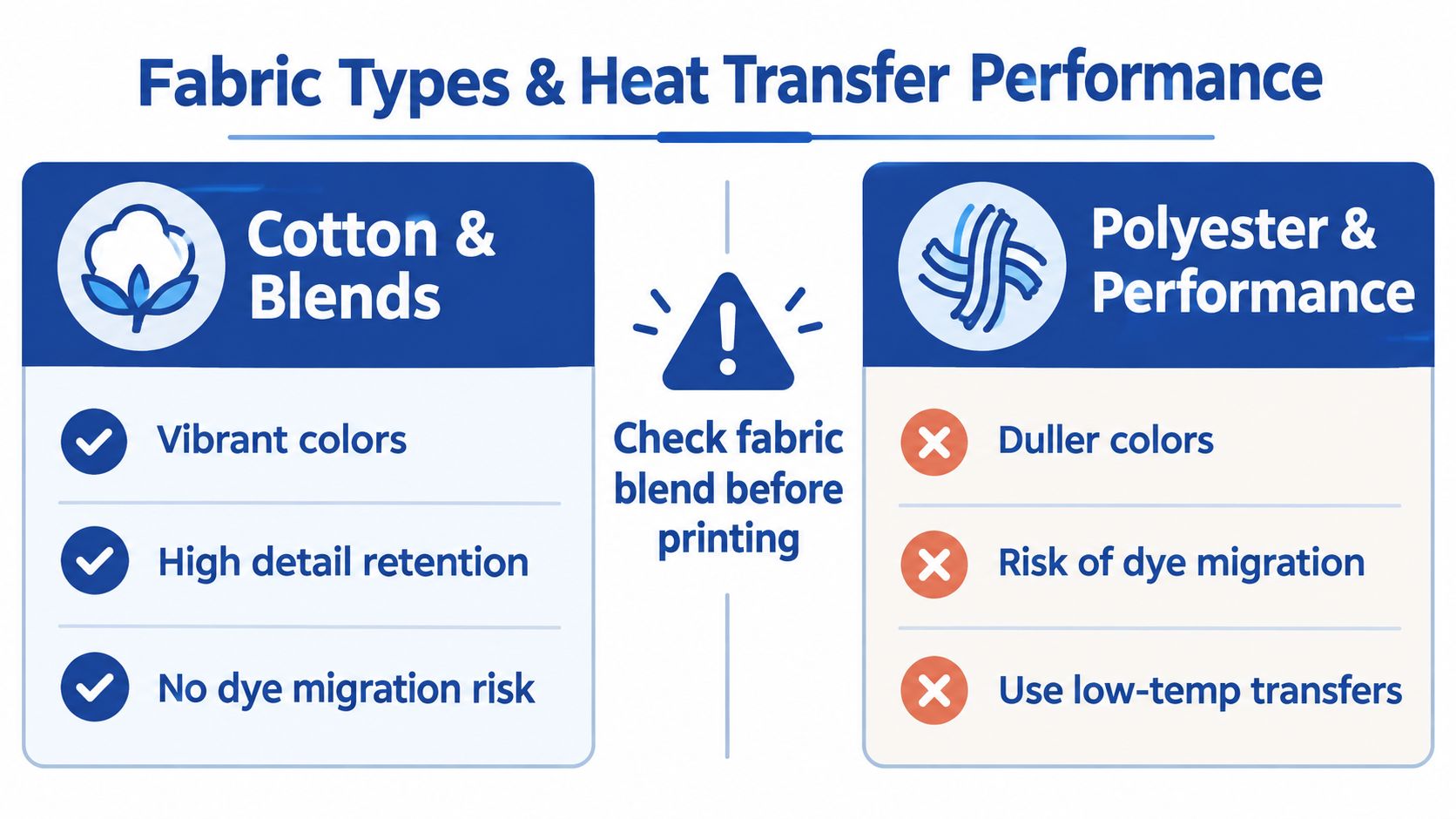
Cotton is often straightforward for detailed, vibrant graphics, but garment construction still affects the result. Thickness, moisture, surface texture, and finishing treatments influence contact and bonding. Test the actual garment to check whether the graphic lies smoothly and the application settings produce a sound bond. Approve the result before committing film to the full order.
Polyester needs a separate approval test. Heat can affect synthetic fabrics, and dyes in some garments can migrate into the transfer after pressing. Check the sample for changes in appearance rather than treating a clean cotton print as approval for polyester. Use substrate-specific transfer-supplier instructions to choose the application settings; the USCutter heat-press manual also directs users toward material-supplier guidance.
Brief the garment, not just the artwork
Treat cotton-poly blends as their own substrate, and account for fleece pile and thickness when assessing contact. Performance fabrics need a transfer rated for the substrate and an application process confirmed on a sample. Use lower-temperature settings only when the transfer supplier specifies them.
Record the garment type, transfer material, and approved application guidance together.
Resolve fabric compatibility before sending artwork to the Auto-build gang sheet builder. If testing calls for a design adjustment or a different transfer approach, make that decision before repeating the artwork across a production sheet. Show the customer the approved sample and explain any difference in appearance or feel. An unresolved garment choice is a reason to pause the order, not promise the same finish across every fabric.
Gang Sheet Layout Strategies That Save Film and Time
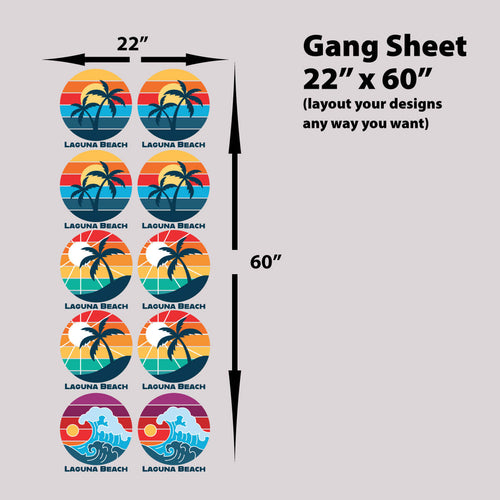
The sheet is where file preparation turns into material use. A design with a clean edge and correct dimensions is easier to place efficiently than one that still needs resizing or cleanup. Start by grouping the artwork that belongs together, then arrange it with the printable area and intended production run in mind.
Irregular shapes can often nest into open areas more efficiently than matching rectangles. Rotating a design may help it fit, but only when the new orientation suits the artwork and its garment placement. Oversized gaps waste printable area; squeezing pieces too tightly can make handling and cutting more awkward. Check the sheet preview carefully rather than assuming a tidy arrangement is automatically a usable one.
Let the layout follow the production order
A gang sheet may contain several designs, but they still need a clear production logic. Group compatible designs, keep each item's final size intact, and avoid mixing versions that are easy to confuse. If a layout includes different garment placements, label the files or otherwise make the distinctions clear before ordering.
The Auto-build gang sheet builder can help arrange multiple uploaded designs on a sheet, reducing the need to nudge each item manually. It's a practical tool for ease of use and cost effectiveness, especially when the artwork is already sized and organized. It won't know whether a rotated logo is wrong for the garment or whether two designs need different pressing conditions, so review the finished layout as a production document.
A well-planned layout limits wasted space without sacrificing clarity. The video below shows the gang-sheet workflow in practice.
Before placing an order, inspect the sheet for missing designs, duplicate versions, unintended overlap, and incorrect orientation. Then compare the arrangement with the garments in the job. That final check is faster than sorting out a sheet that was packed efficiently but prepared for the wrong production needs.
Durability, Wash Testing, and Design Choices That Last
A transfer can look perfect straight off the press and still fail to hold up in use. Durability depends on the bond between the adhesive and textile, including the material, bonding conditions, pressure uniformity, and fabric construction. Artwork matters too: fragile details and poorly prepared edges can make a design harder to reproduce consistently.
Test the specific transfer and garment
A peer-reviewed study evaluated mechanically durable thermal-transfer textiles using AATCC 135, a standardized laundering procedure, and reported wash resistance over 50 washing cycles for the tested material (study of thermal-transfer textiles). That finding belongs to the formulation and test conditions evaluated in the study. It isn't a universal promise for every transfer, design, or garment.
For a shop, the practical lesson is to test representative samples before scaling a design. Wash them using a consistent method, then inspect the edges for lifting, the surface for cracking, and the artwork for visible color loss. Record which transfer, textile, and application process you tested so you can compare like with like.
A durability claim is only useful when you know which material, garment, and test process it describes.
Make artwork easier to reproduce
Avoid details that are so fine they disappear at the intended print size, and inspect edges that could be vulnerable to lifting or incomplete contact. Those design checks don't replace correct application settings, but they help avoid asking a small, delicate feature to survive conditions it wasn't prepared for. If a job includes different garments, test the combinations that matter rather than assuming one sample represents every fabric.
A test sheet can hold multiple design variations for review. Lion DTF Transfers' Auto-build gang sheet builder can help consolidate test designs into a shared layout, while the shop still needs to record what each sample is meant to validate. Treat successful testing as evidence about that specific production setup, not as a blanket guarantee for other combinations.
Pre-Press Checklist and Common Design Mistakes to Avoid
A gang sheet can be laid out cleanly and still fail at the press. Before production, match the garment, transfer, artwork, and press setup. A wrinkle under the transfer, reversed placement, or settings meant for another material can ruin an otherwise print-ready design.
Use the application instructions supplied for the specific transfer and garment. Pre-press the garment if the instructions call for it, position the transfer in the correct orientation, and use a protective sheet when directed. Set temperature, time, and pressure according to the transfer supplier's guidance. When planning a gang sheet, keep designs identifiable and easy to handle, rather than packing them so tightly that placement becomes difficult.
Do a final pre-flight
- Confirm the garment: Check that the design and transfer suit the intended fabric.
- Check the file: Inspect final dimensions, transparency, and artwork edges at print size.
- Review the sheet: Find misplaced, duplicated, or incorrectly oriented designs before printing.
- Prepare the press: Smooth the garment and wait for the machine to reach its target temperature.
- Apply and inspect: Follow the supplier's instructions and check the first result before repeating the run.
| Stage | Do | Don't |
|---|---|---|
| File prep | Check the artwork at its intended size and confirm the background is correct. | Enlarge a small raster logo and assume it will become sharp. |
| Layout | Review placement, orientation, and spacing across the full sheet. | Pack designs so tightly that they are hard to handle or identify. |
| Garment prep | Remove wrinkles and moisture when the application instructions call for it. | Press over folds or assume every fabric behaves the same. |
| Transfer placement | Orient the transfer as directed for the garment and material. | Place it backward or skip the application instructions. |
| Pressing | Use settings recommended for the transfer and garment. | Reuse settings from another material without checking. |
A reliable workflow comes from running the same small checks on every job. A good-looking preview alone cannot guarantee a good press.
Lion DTF Transfers offers custom DTF transfers, online gang sheet building, and artwork preparation support for creators and print shops. Prepare the design for its garment and sheet, then visit Lion DTF Transfers to build a gang sheet or upload print-ready artwork.