



Think of an ICC profile as a universal translator for color. It's a small but mighty data file that makes sure the brilliant red you see on your computer screen doesn’t show up as a dull, disappointing maroon on the final print.
At its core, the file bridges the massive communication gap between your digital design and the physical product you're holding in your hands.
How Devices Speak Different Color Languages
Ever spent hours perfecting the shades on a design, only to get a print back that looks… off? It’s a classic, frustrating problem, and it happens because every device interprets color in its own unique way.
Your monitor, for example, uses an RGB (Red, Green, Blue) system, which creates colors by mixing light. A printer, on the other hand, uses a CMYK (Cyan, Magenta, Yellow, Black) system, which creates colors by mixing ink. They're literally speaking two different color languages.
An ICC profile steps in to solve this by creating a standardized channel for them to communicate. It essentially maps out the specific color capabilities—or gamut—of a device. By using a profile for your source (the monitor) and your destination (the printer), your software can accurately translate the colors from one language to another, keeping your original vision intact.
This whole process is the foundation of what’s known as a color-managed workflow.

The image above breaks down this translation, showing how your design's colors make the journey from screen to print while maintaining their integrity.
To make this workflow crystal clear, let's look at the three core components involved. Each plays a specific part, and the ICC profiles are what tie them all together.
Core Components of a Color Managed Workflow
| Component | Role | Example |
|---|---|---|
| Source | The starting point of your design. It has its own unique color space defined by a profile. | Your monitor, a digital camera, or the RGB/sRGB workspace inside Adobe Photoshop. |
| Profile | The translator. It contains the data that describes how each device reproduces color. | An sRGB profile for your monitor and a specific CMYK profile for a DTF printer. |
| Destination | The final output device. The profile for this device tells the software how to convert the source colors into a language it understands. | A DTF printer, a desktop inkjet printer, or even another display screen. |
When these three components work together using the right profiles, you get predictable, consistent color every single time. It takes the guesswork out of the equation.
The Standard That Ended Color Chaos
This system isn't just a happy accident. Back in 1993, the International Color Consortium (ICC) was formed when eight industry giants, including Adobe and Apple, got together to end the wild west of inconsistent color.
Their collaboration resulted in the profile specification we use today—a system that now achieves over 95% color consistency in the commercial printing world. That level of precision is absolutely critical for anyone creating custom products, whether you're a hobbyist or a high-volume print shop. It cuts down on the wasted time, money, and materials from reprints.
If you want to dive deeper into the differences between digital and print color, our guide on converting from RGB to CMYK is a great place to start.
Why ICC Profiles Are So Important for DTF Printing
When you're in the Direct-to-Film (DTF) game, color is everything. Getting that perfect shade isn't just a nice-to-have, it's the whole point. This is where an ICC profile stops being a technical term and becomes your most important tool.
Without a solid color management plan, you're essentially flying blind. You end up with those all-too-common frustrations: colors that look dull, shades that shift unexpectedly, and a growing pile of wasted transfers. This doesn't just hurt your wallet; it can disappoint a customer who was counting on a very specific color.
Think about it. A company's logo, a sports team's official colors, or an artist's signature palette—they all rely on precision. An ICC profile acts as the translator, making sure the electric blue on your screen is the exact same electric blue that comes out on the final DTF transfer. This level of accuracy is what separates amateur prints from professional products that hold up for over 100 washes.

This control helps you catch expensive mistakes before they happen, saving you time, money, and headaches. It also builds serious trust with your clients, who will come back again and again because they know you deliver consistent, perfect results every time.
How Color Accuracy Got This Good
The technology behind what is an ICC profile has come a long way, pushed by the demands of modern printing. The standards have evolved, which is why we can get such incredible accuracy today.
For instance, version 4 of the ICC profile standard, which came out back in 2001, introduced new ways to map colors that dramatically improved how printers handled wide color gamuts. This single update allowed for 50% more accurate color rendering compared to older versions. That's a massive leap, and it's essential for creating those super-vivid UV DTF stickers and hot-peel transfers we all love.
Before these standards were locked in, colors could drift by as much as 30% from one print shop to another. Now, that consistency is built right into the process. You can dig deeper into the technical history by checking out the ICC's detailed white papers.
Catch Errors Before You Print with Soft Proofing
One of the biggest game-changers that comes with using an ICC profile is soft proofing. Think of it as a digital sneak peek of the final print, all from the comfort of your own monitor.
By loading the specific ICC profile from your print provider (like us here at Lion DTF) into your design software, you can simulate exactly how your colors will look when they're printed on our equipment. This preview instantly flags potential problems, like "out-of-gamut" colors—those are shades your screen can show but the printer physically can't reproduce.
Key Takeaway: Soft proofing lets you see and fix color problems on-screen, saving you from the cost and disappointment of a bad print run. It's your secret weapon for getting predictable, reliable results.
This one simple step gives you the power to make adjustments before you send the file to print. You can bring those problematic colors back into a range the printer can handle, making sure your vision comes to life exactly as you intended.
It takes your workflow from a guessing game to a repeatable, reliable process for creating amazing transfers. This predictability is what makes tools like our Auto-build gang sheet builder so powerful—it not only simplifies your setup but also helps you maximize color accuracy and minimize waste right from the start.
How to Install and Use ICC Profiles in Your Design Software
Alright, you get the "what" and "why" behind ICC profiles. Now, let's get our hands dirty. Installing and using a profile is way easier than it sounds, and it's the key to getting predictable, accurate color every single time. We'll walk through the exact steps for Adobe Photoshop and Illustrator so you can get your designs perfectly dialed in for printing.
Think of an ICC profile like a tiny software plug-in. Before your design program can use it, your computer’s operating system needs to know it exists. The install process is basically just dropping the file in the right system folder.

After you've downloaded the profile from a print provider (like us at Lion DTF), just find the file and right-click it.
- On Windows, it's as simple as choosing "Install Profile."
- On a Mac, you'll need to manually drag the file into either the
/Library/ColorSync/Profilesfolder or the~/Library/ColorSync/Profilesfolder.
Once that's done, give your Adobe software a quick restart. This forces it to scan for new profiles so it can load the one you just added.
Setting Up Your Design File the Right Way
With the profile installed, the next step is actually applying it in your design software. This is where a lot of people trip up over two very similar-sounding options: "Assign Profile" and "Convert to Profile." Getting this right is critical for keeping your colors intact.
Assign Profile: This command is like slapping a new label on your file. It tells the software, "Hey, from now on, interpret these color numbers using this profile's rules." It doesn't actually change the RGB values themselves. This is mostly useful for files that are missing a profile to begin with.
Convert to Profile: This is the one you’ll use 99% of the time when you're prepping a file for print. It physically changes the RGB or CMYK numbers in your file to match the destination printer's color space as closely as possible, all while trying to keep the colors looking the same to your eye.
Best Practice: Always, always use Convert to Profile when prepping your final artwork for a specific printer. You're actively translating your design's colors into the printer's native language, which is exactly what you want for an accurate final print.
A Practical Step-by-Step for Adobe Photoshop
Here’s exactly how to convert your file in Photoshop to get it print-ready. No guesswork.
- Open your finished design.
- Go up to the menu and click Edit > Convert to Profile.
- A dialog box will pop up. In the "Destination Space" dropdown, find and select the specific printer profile you installed (for us, it would be something like "LionDTF_V1_Profile").
- For most projects, you can leave the other settings like "Engine" and "Intent" on their default values. They're already optimized for general use.
- Click "OK" to lock in the conversion.
That’s it. This simple process ensures your artwork is perfectly calibrated for our equipment.
If you're working with more complex layouts, it's also helpful to know how to properly embed images in Illustrator to keep your workflow clean and your color settings consistent across all assets. After converting, just save your file, and it’s ready to be uploaded to our Auto-build gang sheet builder—a super easy and cost-effective way to lay out all your print-ready designs.
Optimizing Your Designs with Soft Proofing
Think of soft proofing as your secret weapon for color accuracy. It’s like getting a digital test print right on your screen before you ever commit to production.
This process uses our specific Lion DTF ICC profile to simulate exactly how your design's colors will look once they're transferred onto a garment. It is hands-down the most effective way to catch and correct color issues early, saving you from costly and frustrating reprints.
Mastering this step is crucial for getting predictable, repeatable results. It ensures brand logos, team colors, and custom artwork look just as you intended, from screen to final product. This is how you deliver high-quality merch that consistently meets—and exceeds—expectations.

Setting Up a Soft Proof in Adobe Photoshop
Once you've installed the Lion DTF ICC profile, activating the soft proof is a simple process. This preview will show you precisely what to expect from our printers.
- Open your design in Adobe Photoshop.
- Navigate to the top menu and select View > Proof Setup > Custom.
- In the "Device to Simulate" dropdown menu, choose the Lion DTF profile you installed.
- Make sure the "Preserve RGB Numbers" box is unchecked. This is critical—it allows Photoshop to properly simulate the color conversion.
- Check the box for "Simulate Paper Color" to get a more realistic preview of how the ink will appear on the final transfer film.
- Click OK to apply the settings.
Your screen will now display a simulation of the final printed colors. You can toggle this preview on and off using the keyboard shortcut Ctrl+Y (on Windows) or Cmd+Y (on Mac) to compare it with your original design. It's a quick and easy reality check.
What Is an Out-of-Gamut Warning?
While soft proofing, you might notice some colors look duller than you intended. This usually happens because they are out-of-gamut, meaning they are outside the range of colors our printers can physically reproduce.
Luckily, Photoshop makes these easy to spot.
To see which specific colors are out-of-gamut, go to View > Gamut Warning. Photoshop will highlight the problem areas with a flat gray color, instantly showing you what needs adjustment.
When you see these warnings, you can use adjustment tools like Hue/Saturation or Selective Color to gently nudge those colors back into the printable range. This targeted approach ensures your entire design stays vibrant and accurate without guesswork.
The adoption of ICC profiles has been a game-changer for the printing industry. Today, over 90% of professional monitors and printers support them. Before this standardization, color loss between devices could be as high as 25-40%; now, with proper profiles, color accuracy can reach up to 98% in a controlled workflow, drastically reducing reprints. This level of consistency is what allows services like our Auto-build gang sheet builder to be so effective and cost-efficient. You can learn more about the history and impact of these standards and find additional details on the development of ICC profiles.
For even more hands-on guidance, check out our guide on the Lion DTF color matching process.
Streamlining Your Workflow for Effortless Color
All this talk about profiles, conversions, and soft proofing might sound complicated, but it all comes together to make your printing process smooth and predictable. We get it—managing color can feel like a technical chore when all you really want is a perfect print. That’s exactly why we’ve built tools to make getting accurate color as easy as possible.
Our goal is to take the complexity out of the equation so you can focus on what you do best: creating. Whether you're a seasoned designer who dials in every detail or a business owner focused on the final product, we’ve created a clear path to vibrant, consistent DTF transfers.
Making Color Management Simple
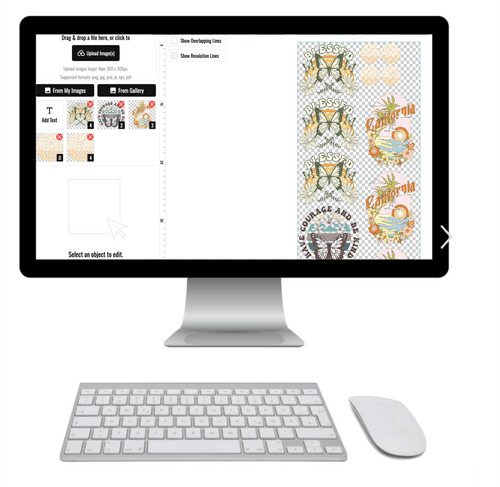
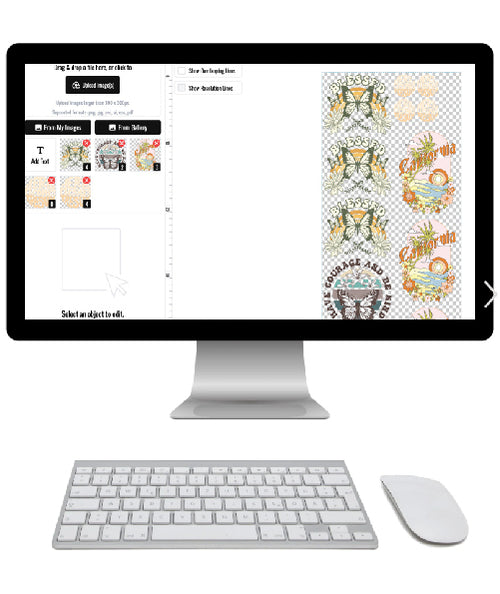
Our Auto-build gang sheet builder was created with color consistency as a top priority. It's a dead-simple and super cost-effective way to get professional results without needing to become a color scientist overnight. The whole system is designed to sync perfectly with our printing setup, ensuring the colors in your uploaded designs are rendered accurately right from the start.
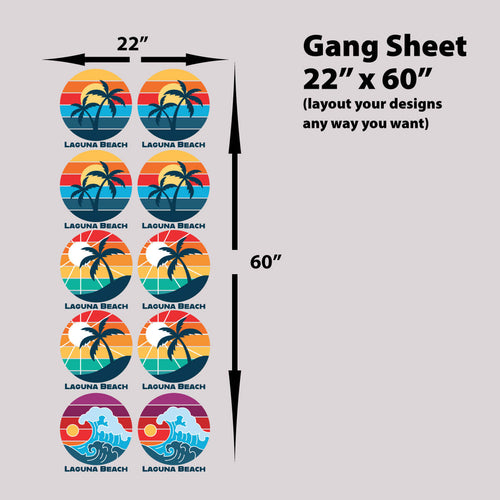
This tool helps you lay out multiple designs on one sheet, maximizing every square inch of film. By baking color management right into the building process, it sidesteps common color issues and ensures your final prints look just like your digital files. That saves you time, materials, and a whole lot of frustration.
This simplified workflow is all about predictability. When you use tools that are pre-calibrated for our system, you eliminate the guesswork. You can order with confidence, knowing the color will be right every time.
For those who prefer a completely hands-off experience, we’ve got you covered there, too. Our "We Build a Gang Sheet for You" service lets our team of experts handle the entire setup.
This option includes:
- Expert File Setup: We take your individual designs and arrange them for the most efficient print run.
- Professional Color Management: Our team makes sure every file is correctly profiled for our specific printers.
- Proofing and Verification: We double-check everything to guarantee the final output is flawless.
This service is perfect if you're on a tight deadline or just prefer to let the pros manage the technical details. It guarantees that every part of the color workflow, including applying the right ICC profile, is handled correctly. At the end of the day, our mission is to deliver stunning, accurate DTF transfers, whether you use our easy and cost-effective Auto-build gang sheet builder or have us do it for you.
Common Questions About ICC Profiles Answered
Jumping into the world of color management usually brings up a few questions, especially when you're chasing that perfect print. Let's tackle some of the most common ones about ICC profiles to give you clear, straight-up answers so you can print with total confidence.
Do I Need a Special Monitor to Use ICC Profiles?
Not necessarily. While a professional, color-calibrated monitor is always going to give you the most accurate on-screen preview, it's not a deal-breaker. Any modern monitor can still fit into a proper color-managed workflow.
The key is to remember that your screen is just one part of the equation. By setting your display to a standard like sRGB and using our specific printer profile for soft proofing, you’re building a bridge between what your screen can show and what our professional printers can do. It's a solid way to get a good preview without having to shell out for expensive gear.
What Is the Difference Between CMYK and RGB Profiles?
This question really gets to the core of how color works on screens versus on paper (or, in this case, film). RGB (Red, Green, Blue) is for digital displays like your monitor or phone, which create color by emitting light. CMYK (Cyan, Magenta, Yellow, Black) is for printing, where colors are made by ink reflecting light off a surface.
An ICC profile's job is to translate those vibrant RGB colors from your design file into the exact CMYK values our printers need to recreate them accurately. For the best results, always design in an RGB color space and let our print system—guided by its custom ICC profile—handle the conversion. This ensures the most dynamic and precise translation from screen to print.
Why Does My Print Still Not Perfectly Match My Screen?
Even with a flawless ICC profile, a 100% perfect match is the unicorn of printing—it’s nearly impossible to find. Why? Because a monitor emits light, while a printed transfer reflects it. This fundamental difference in how color is displayed will always create subtle variations.
Your environment plays a huge role in how you see color. Things like the lighting in your room, your monitor's brightness, and even the texture of the garment can change how the final colors look. Soft proofing gets you incredibly close, but nothing beats viewing the final print under neutral, natural light for the truest representation.
Can I Use a Generic Profile for My DTF Prints?
You can, but it's a huge gamble. Using a generic or "canned" ICC profile is like using a one-size-fits-all key for a custom-built lock. Every combination of printer, ink, and transfer film has its own unique color personality that a generic profile just can't see.
These profiles are built for broad compatibility, not accuracy, and they almost always lead to unpredictable colors. For results you can bank on, you have to use the specific ICC profile provided by your print partner. Our profile is built from the ground up for our exact setup—equipment, inks, and film—guaranteeing the most accurate color match possible. It's the only way to get consistent, professional-grade results every single time.
Ready to put this all to work and nail your colors on the first try? The Lion DTF Transfers Auto-build gang sheet builder makes it ridiculously easy and cost-effective to get professional-quality prints. Our entire system is already calibrated for ultimate accuracy, so you can upload your designs and know you’re in good hands.