


When it comes to getting your DTF transfers just right, the file format you choose—raster or vector—makes all the difference. Get it wrong, and you could end up with blurry, pixelated results. Get it right, and you'll have prints that are sharp, vibrant, and professional.
So, when should you use one over the other? It's simple. Use raster files (like PNGs) for complex, photographic images with tons of color and detail. For logos, text, and graphics that need to be resized without losing an ounce of quality, stick with vector files (like AI or SVG).
Choosing Your File Raster vs Vector for DTF
Picking the right file format is one of the most critical steps in preparing your art for DTF printing. It’s not just a technical detail; it’s the foundation of a great-looking final product. Each format has its strengths, and knowing which one to use will save you from common headaches like fuzzy edges or color issues.
A raster image is what most people are familiar with. Think of a digital photograph. It’s built from a grid of tiny colored squares called pixels. This pixel-based structure is perfect for capturing the rich color blends and subtle textures you see in photos and highly detailed illustrations. The catch? Because they're made of a fixed number of pixels, you can't just scale them up indefinitely. Enlarge a raster file too much, and you'll see the pixels. The image will look blurry and unprofessional.
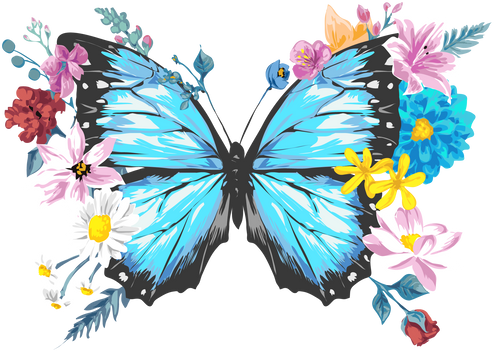
Vector images, on the other hand, are totally different. Instead of pixels, they're built using mathematical equations that create lines, curves, and shapes. This means you can scale a vector graphic to any size you want—from a tiny chest logo to a massive full-back design—and it will never lose quality. The lines will always stay perfectly crisp and clean. If you're looking for more tips on this, check out our guide on creating custom heat transfer designs.
This chart breaks down the core differences in a visual way.

The main takeaway here is scalability. Vectors can be resized infinitely, while rasters are locked into their original resolution.
Quick Comparison Raster vs Vector for DTF
To make it even easier, here’s a quick rundown of how each format stacks up specifically for DTF printing. Use this table to pick the right file for your next project.
| Attribute | Raster (e.g., PNG, PSD) | Vector (e.g., AI, SVG, EPS) |
|---|---|---|
| Best For | Photos, complex illustrations, and artwork with rich color gradients. | Logos, text, simple graphics, and brand marks. |
| Structure | A grid of pixels. | Mathematical paths and curves. |
| Scalability | Resolution-dependent; loses quality when enlarged. | Infinitely scalable with zero quality loss. |
| File Size | Larger, especially at high resolutions like 300 DPI. | Smaller and more efficient. |
| Transparency | Supported (use PNGs for this). | Natively supported. |
Ultimately, choosing the right format ensures your design looks as good on the shirt as it does on your screen.
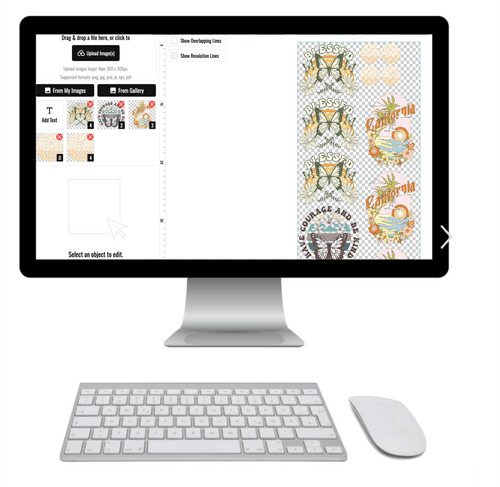
And remember, whether you’re working with raster or vector files, our Auto-build gang sheet builder makes it easy to automatically arrange multiple designs for cost-effective printing.
Mastering Raster Graphics for Photorealistic Prints

To really get the difference between raster vs. vector, you have to appreciate what makes a raster graphic tick. Think of your design as a giant, detailed mosaic made from thousands of tiny colored squares. We call these squares pixels.
This pixel-based structure is where raster images shine, especially for DTF. They perfectly capture the rich color blends and soft details you find in photographs or complex painterly art. If your design has a sunset, watercolor textures, or a detailed portrait, raster is built to handle it. It's no surprise that raster-based software is projected to hold 38.7% of the design tool market share by 2026—it’s what creators turn to for photorealism.
The Critical Role of Resolution and DPI
When you’re prepping a raster file for a DTF transfer, one thing matters more than anything else: resolution. Because the image is made of a fixed grid of pixels, its print quality is locked to its size and pixel density, which we measure in Dots Per Inch (DPI).
For professional DTF prints, 300 DPI is the non-negotiable gold standard. This ensures your design has enough pixel data to print with clean lines and sharp, crisp details. Handing over a file at a lower resolution, like the 72 DPI standard used for websites, will guarantee a blurry, pixelated mess on the final shirt. It just won't look professional.
A low-resolution file can’t be magically "fixed" by just bumping up the DPI in Photoshop. The original detail has to be there from the very beginning. Always start your design in a 300 DPI canvas to get a high-quality print.
File Formats and Transparency
Not all raster files are built the same for apparel. Formats like JPG are everywhere, but they come with a huge problem for t-shirt printing: they don’t support transparency. That means any white space in your design gets printed as a solid white box, which is almost never what you want.
This is exactly why the PNG (Portable Network Graphic) format is the industry standard for DTF. It gives you a few key advantages that make it perfect for the job:
- Transparency: PNGs let you save your artwork with a truly transparent background. This way, only your design gets printed on the film and transferred to the shirt.
- Lossless Compression: This is a big one. It means the file saves all its original quality without ditching important pixel data, keeping every detail sharp.
- Rich Color: PNGs support millions of colors, which is a must-have for creating vibrant, photorealistic prints. If you want to dive deeper into getting your colors print-ready, check out our guide on how to convert from RGB to CMYK.
Getting raster graphics right comes down to prioritizing resolution and picking the right file type from the start. A 300 DPI transparent PNG is the single most important step you can take to make sure your photographic and complex designs look absolutely flawless when they come off the press. Our Auto-build gang sheet builder is built for ease of use, letting you upload these print-ready PNGs and arrange them for cost-effective orders in seconds.
Vector Graphics: The Secret to Perfect Scalability

While raster images are built from a grid of pixels, vector graphics are a different beast entirely. They aren't made of pixels at all. Instead, they’re constructed from mathematical paths—think lines, curves, and points. This is the whole secret behind their biggest advantage in the raster vs vector matchup: you can scale them infinitely.
Let’s say you’re printing a logo. You need a small one for a left-chest print, a medium version for a tote bag, and a huge one for a hoodie's back. With a vector, you use the exact same file for every single one. Blow it up to the size of a billboard or shrink it to a postage stamp, and it won’t lose a drop of quality. The edges stay perfectly sharp every time, which is non-negotiable for professional work.
The demand for this kind of precision is why the vector graphics software market is growing so fast, projected to jump from USD 1.15 billion in 2025 to USD 1.98 billion by 2034. That's a 7.7% CAGR driven by people who need graphics that scale without failing.
The Best Vector Formats for DTF Printing
When it comes to DTF, you need to use the right vector format to make sure all that clean path data makes it to the printer. Stick to these, and you can’t go wrong:
- AI (Adobe Illustrator): This is the native format for Adobe Illustrator and the undisputed industry standard. It keeps all your layers, paths, and design elements perfectly intact.
- EPS (Encapsulated PostScript): An old-school but incredibly reliable format. EPS is fantastic for moving vector artwork between different design programs without causing any issues.
- SVG (Scalable Vector Graphic): A modern, web-friendly format that’s perfect for simpler designs like logos and icons. SVGs are lightweight and maintain flawless quality.
These formats are your go-to for any design that relies on clean lines, solid blocks of color, and text. Think company logos, brand slogans, or the names and numbers on the back of a jersey.
The real magic of vector graphics is efficiency. You create one master file and can adapt it for literally anything without ever having to redraw it. It saves a ton of time and keeps your brand looking consistent everywhere.
This is a massive help when you’re prepping a bunch of different designs for a single print run. For instance, you can use one vector logo file and place it in multiple sizes on our Auto-build gang sheet builder. The workflow is seamless, and you get perfectly scaled designs arranged to maximize every inch of your film, which drops your cost per transfer.
Stuck with a blurry, pixelated logo you need for a print job? We see it all the time—the only version of a logo someone has is a low-quality JPG. Our designers can fix that. Check out our design vectorizing service, and we’ll professionally redraw your pixelated art into a crisp, print-ready vector file. Your final DTF transfers will look sharp and professional, no matter the size.
Making the Right Choice for Your DTF Project
Deciding between raster and vector formats comes down to what your artwork actually is. This is where theory meets practice, and your choice will either set your design up for a flawless print or cause some serious quality headaches down the line.
For instance, raster files are the undisputed champs for anything photographic or with complex, blended colors. Think of a t-shirt with a detailed sunset, a realistic portrait, or a soft watercolor painting. Raster's pixel-based structure is the only way to capture those subtle color shifts and intricate details.
Vector graphics, on the other hand, are the only real choice for artwork built on clean lines and solid shapes. They’re essential for business logos, team jerseys with crisp names and numbers, and brand slogans that have to be perfectly sharp at any size. Since they’re built with math, they can be scaled up or down infinitely without losing an ounce of quality—a must-have for professional branding.
Situational Guidance for Your Design
To make the decision crystal clear, let's break it down into common scenarios. Your design will almost always fall into one of these categories, making it easy to choose the right path.
- Photographs and Complex Illustrations: Always go with raster. A high-resolution PNG file at 300 DPI is your best friend here, as it will preserve all the rich color data and fine details.
- Logos, Text, and Simple Icons: Vector is the only way to fly. An AI, SVG, or EPS file ensures your lines will be perfectly sharp whether the design is on a small chest pocket or blown up across the back of a hoodie.
The easiest way to remember is with this simple rule: "If it’s a photo, use raster. If it’s a logo or text, use vector." This little guideline will steer you correctly for 99% of DTF projects.
This clarity is huge for DTF providers. The global graphic design software market is projected to hit USD 10.13 billion by 2026, and a big slice of that—around USD 3.8 billion—is from vector editing tools. There's a reason for that: they produce files that maintain perfect quality when scaled, which is a major advantage for creating cost-effective gang sheets. You can learn more about the growth of the graphic design market on The Business Research Company.
What About Hybrid Designs?
So what happens when your design has both a photographic element and some clean vector text? This is a super common scenario, especially for promotional apparel or event memorabilia.
The best approach is to build the design in a program that can handle both, like Adobe Illustrator or Photoshop.
In this case, you’ll prepare the final file as a high-resolution raster image. Just place your vector logo or text over your raster photograph, make sure the entire canvas is set to 300 DPI at the final print size, and export the whole thing as a single transparent PNG. This process, often called rasterizing, flattens the vector elements into pixels but keeps them sharp because of the high resolution. It’s the best of both worlds.
This method works perfectly with our Auto-build gang sheet builder, making it easy and affordable to gang up even complex hybrid files.
Your Pre-Print Checklist for Perfect DTF Files
Getting your files print-ready doesn’t have to be a headache. A few simple checks before you upload can mean the difference between a perfect print and a production delay. This quick guide covers the must-dos for both raster and vector files, so you can send your artwork with confidence every time.
Think of it this way: a flawless file is the fastest path to a smooth print run. Each step here is designed to catch a potential problem before it ever starts.
Key Checks for Raster Files (PNG)
Raster files are all about the details, and their quality is locked in the moment you hit save. Before you upload that PNG, give these two critical points a final look.
-
Nail the Resolution: 300 DPI or Bust. This is non-negotiable for raster images. Your design must be created and saved at 300 DPI at the final print size. If you start with a low-res file, like a 72 DPI image from the web, it’s going to look blurry and pixelated on a shirt. There's no fixing it later.
-
Make the Background Transparent. Remember, JPG files don't support transparency. If you send us a JPG, it will print with a big white box around your art. Always save your work as a PNG and make sure the background layer is turned off. This guarantees only your design gets printed.
Honestly, getting these two rules right solves the vast majority of raster print issues. It’s what keeps your detailed, photographic designs looking sharp and professional.
Key Checks for Vector Files (AI, SVG)
Vector files give you a lot more wiggle room, but they have their own set of rules for printing perfectly. The most common snag we see with vector files? Text.
- Outline All Your Fonts. If you've used a cool, custom font, chances are our printers don't have it. When that happens, the system swaps it for a default font, and your design is instantly ruined. The fix is simple: convert all text to outlines (or "create outlines"). This turns your editable text into a fixed vector shape, locking it in place for good.
Pro Tip: Always save a separate version of your file before you outline the fonts. Once you convert text to shapes, you can no longer go back and edit what it says.
Saving the file correctly is the final piece of the puzzle. For raster, a transparent PNG is your best friend. For vector, an AI or SVG file is what you want.
Prepping your files this way makes them play nice with our entire system. This is a huge help when you’re using our Auto-build gang sheet builder, because properly formatted files upload without a hitch. It makes ganging up your designs easy and saves you a ton of money.
Build Smarter Gang Sheets and Save Money

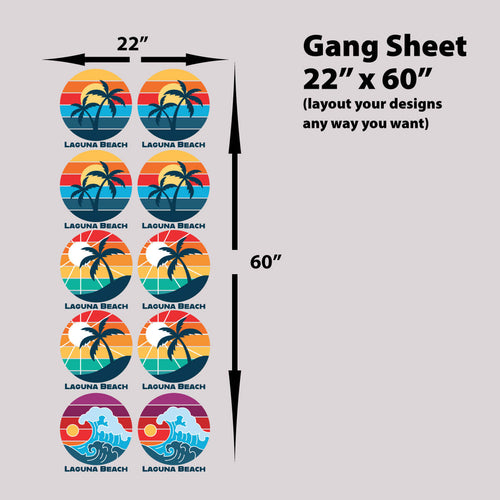
Knowing the difference between raster vs vector is important, but knowing how to order them efficiently is what really saves you cash. Manually arranging different designs onto a single sheet to cut down on waste—a process we call "ganging"—is a huge time sink and usually requires design software. We knew there had to be a better way.
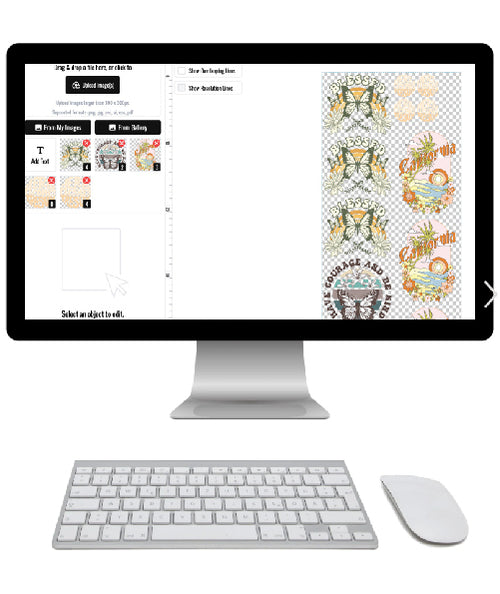
So, we built one. Our Auto-build gang sheet builder takes the headache out of the process, making professional DTF printing more affordable and accessible for everyone. You don't need any special skills or pricey software to use it. It's a powerful tool we designed to do all the heavy lifting for you.
How It Maximizes Your Value
The process couldn't be simpler. You can upload a whole batch of designs at once, and it doesn't matter if you're mixing raster files (like PNGs) and vector files (like SVGs).
- Drag and Drop Your Files: Just upload all the graphics you need for your project.
- Enter Quantities and Sizes: Tell the builder how many of each design you need and at what size.
- Let the Builder Do the Work: Our tool automatically nests every single graphic into the smallest possible sheet space, making sure every square inch is used.
This smart arrangement dramatically cuts down on material waste, which directly slashes your cost per print. You end up paying for less blank film and getting more of your actual designs for your money.
By intelligently nesting your designs, the Auto-build tool guarantees you get the most efficient layout possible. This is a game-changer for businesses ordering multiple designs for different products or sizes.
And for those who want a completely hands-off experience, we also offer a "We Build It for You" service. Just send your files over, and our team of experts will build the most optimized gang sheet for your order. You get the best possible value without lifting a finger.
Common Questions About Raster and Vector Files
When you're getting files ready for printing, a few questions pop up all the time. Getting the right answers from the start can save you a world of frustration and prevent print errors before they happen. Let’s clear up a few of the most common issues we see.
What Happens If I Upload a 72 DPI Image?
This is easily one of the most frequent hangups in DTF printing. A 72 DPI file is built for a screen, not for a shirt. It just doesn't have enough pixel data to create a sharp, clean image when printed on fabric.
When we get a 72 DPI file, the result is almost always a print that looks pixelated, blurry, and soft around the edges. This problem gets even worse if you try to scale the design up to a larger size on the garment. For a professional transfer that looks sharp, your raster files absolutely must be created at 300 DPI at the final print size.
Think of a 72 DPI file like a quick thumbnail sketch. You can see the basic idea, but the details are missing. A 300 DPI file is the detailed blueprint. You can't build a quality house from a sketch, and you can't get a quality print from a low-res file.
Can You Convert a Low-Quality JPG to a High-Quality Vector?
The short answer is yes, but with a big catch. While we can definitely convert a blurry JPG into a clean vector file, the process can't magically create detail that was never there in the first place.
Our professional vectorization service is perfect for rebuilding simple logos and graphics. We can trace a pixelated source and create perfectly clean, scalable lines. But if you give us a low-resolution photograph of a person's face, vectorizing it won't suddenly make it a crisp, photorealistic image. For the best results, always start with the highest-quality source file you can find.
Why Did My White Background Print?
This is a classic problem, and it almost always comes down to the file format you used. If you're seeing an unwanted white box printed around your design, it’s because the file was saved as a JPG.
The JPG format doesn't support transparency. It automatically fills any empty space with a solid white background, and our printers will print exactly what they see—white box and all. To print only your design, you have to save it in a format that allows for a transparent background. For raster art, the industry standard is PNG.
Ready to put this knowledge to use? Our Auto-build gang sheet builder makes it incredibly easy and cost-effective to upload multiple designs—both raster and vector—and automatically arrange them for maximum savings. Whether you have print-ready files or need a little help, Lion DTF provides the tools and support for flawless transfers every time.