


You finish a design, upload it, and expect a clean transfer. Then the shirt shows up with a white box around the logo, soft edges on small text, or colors that feel off compared to your screen.
That usually isn't a press problem first. It's a file problem first.
If you're searching what is png file because you're getting ready to print DTF transfers, the answer matters a lot more than it does in a basic web design tutorial. For apparel printing, the right file type affects edge quality, background transparency, upload speed, gang sheet layout, and how clean the final transfer looks on fabric. PNG is often the safest choice for new customers because it handles the two things DTF workflows care about most: preserved image quality and transparent backgrounds.
Why Your Artwork File Type Matters for Printing
DTF printing only prints what your file tells it to print. If the file has a white rectangle behind the design, that rectangle can become part of the transfer. If the file is low resolution, the press can't invent detail that isn't there. If the edges are dirty, the print will show dirty edges.

New apparel creators often find this confusing. A file can look fine on a phone screen and still fail in production. Screen viewing hides a lot. Fabric doesn't.
What goes wrong most often
Three file issues cause most avoidable print disappointments:
- Wrong background handling. A design looks isolated on screen, but the file has a solid background.
- Weak source quality. Small web graphics get enlarged for print and lose sharpness.
- Wrong file type for the artwork. A format meant for web photos gets used for a cutout logo or layered graphic.
If you're still sorting out file basics, this breakdown of raster vs vector helps clarify why some artwork scales cleanly and some doesn't.
Practical rule: If the file isn't prepared for the exact way the design will sit on a shirt, the transfer will expose every shortcut.
Why this matters for cost too
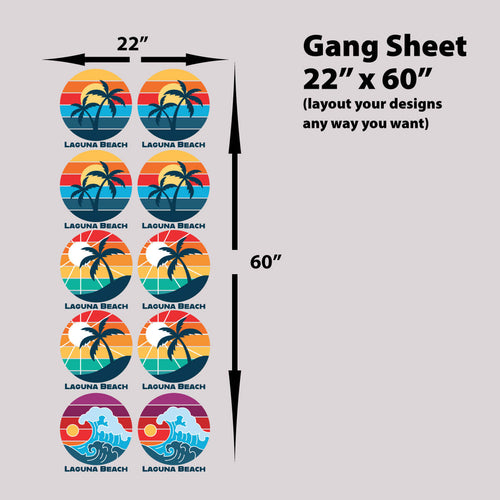
Bad files don't just hurt quality. They slow approvals, trigger re-uploads, and waste space on gang sheets. When you're placing multiple designs together, file prep affects how tightly you can build your layout and how smoothly production moves.
A good PNG removes a lot of this friction before the order ever hits print.
What Exactly Is a PNG File
A PNG, short for Portable Network Graphics, is a raster image file. Raster means the image is built from pixels. That makes PNG different from a vector file like SVG, which is built from mathematical paths.
For DTF printing, two PNG features matter more than anything else: lossless compression and transparency.
Lossless means the image data stays intact
When a PNG is compressed, it reduces file size without throwing away image information. That's what makes it useful for artwork with hard edges, logos, text, layered effects, and graphic elements that need to stay clean.
A JPG works differently. It saves space by discarding some image data. That trade-off is fine for many web photos, but it's a bad trade for apparel graphics with crisp outlines and small detail.
Transparency is the feature most customers need
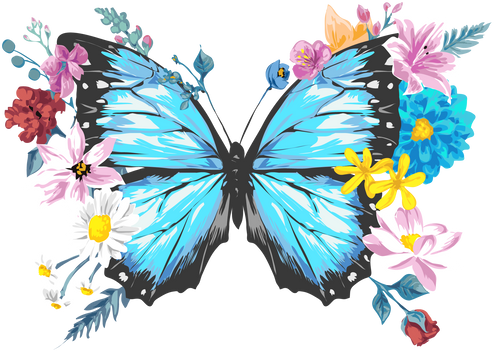
A PNG can store transparent areas so the design doesn't have to sit inside a visible box. That's the practical reason print shops ask for PNG so often. Consider this analogy:
- A JPG is usually a full rectangle.
- A PNG with transparency can behave like a cutout.
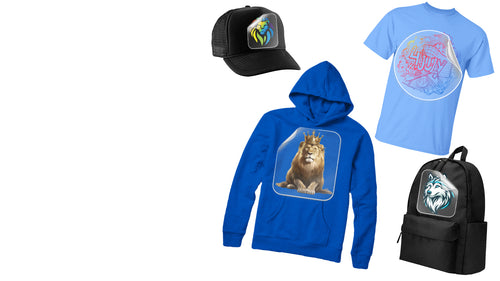
That matters when you're printing a logo onto a black hoodie, placing script text over a colored garment, or building a gang sheet with several non-rectangular designs.
PNG came from a real technical need
PNG wasn't created as a branding exercise. It was developed in 1995 as a response to patent licensing problems tied to GIF, and early testing showed PNG compression was 10% to 30% more efficient than GIF for equivalent images, according to the PNG history documented on Wikipedia.
The reason PNG lasted is simple. It solved a real problem and did it with cleaner technical behavior for graphics.
For a DTF customer, the historical detail isn't the main point. The useful point is that PNG was built to be a stronger graphics format from the start, and that still shows in daily print workflow.
PNG vs Other Image Formats for DTF Creators
Not every image format fails in print. But not every format makes your job easy either. For DTF creators, the best file type depends on the artwork itself, the amount of transparency involved, and how much cleanup you want to avoid before production.

The quick comparison
| Format | Best use in DTF workflow | Main weakness |
|---|---|---|
| PNG | Cutout graphics, logos, layered artwork, transparent designs | File sizes can get heavy |
| JPG | Photo references or web previews | No transparency and lossy compression |
| SVG | Simple vector art and logos before raster export | Not ideal for every textured or photo-based design |
| Mixed artwork when built correctly | Hidden setup problems can slip through | |
| TIFF | High-quality archival or specialty print workflows | Usually larger than needed for standard DTF uploads |
Why PNG usually wins
PNG hits the sweet spot for most DTF customers. It preserves detail better than JPG for graphic art, and it supports transparent backgrounds so the transfer follows the actual shape of the design.
That makes it a strong default for:
- Logo prints
- Left chest graphics
- Full-front art with transparent edges
- Gang sheet uploads with multiple cutout elements
- Artwork that mixes text, illustration, and soft transparency
If you're also trying to understand screen color versus print color, this guide on CMYK vs RGB helps explain why a file can look different before it hits fabric.
Where JPG falls short
JPG is fine for web photos. It isn't reliable for DTF transfer art that needs crisp boundaries.
Common JPG problems in print include:
- Visible background boxes
- Compression artifacts around text
- Softened edge transitions
- Muddy small details
A customer will often send a logo as a JPG because it "looks clean." Then you zoom in and see blocky edges around every letter.
What about WebP and AVIF
For web delivery, newer formats are getting more attention. According to Cloudinary, AVIF can offer up to 50% smaller file sizes than PNG with similar quality, but PNG remains the universal standard for compatibility with DTF printing software and online builders as of 2026 in that same overview of PNG and image format conversion.
That distinction matters. A format can be excellent for websites and still be a bad handoff file for print production.
Send the file format your print workflow will open cleanly every time. Compatibility beats novelty when the job is on deadline.
Where other formats still have a place
SVG is excellent upstream when you're designing a logo from scratch. PDF can be useful when a designer knows exactly how to package the job. TIFF still has a place in some high-end imaging environments.
But for most DTF uploads, PNG is the practical answer because it balances quality, transparency, and broad compatibility without creating extra interpretation problems.
The Anatomy of a Print-Ready PNG File
A PNG can be technically valid and still not be print-ready. The difference comes down to what is inside the file, not just the extension at the end of the filename.

Resolution at the final print size
The first checkpoint is simple. The artwork needs to have enough pixel information for the size you want to print.
If you want a large front print, the file needs to be built for that size. Stretching a small online image almost always creates fuzzy detail, rough curves, and soft type. This shows up fastest on thin lines and small lettering.
For DTF, people often talk about 300 DPI because it gives a strong baseline for print-ready artwork at final size. More important than the label, though, is the actual pixel count in relation to the finished dimensions.
Transparency has to be real
A transparent background isn't the same as a white background that looks invisible on your screen.
A proper PNG stores transparency in an alpha channel. That lets the transfer follow the shape of the artwork instead of printing a rectangle around it. This is one of the biggest reasons PNG works so well for apparel graphics with open space, script fonts, badge shapes, and layered design elements.
Color information is part of the file too
A PNG can also store color profile data. That matters because the print software needs clues about how to interpret the colors you're sending.
The W3C PNG specification describes PNG as a chunk-based format that can store image data, color profile information through iCCP, and 8-bit or 16-bit alpha transparency. The same specification notes that this structure is important in print use because it supports accurate transparency behavior tied to clean ink placement and durability.
What the file is doing under the hood
You don't need to memorize chunk names to upload a good file. But knowing the basics helps:
- IHDR stores the core image header.
- IDAT holds the image data itself.
- IEND marks the file end.
- iCCP can carry embedded color profile information.
- Alpha data controls transparent areas.
That structure is one reason PNG behaves predictably in print workflows. It isn't just a picture in a box. It's a file format designed to carry the image plus supporting information cleanly.
If your design has transparency, color-sensitive artwork, and fine edge detail, PNG gives the print system more of what it needs and less guessing.
How to Prepare Your PNG for Flawless DTF Transfers
Good PNG prep starts before export. If the document setup is wrong, saving as PNG won't fix it later.

Start with the right canvas
Build the file at the print size you want. Don't design a tiny graphic and plan to scale it up after export.
A solid setup approach looks like this:
- Set the canvas to final dimensions. If it's going on the front of a shirt, build for that intended print area.
- Use a print-quality resolution. For most DTF artwork, creators target 300 DPI at final size.
- Work in CMYK while designing. That keeps effects, blending, and export behavior more predictable in most design apps.
Keep the background off
This is the step people miss most often.
If you're working in Photoshop, Procreate, Canva, or Illustrator, turn off or remove the background layer before export. Then export as PNG with transparency enabled. If the app offers a checkbox for Transparency or Alpha Channel, make sure it's active.
For Illustrator users who need to place artwork correctly before export, this walkthrough on how to embed image in Illustrator is useful when linked graphics are causing handoff problems.
Export cleanly
A print-ready PNG should be cropped to the design edge, not buried in a giant empty canvas. Excess transparent space makes gang sheet building harder and can waste time during layout.
Use this quick export checklist:
- Choose PNG
- Enable transparency
- Crop unnecessary empty area
- Check that text edges still look clean at zoom
- Confirm the design dimensions before upload
Check the file before you send it
Open the exported PNG on a checkerboard background if your software supports it. If you see white behind the artwork, it isn't transparent. If small text looks rough at close zoom, go back to the source art.
A simple preview step catches a lot of expensive mistakes.
Here's a short visual walkthrough if you prefer seeing setup decisions in action:
Use an auto-builder when you're laying out multiple designs
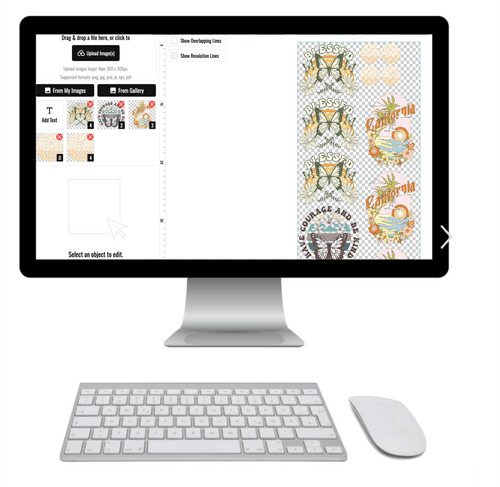
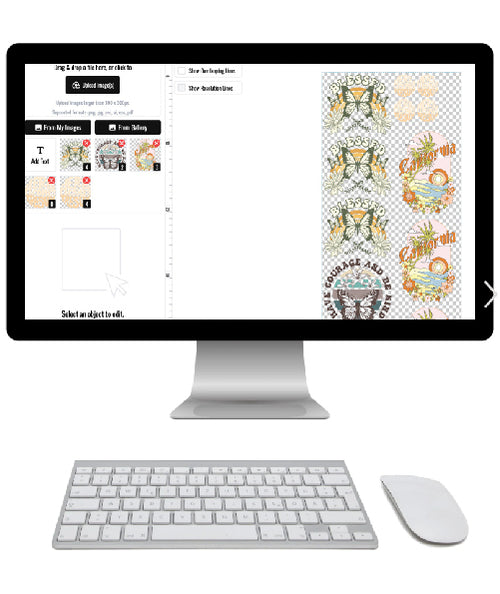
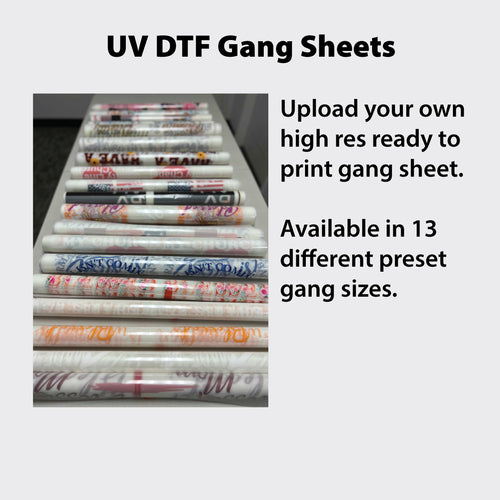
Once the PNG is clean, layout becomes the next efficiency issue. For gang sheets, an Auto-build gang sheet builder is the easiest route because it places multiple ready files faster and more cost-effectively than dragging each one around by hand.
That matters most when you're combining chest prints, sleeve hits, neck labels, and full-front art on one sheet. Clean PNGs make the process smoother because the builder can work from the true edges of the art instead of fighting hidden backgrounds or oversized blank space.
Troubleshooting Common PNG Print Issues
When a PNG fails in print, the symptom usually points straight to the cause. The fix gets easier when you stop treating every issue like a mystery.
White box around the design
Cause: The file doesn't have true transparency.
This happens when the artwork was exported with a visible background layer or saved from a format that flattened the design onto white.
Fix: Re-export the file as PNG with transparency enabled. Before saving, hide the background layer and confirm the preview shows open space around the artwork.
Jagged or fuzzy edges
Cause: Low source resolution, poor scaling, or weak edge quality in the original art.
A PNG can't restore detail that wasn't there. If the logo came from a screenshot or a small social media image, the result will usually show rough edges when printed.
Fix: Go back to the original design file. Rebuild or re-export at proper print size. If the art started as vector, export a fresh high-resolution PNG from the vector source.
Don't try to rescue a bad small file by saving it as PNG again. The format preserves quality. It doesn't create quality.
File takes too long to upload
Cause: PNG files are often much larger than JPG files, especially for print art with transparency and high resolution.
Adobe notes that PNG files can be 2 to 5 times larger than JPEGs, and that a standard 300 DPI design can be 5 to 10MB, with 68% of print professionals reporting workflow bottlenecks in a 2025 survey, according to Adobe's overview of PNG file characteristics and workflow limits.
Fix: Reduce wasted canvas area. Crop to the artwork edges. Remove unnecessary extra transparent space. Keep the image at the needed print size rather than exporting an oversized document.
Colors don't print like the screen
Cause: The display and the print workflow don't interpret color the same way.
This isn't always a PNG problem by itself. It's usually a file prep and color expectation problem working together.
Fix: Use consistent design settings, avoid random conversions right before upload, and don't judge final print color from an over-bright phone screen alone. If exact brand color matters, consistency in the source file matters first.
Your PNG Checklist for Perfect Prints Every Time
For DTF work, PNG stays popular because it solves the problems creators run into most often. It handles transparent backgrounds cleanly, keeps graphic detail intact, and fits how most upload-based print workflows operate.
Use this checklist before every order:
- Final size is correct. Build for the actual print dimensions.
- Resolution is print-ready. Use enough pixel data for the finished size.
- File is saved as PNG. Don't hand off a JPG when the design needs transparency.
- Background is transparent. No hidden white box.
- Canvas is cropped tight. Remove extra empty space around the art.
- Edges look clean at zoom. Check small text and outlines before upload.
- Colors were prepared consistently. Don't rely on screen appearance alone.
The better your PNG prep, the fewer surprises you get on press. When the file is right, the transfer process gets simpler, cleaner, and more predictable.
If you want a fast, reliable place to turn print-ready PNGs into finished transfers, Lion DTF Transfers makes the process easy. You can upload your artwork, use the Auto-build gang sheet builder for faster and more cost-effective layouts, and get professional DTF transfers built for sharp color, clean edges, and dependable results.