


TL;DR: PDF is the best all-around file format for professional printing, especially for DTF. It has been the gold standard since 1993, and print-focused standards like PDF/X-1a and PDF/X-4 became industry benchmarks because PDF preserves layout, embeds fonts and images, and keeps artwork consistent across print workflows, which is why it’s the safest default for getting a file right the first time (Imprint Digital on print file formats).
You’ve probably seen the problem already. A design looks clean on screen, the colors feel right, the edges look sharp, and then the printed piece lands in your hands with fuzzy details, flattened gradients, or text that doesn’t sit the way you expected.
Often, the blame falls on the printer first. In practice, the file is usually where the job started going wrong.
When people ask what file format is best for printing, they’re usually asking a bigger question. They want to know how to avoid wasted material, missed deadlines, rework, and the kind of print result that makes a shirt, sticker, flyer, or promo piece look homemade instead of sellable.
From Screen to Shirt Why Your File Format Matters
A common failure point starts with a perfectly reasonable decision. Someone exports a design as a quick image, uploads it, and assumes that if it looks fine on a laptop screen, it will print fine too.
That works sometimes. It fails often enough to matter.
On a screen, software smooths edges, brightness helps weak artwork look stronger, and small flaws hide easily. Print is less forgiving. Once ink hits film, paper, or fabric, every weakness in the file shows up fast. Thin outlines break down. Compression artifacts appear in shadows. Small text turns soft. Colors shift because the file wasn’t built for print conditions.

That’s why file format isn’t a minor export choice. It’s part of production.
Practical rule: If the file format strips detail, substitutes fonts, or forces a shop to reinterpret your artwork, you’ve already increased the chance of a bad print before production even starts.
This matters even more when the print has to survive real use. Apparel graphics get stretched, washed, and inspected at close range. Promotional pieces carry a brand name. Event merch has a deadline. School orders and team gear usually involve multiple names, logos, or placements, which means one weak file can create problems across an entire run.
A print-ready file does three things well:
- It preserves the artwork: Shapes, text, and image quality stay intact.
- It travels cleanly: The printer opens the file without missing assets or substituted fonts.
- It reduces guesswork: The shop doesn’t have to rebuild, repair, or reinterpret your design.
If you get that part right, everything downstream gets easier. If you get it wrong, every correction costs time.
Understanding Vector vs Raster The Building Blocks of Design
The biggest concept in print prep is simple. Some artwork is built from vectors. Some is built from rasters.
If you understand that difference, you’ll make better file choices almost immediately.

Vector is a recipe
A vector file is built from paths, points, and mathematical instructions. Much like a recipe, the file describes how the shape should be drawn, not just what it looked like at one fixed size.
That’s why a vector logo can go from a small left-chest print to a much larger graphic without losing edge quality. The software redraws the shape cleanly at whatever size the print needs.
Formats commonly associated with vector artwork include PDF, AI, EPS, and SVG.
Raster is a photograph
A raster image is made of pixels. Much like a finished photo, it already exists at a set resolution, and when you enlarge it too far, those pixels become visible.
Photos, detailed textures, and painted artwork often start as raster files. That’s normal. The issue isn’t that raster is bad. The issue is that raster has limits, especially when the original file is small or compressed.
If you’ve ever stretched a logo screenshot and watched the edges go soft, that’s raster failing outside its intended size.
For a deeper breakdown, Lion DTF’s guide on raster vs vector artwork for printing is worth reviewing before you export final files.
Why this matters in real print jobs
A simple way to decide is this:
- Use vector when the design depends on clean edges: logos, text, icons, badges, line art
- Use high-resolution raster when the design depends on photo detail: portraits, gradients, painterly effects, textured illustrations
The mistake is treating those two types as interchangeable.
A logo should stay crisp at any practical print size. A photo should stay detailed at its intended output size. Those are different requirements, and the file type needs to respect that.
One fast test
Open your artwork and zoom in hard.
If curves and text stay perfectly smooth, you’re likely working with vector. If edges break into little squares, you’re looking at raster. That doesn’t automatically mean the file is unusable, but it does tell you what kind of quality ceiling you’re dealing with.
This is also why designers get into trouble with screenshots, social media assets, and files pulled from websites. They often look sharp enough at screen size, but they weren’t created for print output. Once enlarged, they show their limits immediately.
The Print-Ready Checklist Color Mode Resolution and Bleed
A file can be in the right format and still fail in production.
At Lion DTF, the files that cause delays usually break in three places: color mode, resolution, or bleed and edge safety. Get those settings right before upload, and approval is faster, print quality is more predictable, and rework is less likely.

Color mode needs to match print reality
Screens display RGB. Print production usually runs through CMYK-based output.
That difference matters because some colors that look bright and saturated on a monitor cannot be reproduced the same way with ink. If conversion happens late, color shifts are more likely, especially in vivid blues, greens, and neon-like tones.
If you build artwork on screen first, review Lion DTF’s guide to RGB to CMYK conversion for print files. It explains what changes during conversion and how to catch problem colors before submission.
For professional printing applications, PDF is typically paired with 300 DPI resolution and CMYK color space, with export settings built around printer profiles and press-ready output in standards like PDF/X (Printful’s print file preparation guide).
For DTF transfers, that does not mean every customer has to do a perfect manual CMYK conversion before sending art. It does mean the file should be prepared with print output in mind, not treated like a social graphic that only has to look good on a phone screen.
Resolution decides whether detail survives
Low resolution is one of the fastest ways to ruin a good design.
A small web image can look sharp on screen and still print soft, jagged, or blurry once it reaches shirt size. I see this often with screenshots, marketplace mockups, and logos copied from websites. They pass a casual visual check, then fall apart at output size.
High-resolution raster formats like TIFF and vector formats like EPS hold up better for print than heavily compressed JPEGs. UCLA LibGuides notes that TIFF is favored in print-focused workflows because it preserves image quality better than JPEG compression for reproduction work (UCLA LibGuides on TIFF and print file quality).
The practical rule is simple. If the design contains raster art, build or export it at 300 DPI at final print size. Not at thumbnail size. Not at a smaller size with plans to scale it up later.
Text and logos deserve extra caution. If those elements are rasterized from a weak source file, no export setting will restore the missing detail.
Bleed protects the trim
Bleed is extra artwork outside the final cut area. It gives production room to trim cleanly without exposing a white edge.
In standard print products such as flyers, postcards, and packaging, 0.125 inch bleed is a common setup. That number is useful to know, but the bigger point is understanding edge safety. If your background, shape, or color block is supposed to run off the edge, the art has to extend past the final boundary.
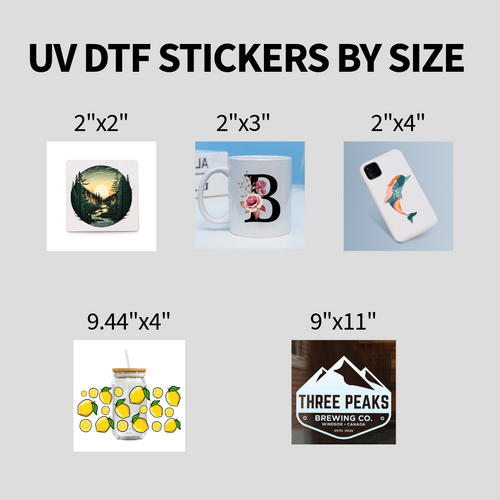
DTF jobs do not always use bleed the same way as offset print pieces. Still, the same production logic applies. Keep important text, thin outlines, and small details away from any edge where trimming, gang layout, or contour decisions could clip them. Clean boundaries produce cleaner transfers.
Files usually fail for ordinary reasons. RGB art was never reviewed for print. Raster art was too small. Text sat too close to the edge.
A quick preflight before you upload
Use this checklist before sending any print file:
- Check color mode: Make sure the file was prepared for print output, not left as a screen-only asset without review.
- Check raster resolution: If the design includes photos or pixel-based artwork, confirm it is 300 DPI at final print size.
- Check edge safety: Add bleed where the product requires it, or at minimum keep important content clear of trim and finishing risk areas.
- Check compression: Avoid repeatedly re-saving artwork as JPEG if image quality matters.
- Check placed assets: A strong layout can still fail if one embedded image is low resolution.
That five-minute check saves time on both sides. It also gives your file a much better chance of printing cleanly the first time.
A Practical Comparison of Print File Formats
People often want one universal answer to what file format is best for printing, but in production there’s a better way to think about it. There’s a best general-purpose format, and then there are secondary formats that work well in narrower situations.
Here’s the useful distinction. PDF is the best default. TIFF is the best raster choice for photo-heavy work. JPEG is usually the weakest option for serious print prep. The rest depend on what stage of the workflow you’re in.

What each format does well
PDF
Best all-around choice for submitted print files. It can contain vector elements, raster images, embedded fonts, and layout structure in one package. It’s usually the safest final delivery format.
TIFF
Best for photorealistic raster art. TIFF excels for print because it preserves image quality without the damage that comes from aggressive compression. According to B&B Press, TIFF delivers lossless compression and bit-depth fidelity that surpasses JPEG’s 8-bit limitations, preventing banding in color transitions and reducing visible artifacts by 40% in 300 DPI outputs (B&B Press on TIFF for printing).
PNG
Useful when you need transparency and a simple upload path. It’s common for online art submission, but it’s still raster. That means it isn’t the strongest long-term choice for files that may be scaled, revised, or reused in several print sizes. If you’re deciding whether a transparent PNG is enough, this explainer on what a PNG file is and where it fits gives the right context.
PSD
Good working format, weak delivery format. PSD keeps layers, masks, and editability, which is excellent during design. It’s not the best file to hand off as a final production file unless a shop specifically asks for it.
AI
Excellent for native vector editing in Adobe Illustrator. If the artwork was built there, AI is often the cleanest source file. But for handoff across different systems, a properly exported PDF is usually safer.
EPS
Still useful for logos and legacy vector workflows. EPS scales cleanly, but it’s more limited than modern PDF-based workflows in many production environments.
SVG
Great for web vectors and some cutting workflows. Less common as a primary final print delivery file, but still useful for specific vector-based production tasks.
JPEG
Fast, small, and common. Also the format most likely to cause avoidable quality problems if it has been compressed, resaved, or enlarged beyond its real resolution.
Print File Format Comparison
| Format | Type | Best For | Supports Transparency? | DTF Suitability |
|---|---|---|---|---|
| Vector + Raster container | Final print-ready files, layouts, mixed artwork | Yes | Excellent | |
| TIFF | Raster | Photos, gradients, detailed image-based art | Limited | Very good for raster art |
| PNG | Raster | Simple transparent graphics, quick uploads | Yes | Good if high resolution, not ideal as universal final format |
| PSD | Raster working file | Editing layered artwork | Yes | Fair as source file, not ideal as final handoff |
| AI | Vector | Native vector artwork and logo creation | Yes | Excellent as source file |
| EPS | Vector | Legacy logos and clean line art | Limited | Good |
| SVG | Vector | Web vectors, some cutter-related workflows | Yes | Situational |
| JPEG | Raster | Casual photo use, quick sharing | No | Weak for logos, text, and rescaling |
What works versus what causes problems
A few patterns show up over and over in print production:
- PDF works because it travels well: It keeps the design together as one controlled file.
- TIFF works because it protects image data: It’s the better raster choice when the artwork is photographic or gradient-heavy.
- PNG works when convenience matters: It’s easy to upload and supports transparency, but it doesn’t replace a stronger production format.
- JPEG causes trouble when quality is already marginal: Compression and fixed resolution stack against it.
If the file includes small text, logos, line art, or needs flexible sizing, don’t make JPEG your master file.
The practical winner
For most professional print jobs, especially mixed artwork and customer handoff, PDF wins.
If the file is entirely image-based and built around photo detail, TIFF is the best alternate choice.
Everything else is either a source format, a convenience format, or a format that works best in limited use cases rather than as the default answer.
Why PDF Is the Gold Standard for Professional Printing
A common production failure looks like this. The artwork looks correct on the customer’s screen, then arrives with missing fonts, shifted text, flattened transparency, or linked images that never came through. That is the handoff problem PDF solves.
PDF became the standard because it holds the design together in a format prepress systems, RIP software, and production teams can read consistently. For DTF work, that consistency matters even more when a file includes vector logos, raster textures, transparency, and placement that needs to stay exactly where it was built.
Why shops ask for PDF instead of native files
Native design files like AI and PSD are strong working files. They are less reliable as final submission files unless the printer specifically asks for them.
A production-ready PDF packages the parts that usually break during handoff:
- Fonts can be embedded, so text stays in place
- Vector elements remain clean, which protects logos, outlines, and small type
- Raster images stay attached, instead of relying on missing links
- Output settings travel with the file, which gives prepress a clearer starting point
That reduces back-and-forth. It also reduces the number of decisions the print shop has to make on your behalf.
I see the difference in real jobs. Customers who send a clean PDF usually move through approval faster than customers who send editable source files with loose fonts, unresolved effects, or missing image links.
Why PDF fits DTF better than generic print advice suggests
For DTF transfers, the winning file is not just the one that opens. It is the one that holds edges, text, transparency, and mixed artwork without surprises.
That is where PDF earns its place.
A single design might combine vector text, a distressed raster texture, transparent background areas, and fine details that need to print cleanly onto film. PDF handles that mix well if it is exported properly. PNG can be convenient for simple transparent art. TIFF can protect image quality for photo-heavy work. PDF is still the better default handoff file for mixed artwork because it keeps more of the original structure intact.
PDF/X is usually the right target
A basic PDF export and a print-ready PDF are not the same thing. Print standards such as PDF/X-1a and PDF/X-4 exist to make output more predictable.
In practice, PDF/X-4 is often the better choice when the artwork includes live transparency and layered effects that need to survive export cleanly. PDF/X-1a can still be useful in older workflows that prefer everything flattened and locked down.
For Lion DTF’s workflow, the goal is simple. Send a PDF that keeps the art stable, sized correctly, and ready to process without repair work.
The best print file is the one that reaches production with nothing left to guess.
The Lion DTF Blueprint Exporting Perfect Files Every Time
Generic print advice usually stops too early. It tells you to send a PDF, keep resolution high, and convert for print. That’s useful, but DTF has its own demands, especially when white ink handling and gang sheet layout enter the picture.
For DTF printing, most guides recommend PDF but fail to address white ink channel setup. Little Mountain Printing notes that using PDF/X-4 settings with overprint previews for white layers can produce 20-30% better vibrancy for DTF-specific output than generic PDF handling (Little Mountain Printing on DTF-specific file setup).
The export settings that usually work best
If you’re preparing artwork in Illustrator, Affinity Designer, Canva, or similar software, the practical target is simple:
-
Build at final size
Don’t rely on a small web asset and hope the shop can enlarge it cleanly later. -
Keep vector elements as vector
Text, logos, and shape-based graphics should stay editable until export, then convert into a stable final file. -
Use high-resolution raster images only when needed
If the design includes photos or textured image elements, make sure they are high quality at final output size. -
Export as PDF when possible
Prefer print-oriented PDF settings over convenience export settings. -
Check transparency and white areas intentionally
DTF output can be affected by how transparent objects, knockouts, and white underbase information are interpreted.
Software-specific habits that save time
In Adobe Illustrator
Start with artboards at final size. Embed linked images before export. If the job is heading to print, avoid leaving critical text dependent on missing fonts. Export to a print-ready PDF standard rather than a lowest-file-size preset.
In Affinity Designer
Affinity can produce clean export files, but only if you confirm rasterized effects, placed images, and transparency behavior before saving the final file. Don’t assume a nice on-screen preview means the export is production-safe.
In Canva
Canva is convenient, but convenience has limits. It works better for straightforward layouts than for highly technical print files. If you use it, choose the highest-quality PDF export available and check every placed image before upload. Canva designs often inherit weak source images from drag-and-drop assets, and that’s where many issues begin.
A short handoff checklist for DTF jobs
Use this before you upload:
- Final size first: Build the art for the size you intend to print.
- Clean edges: Remove stray pixels, accidental shadows, and invisible objects outside the artwork area.
- Transparent background where needed: Don’t leave a fake white box behind the design if the artwork is supposed to float.
- White ink awareness: If the artwork needs controlled white underbase behavior, don’t assume generic export settings will handle it correctly.
- Prefer PDF/X-4 when white-layer behavior matters: That setting is often the safer choice for DTF-specific color and white handling.
A file can be technically printable and still be poorly prepared for DTF. That’s the gap many generic print guides miss.
The easiest way to avoid layout waste
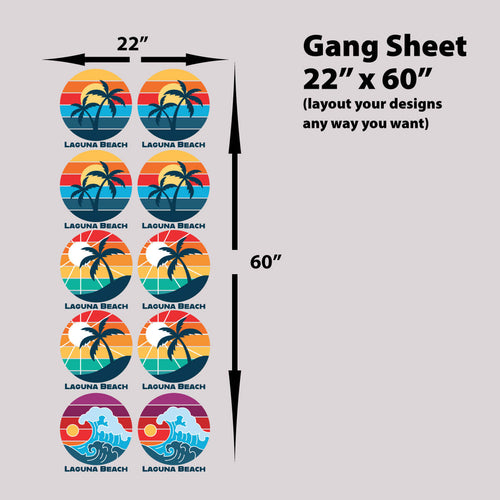
Gang sheets add one more production variable. Even when the artwork itself is fine, poor arrangement wastes material and raises cost.
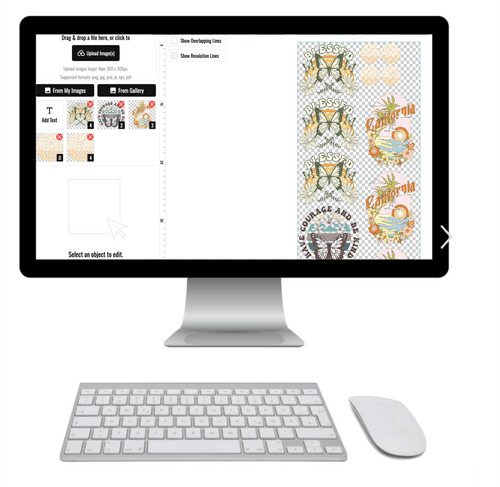
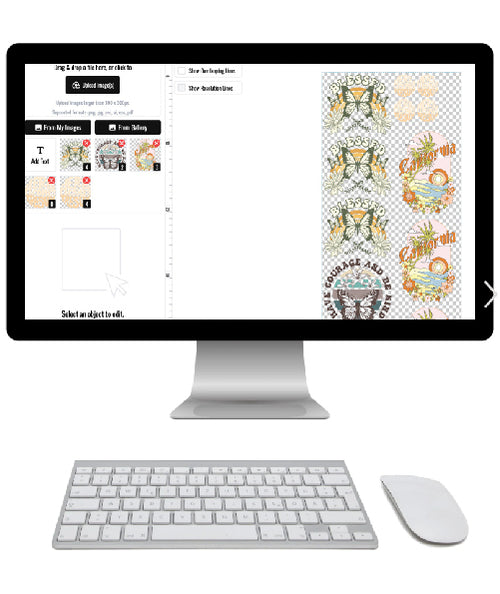
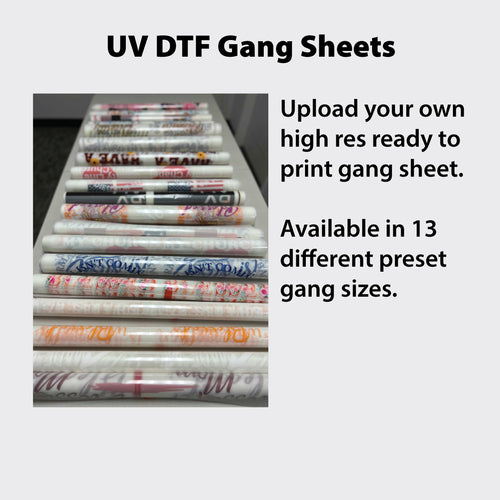
That’s where an Auto-build gang sheet builder is useful. It helps arrange multiple designs efficiently, which makes ordering easier and keeps layout decisions from turning into unnecessary waste. It’s one of the simplest ways to make a file workflow more cost-effective without rebuilding artwork manually.
If file prep still feels messy, a We Build a Gang Sheet for You option is the practical fallback. That’s helpful for shops, small brands, and hobby makers who have usable art but don’t want to spend extra time arranging sheets, checking spacing, or second-guessing whether the file is ready.
The best workflow is the one that removes avoidable decisions before production starts. Build clean artwork. Export a proper PDF. Handle DTF-specific white and transparency intentionally. Use tools that simplify gang sheet layout instead of forcing manual placement every time.
If you want fast, reliable DTF transfers without guessing at file prep, Lion DTF Transfers makes the process straightforward. You can upload print-ready artwork, use the Auto-build gang sheet builder for an easy and cost-effective layout, or choose the We Build a Gang Sheet for You service if you want a hands-off option.