


You know the feeling. The transfer looks decent on the film, the press closes cleanly, the peel seems fine, and then the shirt cools down and the problems show up. Soft edges. Muddy color. A design that looked sharp on screen suddenly feels cheap in hand.
That moment frustrates every DTF seller because it usually isn't one big mistake. It's a chain of small ones. The file was a little soft. The color wasn't managed. The transfer was printed on the wrong setup. The press ran a little hot, or a little light, or the garment held moisture. By the time the problem reaches the shirt, the cause is already upstream.
If you want to learn how to improve print quality in a DTF workflow, stop treating it like a printer problem. Treat it like a pixel-to-press system. Sharp prints come from good file prep, controlled color, reliable transfers, disciplined pressing, and troubleshooting that isolates one variable at a time. That's how small shops stop wasting film, shirts, and time. It's also how hobby sellers start producing transfers they can sell with confidence.
The Difference Between a Good Print and a Great One
A good print gets the job done. A great print looks intentional.
You see the difference at the edges first. Small text stays readable. Fine lines don't fuzz out. Gradients feel smooth instead of dirty. White underbase doesn't fight the top color. The design sits on the garment like a finished product instead of a rushed decoration.
In DTF, quality usually breaks down in predictable places. The artwork wasn't built cleanly. The file got enlarged after export. The shop skipped color control. The press operator guessed instead of testing. None of those problems look dramatic by themselves, but together they turn a promising order into a remake.
What great shops control
The shops that get consistent, sellable results usually control the same core points:
- File quality: The artwork is built at the right size and checked before upload.
- Color workflow: Screen expectations and printer output are aligned as closely as possible.
- Transfer consistency: Film, ink laydown, white base, and adhesive application stay stable from order to order.
- Press discipline: The operator treats time, temperature, pressure, garment type, and peel method as production settings, not guesses.
- Troubleshooting method: When something goes wrong, they change one thing and test again.
Practical rule: Most “print quality problems” start before the heat press closes.
That's the shift that matters. Once you understand that quality is built in stages, your results get much easier to control. You stop chasing random fixes and start building a repeatable workflow.
What doesn't work
A lot of common advice sounds useful but fails in real production.
- Buying sharper equipment without fixing the art: A weak file won't become crisp because the machine is expensive.
- Changing multiple settings at once: If you alter pressure, temperature, and dwell time in the same round, you won't know what fixed the issue.
- Judging color from the screen alone: Backlit screens flatter artwork. Fabric and ink don't behave that way.
- Ignoring gang sheet setup: Crowded, sloppy layouts create handling mistakes and wasted space.
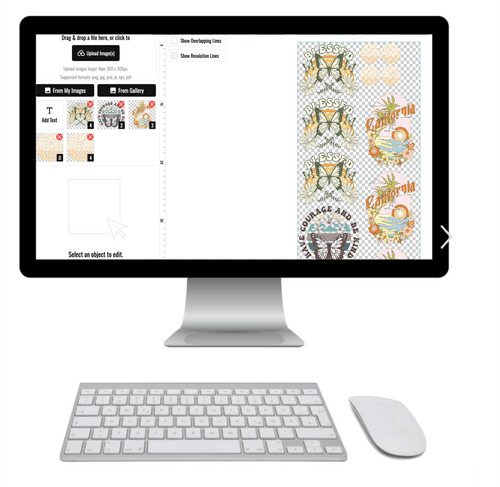
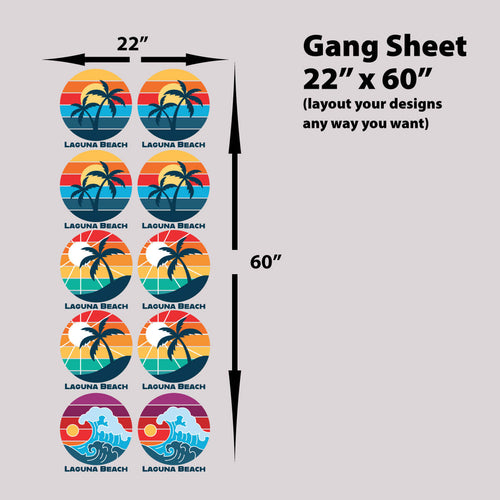
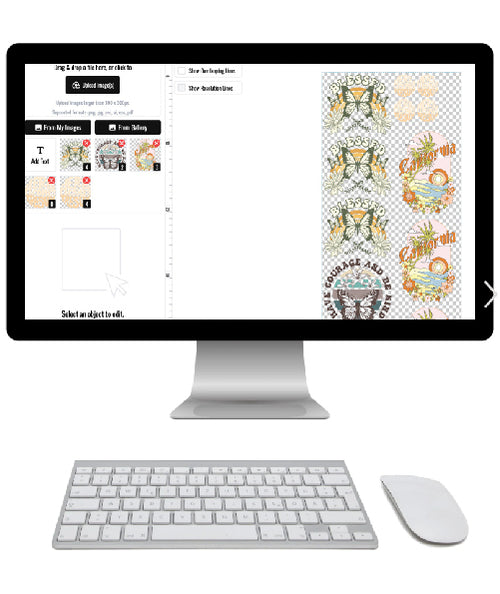
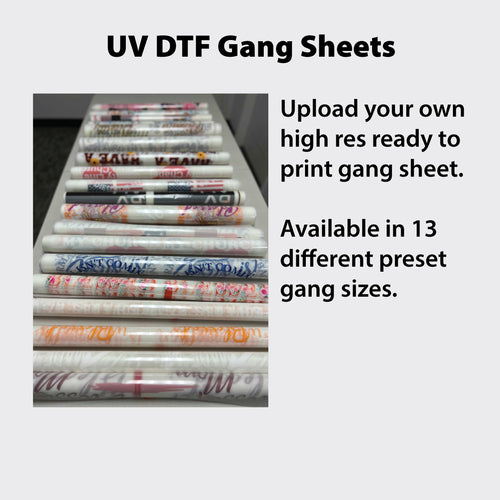
If you're running multiple logos, sleeve pieces, left chest prints, or repeat orders, an auto-layout tool can remove a lot of avoidable friction. A tool like an Auto-build gang sheet builder helps organize finished artwork efficiently, which makes production easier and more cost-effective, but only if the files going into it are already clean.
Start With a Perfect Digital Source File
Most DTF quality problems begin long before ink hits film. They start with the artwork.
A printer can only reproduce what the file contains. If the edges are soft, if compression artifacts are baked in, or if the design was stretched past its intended size, the transfer will expose it. Heat pressing doesn't hide weak art. It reveals it.
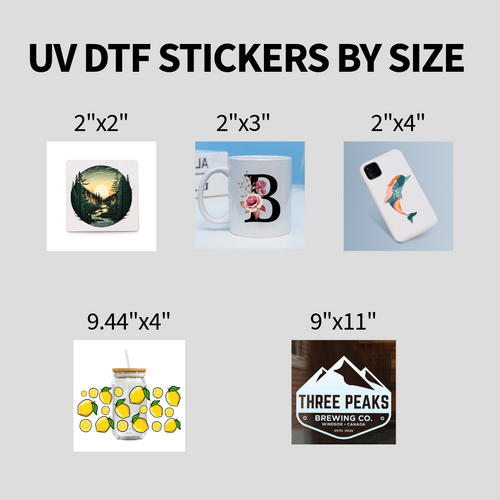
A foundational benchmark for file prep is 300 DPI at the final print size. Lenovo notes that high-quality printing typically requires images at 300 DPI or higher, while 72 DPI files are suitable for screens but usually print blurry or pixelated in physical output. Read that benchmark in Lenovo's print quality overview. For DTF, that means you should build or export the artwork at the actual size you plan to print, not small first and enlarged later.
Size first, resolution second
A common mistake is checking DPI without checking dimensions. A file can technically be high resolution and still be wrong for the print if it was built at the wrong physical size.
Use this order:
- Decide the finished print size first. Chest print, full front, sleeve, hat patch area. Lock that in.
- Build the file at that exact size. Don't rely on the RIP or gang sheet tool to scale it correctly later.
- Confirm the resolution at final size. If it drops when enlarged, the file isn't ready.
- Zoom in before upload. Jagged edges, halos, leftover backgrounds, and compression noise show up fast when you inspect closely.

Vector where possible, clean raster when needed
For logos, line art, and bold graphics, vector files are easier to keep sharp. They scale cleanly and hold edges better. If the art has to stay raster, use a clean source file and avoid repeated exports that introduce compression.
If you're deciding which format to send, this guide on what file format is best for printing is a useful practical reference.
Here's the shop rule. Don't upload the only copy you have. Keep an editable master file, export a print-ready version, and inspect the export before it enters production.
Clean artwork saves more jobs than printer tweaks do.
Gang sheets only save money when the artwork is ready
Gang sheets are one of the easiest ways to reduce waste, especially when you're combining left chest logos, neck labels, sleeve hits, and full-size prints on one run. But the gang sheet itself doesn't improve the art. It only arranges it.
That's why I always treat layout as the last step, not the first. Finalize every design, confirm transparency, confirm size, then place it. If you skip that order, you end up fixing errors after the sheet is already built.
An Auto-build gang sheet builder helps here because it makes layout faster and more cost-effective, especially when you're packing many designs into one sheet. The value isn't magic. The value is that it reduces manual arrangement time and wasted space after your files are already production-ready.
A simple pre-upload checklist
Before any DTF file goes out the door, check these:
- Final dimensions: The artwork matches the intended print size.
- Edge integrity: Small text, fine strokes, and corners still look sharp at high zoom.
- Background cleanup: No stray pixels, ghost boxes, or accidental white fills.
- Transparent export: The file preserves the cutout cleanly where needed.
- Version control: You're uploading the approved, final export, not a draft from an earlier revision.
A strong source file doesn't guarantee a perfect shirt. But a weak one almost guarantees a disappointing transfer.
Master Your Color Management Workflow
Most color complaints sound like printing issues, but they're usually translation issues.
On screen, your artwork is lit from behind. On a shirt, color is built with ink on a physical surface. Those are two different systems. If you don't manage that difference, you'll keep approving one thing on the monitor and receiving something else on the garment.
A strong production sequence is to calibrate the monitor, install the correct printer and media ICC profile, soft-proof in the design software, and print using the printer's native resolution. Practitioner guidance also notes that color profiling and soft proofing improve print accuracy compared with sending unmanaged RGB files directly to the printer, as explained in this color workflow walkthrough.
ICC profiles are translators
An ICC profile tells the software how a specific device and material combination behaves. In plain terms, it helps your screen, software, and printer speak the same language more reliably.
If you've never worked with them, this overview of what an ICC profile is makes the concept easier to apply in a real workflow.
Without that translation layer, colors often drift in the places customers notice fastest:
- Reds can lose punch.
- Deep blues can shift.
- Neutrals can pick up a cast.
- Skin tones can go flat or dirty.

Soft proof before you commit
Soft proofing is one of the most useful habits in print production because it forces you to preview limitations before wasting materials. Instead of trusting the bright screen version, you preview a closer simulation of printed output.
That matters in DTF because customers often approve art digitally. If your monitor is uncalibrated and you skip soft proofing, you're making promises the final shirt may not keep.
A practical workflow looks like this:
- Calibrate the display: Start with a screen you can trust.
- Load the correct ICC profile: Match the printer, ink set, and media workflow being used.
- Soft-proof in Photoshop or Illustrator: Look for color shifts, lost detail, and muddy shadows.
- Adjust intentionally: Tweak the art while viewing the proofed version, not the raw screen version.
- Test on the intended setup: Final judgment belongs to a physical sample, not the monitor.
If color matters to the customer, a test print matters to the shop.
Common color mistakes in DTF
Shops lose time here because they focus on dramatic fixes instead of disciplined ones.
| Mistake | What happens |
|---|---|
| Designing only by eye on an uncalibrated monitor | The final transfer looks dull, dark, or shifted |
| Skipping ICC management | The printer interprets color inconsistently |
| Sending files straight through without soft proofing | Problem colors show up only after production |
| Approving based on screen glow | The garment never matches that visual exactly |
Good color management doesn't make every file identical across every garment. Fabric, white underbase behavior, and finish still matter. What it does do is remove a lot of unnecessary surprise.
Why Your Transfer Provider Matters
A common DTF headache looks like this. The artwork is clean, the color looked right on screen, the gang sheet was built correctly, and the press settings are close. Then the shirt still comes out soft in the highlights, heavy in the white, or slightly rough around fine edges.
At that point, the problem is often upstream in the transfer.
If you print in-house, you can trace quality issues back through your own equipment and process. If you order ready-to-press transfers, part of that control shifts to the provider. Film choice, white ink density, powder application, curing discipline, and daily machine upkeep all affect what lands on the garment. You only see the result after heat and pressure expose every weak spot.
Microsoft's print quality troubleshooting guide makes the same point from a general print perspective. Better output comes from correct settings, matched media, and regular maintenance. In DTF, those habits show up as cleaner color, steadier white coverage, and fewer surprises during pressing.
What a reliable provider is actually controlling
Ordering transfers means outsourcing more than ink on film. You are outsourcing consistency.
A good provider keeps registration tight, lays down a white base that supports color without choking detail, cures adhesive powder evenly, and keeps production stable from one order to the next. That matters even more on gang sheets, where poor spacing, trimming mistakes, or uneven print quality can turn one upload into several bad placements on shirts, hoodies, and totes.
Small shops feel this quickly. A transfer that looks acceptable in a sample photo can still press with a plastic hand, lose tiny details, or peel unevenly after wash testing. The provider's process decides a lot of that before the box even reaches your shop.
How to judge a provider before quality problems cost you money
Ask questions that tie directly to the finished garment.
- Do repeat orders match closely enough for real customer reorders?
- Are fine lines, small text, and edge transitions clean under normal viewing and close inspection?
- Does the white underbase support saturation without making the print feel thick?
- Do the transfers peel and repress predictably on the garment types you sell?
- Can they produce gang sheets that stay organized and easy to cut without layout confusion?
Then test like a shop owner, not like a shopper. Press the transfer on the actual blanks you sell. Stretch it. Wash it. Check how it behaves on detailed artwork, not just bold logos. Compare first orders against reorders. If your application results are inconsistent, confirm your press setup against a practical heat press settings for DTF reference before blaming the transfer.
Lion DTF Transfers is one example of a service that supports upload-ready orders, gang sheets, and repeat production. The larger point is simple. Your provider is part of your quality control system, from the digital sheet layout to the shirt your customer opens at home. Choose them with the same scrutiny you use for artwork, color, and pressing.
Perfecting the Pressing and Curing Process
A perfect transfer can still fail at the press.
That's the part many sellers underestimate. They spend all their energy on artwork and ordering, then rush the final application like it's automatic. It isn't. Pressing is where sharp, durable DTF work either gets locked into the garment correctly or starts breaking down immediately.

Time, temperature, and pressure work together
Most pressing failures happen because the operator treats these as isolated settings. They aren't. Pressure affects how the adhesive bonds. Temperature affects activation. Time affects whether the bond finishes cleanly or stays incomplete.
Garment type matters too. Cotton, polyester, and blends don't all behave the same way. Moisture in the shirt matters. Seams matter. Print placement over zippers, pockets, collars, or thick stitch lines matters.
That's why one-size-fits-all pressing advice causes trouble. Use the transfer supplier's application instructions and compare them with your own test results on the exact garment blank you're using.
What to watch during application
A clean pressing routine usually includes:
- Pre-pressing the garment: Removes wrinkles and some surface moisture.
- Flat placement: Keeps the transfer from bridging over seams or texture.
- Consistent pressure: Too light can weaken adhesion. Too heavy can distort the print or create edge issues.
- Correct peel timing: Hot-peel and cold-peel films need different handling.
- Second press: Helps finish the surface and improve hand feel.
Shop floor reminder: If the film peels with resistance in a way that looks wrong, stop and inspect before you ruin the shirt.
The second press is often where the result goes from acceptable to polished. It smooths the finish, helps settle the transfer into the garment, and can improve the final look and feel. Use a cover sheet if the process calls for it, and avoid turning the surface glossy when the job should remain matte.
Pressure problems show up fast
You can usually spot pressure issues by the symptom:
| Symptom | Likely pressing issue |
|---|---|
| Edges lifting after peel | Bond was incomplete |
| Print looks overworked or distorted | Pressure or heat was too aggressive |
| Uneven finish across the design | Garment wasn't flat or pressure wasn't even |
| Sections fail near seams or collars | Print area had height variation |
This visual walkthrough can help if you want to see pressing technique in motion.
Curing is part of quality, not an afterthought
A lot of sellers think the first press is the whole job. It usually isn't. The final finish depends on proper application and a clean post-press routine.
Use a simple discipline:
- Press according to the transfer instructions.
- Peel according to the film type.
- Inspect the whole design, especially fine edges and small details.
- Repress with the proper cover material if the process calls for it.
- Let the garment cool and check the hand feel before packing.
That extra minute saves a surprising number of avoidable complaints.
A Troubleshooting Guide for Common Print Issues
When a DTF job fails, the worst response is panic-adjusting everything.
The fastest path to a real fix is controlled testing. A solid troubleshooting workflow is to change only one or two variables at a time and validate with a test print, because that isolates the cause of defects instead of burying it. That method is emphasized in this print troubleshooting guide. Different print technologies show different defects, but the logic carries over perfectly to DTF.
If a design looks blurry, don't change the file, press temp, pressure, and peel timing all at once. If adhesion is weak, don't start swapping garments and transfer sources in the same round. Run one controlled test. Then run the next.
Start with the symptom, not the guess
Most operators waste material because they begin with a theory instead of an observation. Start with what you can see.
Ask:
- Is the problem visible on the film, or only after pressing?
- Does it affect the full design, or only edges and fine details?
- Is the issue visual, mechanical, or both?
- Did it happen on one garment, or on every garment in the batch?
That short pause keeps you from blaming the wrong stage.
Common DTF print problems and solutions
| Problem | Likely Cause | Solution |
|---|---|---|
| Blurry edges | Low-quality artwork, file enlarged too far, or soft original asset | Rebuild from a cleaner source file at final print size and inspect edges before upload |
| Colors look dull or shifted | Unmanaged color workflow, unrealistic screen expectation, or inconsistent transfer output | Use a color-managed workflow, soft-proof, and test before full production |
| Print won't adhere cleanly | Incomplete pressing, uneven pressure, moisture in garment, or application mismatch | Pre-press the garment, verify a flat pressing surface, and retest with one controlled change |
| Corners or small details lift after peel | Peel timing issue or incomplete bond | Match the peel method to the transfer type and retest pressure or dwell carefully |
| Surface feels rough or unfinished | Inadequate finishing press or inconsistent application | Add a controlled second press with the correct cover material if the process calls for it |
| Design cracks or fails early | Poor bonding, wrong application for fabric, or low process consistency | Test on the actual garment type and tighten application discipline from start to finish |
| White halo or dirty edge around artwork | Poor file cleanup or bad cutout prep | Clean the artwork manually at high zoom and export a cleaner transparent file |
| Inconsistent results across a batch | Multiple variables changed, garment variation, or transfer inconsistency | Lock one process, test on the same blank, and document the settings that worked |
The most useful troubleshooting habit
Keep a simple production log.
It doesn't need to be fancy. Write down the garment, transfer source, artwork version, press settings, peel method, and what happened. When a repeat job comes back, you won't be relying on memory. You'll be working from a record.
That matters because many “random” print problems aren't random at all. They're recurring combinations. The same blend shirt. The same oversized chest graphic. The same artwork exported from the wrong file. Once you see the pattern, the fix becomes obvious.
Don't troubleshoot from emotion. Troubleshoot from the last known good result.
A better order for diagnosing problems
If you want a practical sequence, use this one:
- Inspect the file first. Weak art creates defects that no press setting can rescue.
- Inspect the transfer next. If the issue exists before application, don't blame the heat press.
- Inspect the pressing setup. Check flatness, moisture, pressure consistency, and peel timing.
- Retest one variable. One change, one sample.
- Lock the fix in writing. Good results are only useful if you can repeat them.
Many small shops finally get control over quality. Not because they found a secret setting, but because they stopped making five changes per test.
If you want a simpler production path with upload-ready ordering, gang sheets, and transfer options for repeat apparel work, Lion DTF Transfers is one route to streamline the process. Pair that with clean files, disciplined color handling, and consistent pressing, and you'll spend a lot less time fixing bad prints after the fact.