


A stunning heat transfer starts long before you ever power on your press. The secret to a flawless t-shirt isn't just in the application—it’s locked inside your digital file. Get this part right, and you'll sidestep nearly all the common issues that plague new apparel creators.
The best designs for heat press applications are high-resolution, print-ready files built with a few key technical specs in mind. Think of your digital file as the blueprint for your shirt; any flaws in the plan will absolutely show up in the final product.
Crafting Your Foundation for Perfect Heat Press Designs
This initial setup is where you prevent headaches like fuzzy edges, off-brand colors, or that dreaded white box that screams "amateur." By focusing on a few technical rules from the start, you ensure the vision on your screen translates perfectly onto fabric.

Vector vs. Raster: The Two Main File Types
When you're creating designs for heat press projects, you'll run into two kinds of files: vector and raster. Knowing how they differ is crucial for picking the right one for the job.
-
Vector Files (SVG, AI, EPS): These are built with math—lines, points, and curves. Their biggest advantage? You can scale them infinitely. A vector graphic can be a tiny chest logo one minute and a massive full-back design the next, with zero loss in quality. This makes them perfect for logos and text that need razor-sharp lines.
-
Raster Files (PNG, JPG, TIFF): These are pixel-based, like a digital photograph. Raster images are great for complex, multi-tonal artwork with lots of detail. The catch is that their quality is tied to their resolution. If you try to blow up a small raster file, it will get blurry and pixelated. Fast.
For most DTF printing, a high-quality PNG is the gold standard. But a pro tip is to start with a vector file and export it as a PNG, which gives you the most flexibility down the line.
The Non-Negotiable Rule of 300 DPI
If you only remember one thing from this guide, make it this: your design file must be at least 300 DPI (dots per inch). DPI measures the pixel density in your image. While 72 DPI is fine for web use, it looks terrible on a shirt. It’s a guaranteed way to get a jagged, blurry print.
A 300 DPI file contains more than four times the data of a 72 DPI file of the same size. That density is what creates sharp edges, smooth gradients, and vibrant detail in the final product.
Always set your artboard or canvas to 300 DPI before you even start designing. Trying to "upscale" a low-resolution file later just doesn't work; it's a recipe for a poor-quality transfer.
Why True Transparency Is Critical
Modern DTF transfers are incredible because they only print where your design exists. This is how you get those cool, free-floating graphics without any background. But for that to work, your file needs a truly transparent background—not just a white one. If you send a file with a white background, you’ll get a giant white box printed right onto your shirt.
This is why you should always save your final art as a PNG file with transparency enabled. Avoid JPEGs at all costs, as they don't support transparency and will automatically add a white background. This one step is vital for professional-looking apparel.
Here’s a quick-reference table to keep these essential specs handy. Getting these settings right from the start is the most important step in creating print-ready files that produce flawless DTF transfers every time.
Essential File Settings for Flawless DTF Designs
| Specification | Our Recommendation | Why It's Critical |
|---|---|---|
| Resolution | 300 DPI (or higher) | Ensures sharp, clean lines and prevents pixelation or blurriness in the final print. |
| Background | Transparent | Prevents printing an unwanted white or colored box around your design. A must for free-floating graphics. |
| File Format | PNG | The best format for preserving both high resolution and a transparent background. Avoid JPEGs. |
| Color Mode | CMYK (for upload) | Our printers use CMYK, ensuring the best color. |
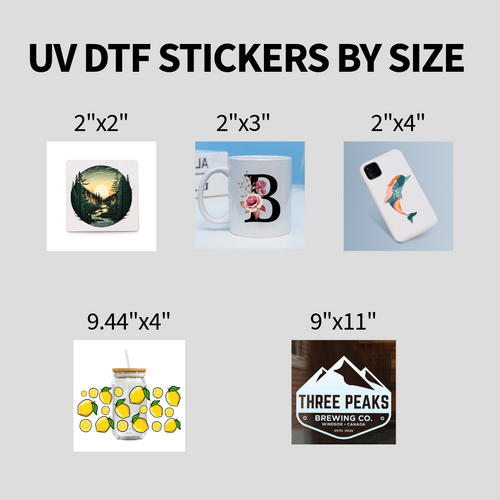
| File Sizing | Sized to Print | Design your file at the exact dimensions you want it printed to avoid scaling issues. |
Nailing these five points is your best defense against common print errors and ensures your transfers look just as good on fabric as they do on your screen.
The demand for high-quality custom gear is exploding. The global heat press machine market was valued at USD 638.1 million in 2022 and continues to grow, which shows just how big the personalized merch boom is. You can dig into the numbers and explore more research on the heat press industry. This growth makes having a reliable and efficient design workflow more important than ever.
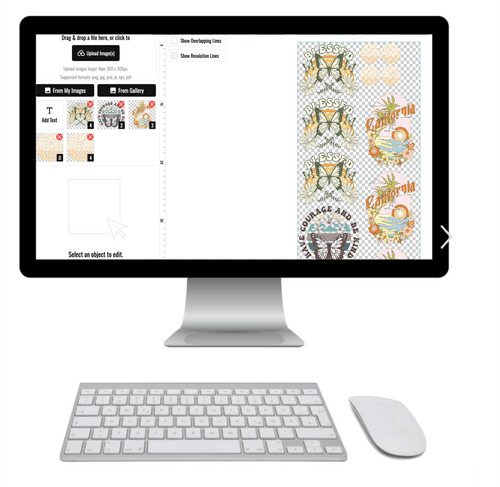
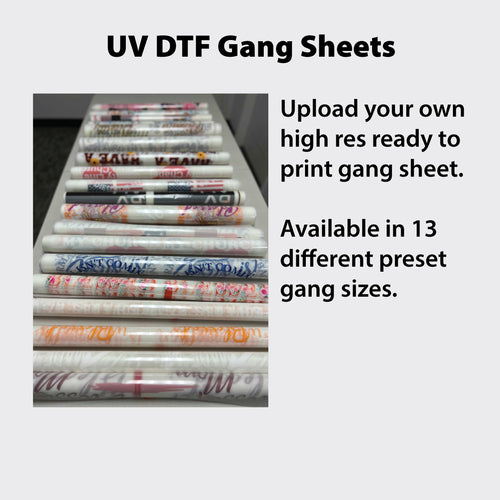
Once your design is perfected, you can use our Auto-build gang sheet builder to arrange multiple designs on one sheet. This is the smartest way to lower your per-print cost and seriously streamline your production.
Once you’ve nailed down your file types and resolution, the next step in creating a professional, press-ready design is mastering the details: color, sizing, and transparency. These are the elements that take a graphic from "good enough" to truly retail-ready. Getting them right is what ensures your final print is vibrant, clean, and free from the amateur mistakes that can ruin a whole batch of garments.
Your journey from a digital concept to a physical product really hinges on how you handle these details. A small oversight in color management can leave you with a dull, disappointing print, while getting the size wrong can throw off the entire look of the finished shirt.
The Color Profile Conundrum: RGB vs. CMYK
One of the most common hangups for designers is understanding color profiles. Your screen displays color using the RGB (Red, Green, Blue) model, an additive process where light is mixed to create a massive range of bright, vivid colors. Printers, on the other hand, use the CMYK (Cyan, Magenta, Yellow, Key/Black) model, which is a subtractive process where inks are layered onto a surface.
What you see on your bright, backlit monitor (RGB) will never be a perfect 1-to-1 match for what a printer can produce with physical ink (CMYK). This is the fundamental reason why colors can sometimes look a bit different, or less vibrant, when they come off the press.
Our printers run on CMYK, for the best and most vibrant results, always upload your designs in an CMYK color profile to produce the most faithful color match possible.
To get a better handle on this, you can dive deeper into our guide on the differences between RGB and CMYK color modes. Understanding this relationship will help you set realistic expectations for how your on-screen colors will translate to the final garment.
The Difference Between a White Background and True Transparency
We mentioned this before, but it’s so important it deserves its own spotlight. The single biggest mistake that trips up new designers is failing to create a file with a truly transparent background. Many people design on a white canvas in their software and just assume that white area won't print. That's a costly assumption.
If your PNG file has a solid white background layer, our printer sees that white as printable data. You’ll end up with an obvious white or off-white box printed around your graphic, which instantly cheapens the look of your apparel.
To avoid this "ghosting" effect:
- Work With Layers: Always keep your artwork on a separate layer from the background in your design program.
- Delete or Hide the Background: Before you export your file, either delete the background layer completely or just hide its visibility.
- Export as PNG: Save your final, print-ready file as a PNG and make sure the "transparency" option is checked during the export process.
You'll know you've done it right if your software's preview window shows your design floating on a gray-and-white checkerboard pattern. That checkerboard is the universal symbol for transparency.
Sizing and Placement for Professional Results
A fantastic design can be completely ruined by bad sizing. A graphic that looks perfectly balanced on a medium t-shirt might look tiny and lost on a 2XL hoodie. On the flip side, a large design can wrap awkwardly around the seams of a smaller youth shirt.
You always have to think about the final product. Here are some standard starting points we use for sizing:
- Full Front: 10-12 inches wide
- Left Chest: 3-4 inches wide
- Youth Shirts: 7-9 inches wide
- Sleeve/Pocket: 2-3 inches wide
The absolute best way to guarantee perfect placement is to use mockups. Drop your design onto a template of the exact shirt or hoodie you plan to use. This simple visual check helps you confirm that the scale and position look balanced and professional before you ever commit to printing. Taking this extra step can save you a ton of time, money, and wasted materials.
Once your designs are perfectly sized and color-corrected, you can take your efficiency to the next level. Using our Auto-build gang sheet builder, you can upload multiple correctly sized designs, and the tool will automatically arrange them to maximize every single square inch of the transfer sheet. This is, by far, the most cost-effective way to produce a variety of designs for all your heat press projects.
Get More Bang for Your Buck with Gang Sheets
If you're moving beyond one-off projects, printing individual designs is a massive drain on your time and money. This is where learning to think in terms of "gang sheets" completely changes the game. It's the single best way to slash your cost per print and make your production workflow a whole lot smoother.
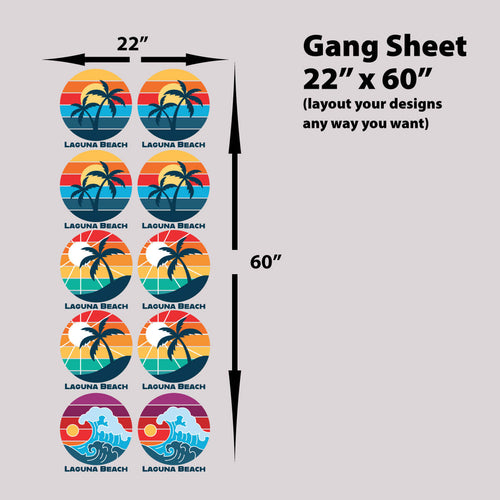
The idea is simple. Instead of printing one graphic on a transfer sheet, you group—or "gang"—multiple designs for heat press application onto one big sheet. You can mix in different logos, various sizes of the same design, or totally different graphics for multiple jobs. By filling up every square inch of the transfer film, you pay for the sheet, not for how many designs are on it.

The Old Way vs. The Smart Way
In the past, making a gang sheet meant you had to manually arrange all your separate PNG files on a huge canvas in a program like Adobe Illustrator or Affinity Designer. This involved a lot of tedious rotating, nesting, and trying to piece everything together like a puzzle to avoid blank space. It gets the job done, but it's slow and often leaves money on the table from layouts that aren't perfectly tight.
A much smarter way to work is to use a tool built specifically for this. Our Auto-build gang sheet builder takes all the manual labor out of the equation for ultimate ease of use, making sure you're getting the absolute best value and cost-effectiveness out of every single order.
A well-optimized gang sheet can drop your cost per design from several dollars to just a few cents. That shift in economics is what allows small businesses to compete with bigger operations, turning higher margins into real profit.
This kind of efficiency is becoming more and more critical. The demand for multifunction heat presses is soaring, with projections showing the market will hit $0.5 billion in 2026 and grow at a solid 8.5% annually through 2033. This boom is fueled by the personalization economy, where versatile designs for custom apparel are in high demand—making gang sheets an essential technique for any serious printer.
Meet the Auto-Build Gang Sheet Builder
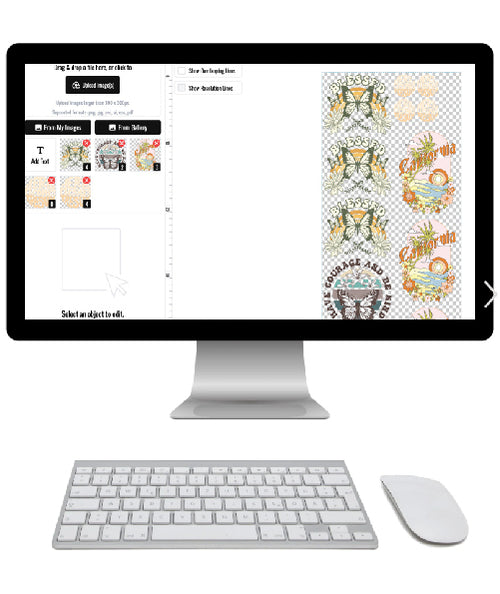
To get rid of the guesswork and manual effort, we built our own Auto-build gang sheet builder. We designed this tool to be incredibly easy and powerful, automatically arranging your designs to maximize every bit of space for cost-effectiveness.
Here’s how it streamlines your process:
- Upload Your Designs: Just drag and drop all your print-ready PNG files right into the builder.
- Set Your Quantities: Tell the builder how many of each design you need.
- Let It Go to Work: The tool’s algorithm instantly arranges everything, fitting your designs together perfectly to fill the sheet.
The end result is an automated layout where dozens of different designs are packed tightly onto a single sheet, ready for printing.
The key here is that automation creates a level of density that’s almost impossible to match by hand, especially when you’re on a deadline. This automated approach saves you hours of tedious work and ensures you aren't paying for blank, unused film. You can dive deeper into the benefits and see how it works by checking out our guide on how DTF gang sheets can transform your business.
By adopting a gang sheet workflow, you’re not just printing designs; you’re building a more scalable and profitable business. It's a foundational skill for anyone serious about creating custom apparel efficiently.
Insider Design Tips for DTF Transfers
Designing for Direct-to-Film (DTF) isn't the same as designing for a screen. To get those sharp, professional results that feel great on a shirt, you need to think a little differently. A good file is your foundation, but understanding how the DTF process actually works will help you create designs for heat press applications that really pop.
The secret to getting bright, vibrant colors on any garment—black, red, blue, you name it—is the white underbase. For any design that isn't just pure black, our printers automatically put down a layer of white ink directly under your artwork.
Think of it like using a primer before you paint a dark wall. This underbase stops the shirt's color from bleeding through and making your design look dull. It’s what ensures your bright yellows and soft pastels look exactly how you intended, instead of muddy and washed out.
The Importance of Minimum Line Thickness
When you’re designing with intricate fonts or really fine details, it's easy to make lines that are just too thin to print and press reliably. In DTF, every part of the design needs enough surface area for the adhesive powder to grab onto. If a line or a small dot is too skinny, it won't transfer cleanly, or it might fall apart when you peel the film or after the first wash.
As a solid rule of thumb, we recommend a minimum line thickness of 0.018 inches (0.4572 mm). This simple spec gives even the most delicate parts of your design the structure they need to last.
- Check Your Fonts: Script and handwritten fonts are notorious for having thin areas. It’s always a good idea to add a small stroke or outline in your design software to give those letters a bit more body.
- Inspect Fine Details: Before you export, zoom way in on your artwork. Look for any tiny, isolated dots or super-thin lines that might not meet the minimum thickness.
Taking a minute to check this will save you from a lot of frustration. It’s what guarantees all that detailed work you did actually makes it onto the shirt and stays there.
Creating a Softer Feel with Your Artwork
Nobody likes a t-shirt with a thick, heavy "plastic shield" feeling on the chest. One of the most common concerns with any transfer is the "hand," or how the design feels on the fabric. Luckily, you can use some smart design tricks to make your prints feel much softer and more breathable.
This is where textures and negative space become your best friends. By adding a distressed texture or creating small transparent gaps within your solid design, you’re breaking up that single, solid layer of ink. These tiny openings allow the print to feel lighter and move with the fabric. It's the perfect technique for vintage-style graphics or any design where comfort is key.
A great way to think about it is this: instead of applying a solid sheet of plastic, you're creating a flexible mesh. This allows for more airflow and stretch, making the shirt way more comfortable. This is a pro-level trick that really separates a good design from a great one.
As the custom apparel industry keeps growing, these quality details are what set successful brands apart. The market for heat transfer press printing machines was valued at USD 1,823.4 million in 2022 and is only expanding. As the technology gets more accessible, the quality of the design itself becomes the ultimate differentiator. You can explore the market trends for heat transfer equipment to get a sense of how fast things are moving.
Once you’ve perfected these DTF-specific details in your artwork, don't forget to arrange them using our Auto-build gang sheet builder. It's the most efficient and cost-effective way to get multiple top-quality designs ready for pressing.
Bringing Your Digital Design to Life
Alright, you've got your perfectly optimized files and a fresh roll of Lion DTF transfers. This is the final and most rewarding part of the process—where all that careful digital prep pays off and your design becomes a vibrant, wearable product.
Getting this last step right is all about precision. The infographic below breaks down a few critical design choices, like using a solid white underbase and getting your line thickness right. These details have a massive impact on the final quality of your hot peel transfer.

As you can see, thinking about these elements ahead of time is what gives you a durable, professional-looking print that actually feels great on the shirt.
Preparing Your Garment is Not Optional
Here’s a step that beginners often overlook: the pre-press. Every single garment, even one straight out of the bag, has hidden moisture and faint wrinkles. Trust me, pressing a transfer onto a damp or creased shirt is a recipe for bad adhesion and a flawed finish.
A quick 5-10 second pre-press with your heat press solves both problems. It flashes off any moisture and gives you a perfectly smooth, flat surface to work with. This tiny step makes a huge difference in the quality and longevity of your design.
Dialing In Your Heat Press Settings
Not all fabrics are the same, and your heat press settings need to reflect that. Using the wrong temperature or pressure can scorch the fabric or, even worse, lead to a transfer that peels off after the first wash.
Your specific heat press might need small tweaks, but the settings in this chart are our tested and recommended starting points for applying Lion DTF transfers.
Heat Press Settings for Common Fabric Types
Use this chart as your go-to guide when working with different apparel materials to ensure a perfect press every time.
| Fabric Type | Temperature (°F) | Press Time (Seconds) | Recommended Pressure |
|---|---|---|---|
| 100% Cotton | 270-280°F | 10 seconds | Medium to Firm |
| Polyester | 240-250°F | 7-10 seconds | Medium |
| Blends | 260-270°F | 10 seconds | Medium |
| Tri-Blends | 260-270°F | 10 seconds | Medium |
Getting these settings right is crucial. For example, if you press a polyester shirt at cotton temperatures, you can easily melt or scorch the synthetic fibers, ruining the garment for good.
A Quick Tip on Pressure: "Medium" pressure should feel like giving a firm handshake. The top platen needs to clamp down securely, but you shouldn't have to wrestle it closed. Too little pressure means poor adhesion, while too much can cause the adhesive to ooze out from the edges.
Once you’ve pressed the garment for the recommended time, you’re ready for the final move. This is where all your work with designs for heat press applications truly comes together.
Mastering the Hot Peel for a Flawless Finish
Our DTF transfers are made for a hot peel, which is a massive time-saver for any workflow. It means you can peel the carrier film away the moment the press opens—no waiting for it to cool down.
As soon as the timer goes off, open your press and peel the film off the garment in one smooth, confident motion. A good hot peel leaves behind a crisp, vibrant design that’s perfectly bonded to the fabric. We always recommend a quick 4-5 second post-press with a Teflon sheet or parchment paper over the design. This locks it in and gives it a nice matte finish.
The techniques you use in your design software have a direct impact on this stage. For a deeper look into how file types can affect print quality, check out our article comparing raster vs vector graphics.
With your design now perfectly applied, you have a professional, market-ready product. For anyone looking to scale up production, don’t forget that tools like our Auto-build gang sheet builder are key to keeping costs down and maximizing every print run for cost-effectiveness and ease of use.
No matter how dialed-in your process is, questions are going to come up. It happens to everyone. Getting fast, practical answers is the key to keeping your t-shirt business moving and avoiding those frustrating (and expensive) mistakes.
We’ve put together a list of the most common issues we see creators run into. Think of this as your personal troubleshooting guide for the real-world headaches that can slow you down.
Why Does My Design Have a White Box Around It?
This is probably the number one issue we see, especially with new designers. You press a fantastic-looking graphic onto a shirt, peel it back, and there it is—an ugly white box surrounding your entire design. This happens when the background of your design file isn't actually transparent.
Even if the background looks white on your screen, if it's not removed before saving, the printer sees it as part of the design and lays down white ink.
Fixing it is straightforward. Open your file in a design program like Adobe Photoshop, Affinity Photo, or even a free tool like Photopea. Find the background layer and either delete it or click the little eye icon to hide it. You’ll know you did it right when you see your design floating on a gray-and-white checkerboard pattern. That’s the universal sign for transparency.
Just re-save your file as a PNG, making sure the "transparency" box is checked, and you’re good to go. Getting this right is what separates amateur prints from professional apparel.
Can I Use a Screenshot for My Heat Press File?
It’s tempting to grab a quick screenshot, but trust us on this one: it’s a recipe for a bad print. Screenshots are captured at your screen’s resolution, which is usually around 72 DPI (dots per inch). That’s fine for looking at on a phone, but it's way too low for printing.
When you blow that 72 DPI image up to the size of a t-shirt graphic, it turns into a blurry, pixelated mess. The edges will be jagged, and all the sharp detail will be gone.
For a crisp, professional transfer that you’d actually be proud to sell, your artwork must start at 300 DPI. This higher resolution gives you over four times the amount of pixel data, which translates directly into clean lines and vibrant colors on the final shirt.
There is no magic button or software that can add detail back into a low-resolution file. Always track down the original, high-quality artwork. Your customers will notice the difference.
Do I Need to Mirror My Design Before Uploading?
This is a great question, and the confusion usually comes from experience with other methods like vinyl or old-school transfer paper, where mirroring your art is a required step.
For our DTF transfers, however, the answer is simple: No, you do not need to mirror your design.
Our entire printing workflow is built to handle this for you. Just upload your designs for heat press exactly as you want them to look on the shirt. Our software automatically flips the image on our end before it ever hits the film. This not only simplifies your job but also eliminates a common point of error.
What if I Have a Great Idea But Can't Design It?
Plenty of entrepreneurs have amazing ideas for their brand but don’t have the graphic design skills or software to create a print-ready file. If that’s you, don’t worry—you’re not stuck.
You don’t need to become a design guru overnight. There are fantastic services out there that can bridge that gap for you.
This could look like:
- Vectorization Services: They can take a rough sketch or a low-quality image and professionally redraw it into a clean, scalable file.
- Design Creation: You can hire a designer to bring your concept to life from scratch.
- File Cleanup: Sometimes you have a decent file that just needs a little help, like removing the background or cleaning up the edges.
Using one of these services lets you focus on building your brand while ensuring your products look absolutely top-notch.
A small investment in professional design help will pay for itself almost immediately. It prevents wasted inventory from bad prints and creates products with a much higher perceived value.
Once your designs are perfected, our Auto-build gang sheet builder makes printing them incredibly cost-effective. The tool automatically arranges all your graphics to fit as many as possible onto one sheet, which dramatically lowers your cost per design. It’s the smartest and easiest way to scale up your production.
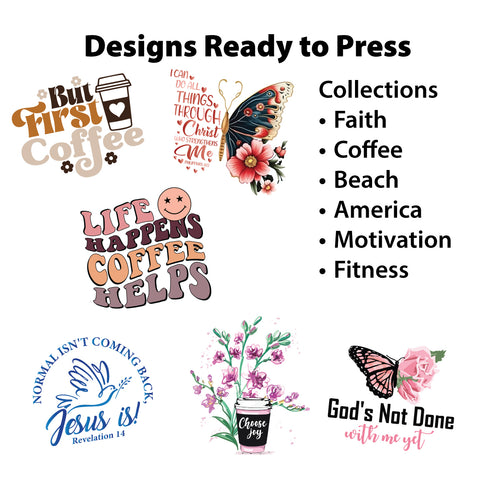
Ready to bring your ideas to life? At Lion DTF Transfers, we make it fast, easy, and affordable to get premium, vibrant DTF transfers that last. Whether you’re uploading a custom gang sheet, choosing from our ready-to-press designs, or need help creating the perfect file, our team is here to support you. Explore our services and start creating today at https://liondtf.com.