



You finish a design on your screen, and it looks perfect. The blue is clean, the red pops, and the black looks deep. Then the transfer arrives, you press it on a shirt, and the print feels a little flatter than what you approved on your monitor.
That gap between screen and print is where most color frustration starts.
For apparel decorators, Etsy sellers, and print shops, CMYK color conversion isn't just a technical checkbox. It's the process that decides whether your artwork lands on fabric looking intentional or compromised. If you're preparing files for DTF transfers, that matters even more because every color choice affects not only appearance, but also how the transfer lays down on film and how predictable the final pressed result will be.
From Screen to Print Why Colors Change
Your monitor and your printer don't build color the same way.
A screen uses RGB, which means red, green, and blue light. A printer uses CMYK, which means cyan, magenta, yellow, and key black. That difference sounds simple, but it's the whole reason color shifts happen.
Light adds and ink subtracts
RGB is an additive system. You start with darkness, then add colored light. As more light combines, colors get brighter.
CMYK is a subtractive system. You start with a light surface, then add ink that absorbs light. As more ink layers build up, the result usually gets darker and less luminous than what you saw on a screen.
A quick analogy helps. Think of RGB like stage lighting. Think of CMYK like mixing paint on a white board. Bright electric blue on a monitor is made with light. That same color in print has to be recreated with ink, and ink has limits.

Why black needs special handling
Many new designers assume CMYK conversion is just swapping one set of values for another. It isn't.
From a color-engineering standpoint, printing uses a subtractive model where black is optimized by removing common cyan, magenta, and yellow components and placing that shared darkness into the K channel. That reduces total ink coverage and helps avoid muddy blacks and drying issues on print substrates, as explained in Montana State University's color basics reference.
Practical rule: CMYK conversion is a translation, not a copy. Your job is to manage that translation before the file reaches the printer.
What this means for DTF artwork
For DTF, this matters in a very practical way. If you build your design in RGB and never preview the print result, saturated colors can surprise you. Blues may lose intensity. Greens may drift. Deep shadows may print heavier than expected if the file carries more ink than it needs.
That's why designers who want predictable output check the file in a print-oriented workflow early, not at the end. If you're still getting familiar with that shift, this guide to RGB to CMYK for print files is a useful companion.
A good habit is simple. Design boldly, but proof realistically.
The Role of ICC Profiles and Rendering Intents
The numbers in your file don't mean much by themselves.
If a file says 60C, 40M, 40Y, 100K, software still needs context. It needs to know what press condition, ink behavior, and output target those values are supposed to represent. That context comes from an ICC profile.
ICC profiles are the dictionary
An ICC profile is best understood as a translation dictionary for color devices and output conditions. Your monitor has one. Your printer workflow has one. Good conversion happens when those profiles are used intentionally instead of left to guesswork.
Without a profile-aware workflow, software can interpret the same file differently from one app to another. That's why one design can look fine in Photoshop, then slightly different in Illustrator or in a RIP preview.
If you need a plain-English primer, Lion DTF's article on what an ICC profile does in print workflows gives a solid starting point.
Rendering intent decides how the translation behaves
Even with the right profile, some screen colors won't fit inside the printer's reproducible range. Rendering intent tells the software how to handle those colors.
For most print jobs, advice from this source recommends converting with Relative Colorimetric and Black Point Compensation because it preserves in-gamut colors while mapping the deepest neutrals more predictably. Its workflow advice appears in this article on converting files to CMYK for litho printing.
Here's a practical comparison.
Choosing Your Rendering Intent
| Rendering Intent | Best For | How It Handles Out-of-Gamut Colors | Key Takeaway |
|---|---|---|---|
| Relative Colorimetric | Most print-ready artwork, logos, standard DTF jobs | Keeps printable colors unchanged and moves non-printable colors to the nearest printable value | Usually the safest default when you want accuracy |
| Perceptual | Photos or gradients with many delicate transitions | Compresses the whole color range so relationships between colors stay smoother | Good when overall feel matters more than exact value matching |
| Saturation | Charts, simple graphics, business visuals | Pushes visual intensity over tonal subtlety | Usually not my first choice for apparel art |
| Absolute Colorimetric | Proofing scenarios where paper color matters | Tries to simulate the original output condition more literally | Useful for proofing, less common for everyday transfer production |
Black Point Compensation isn't an extra checkbox to ignore
Black Point Compensation helps maintain tonal structure in darker areas during conversion. In plain language, it gives the software a better way to map dark detail from one space into another.
If you skip it, shadows can plug up faster. On a shirt print, that can make dark sections feel heavy and lose separation between nearby tones.
Use Relative Colorimetric + Black Point Compensation first. Only change that if you have a specific visual reason and you've soft-proofed the result.
One practical workflow rule
Don't use a generic CMYK preset and assume you're safe.
Soft-proof against the actual output profile, inspect gamut warnings, and correct problem colors before export. That single habit prevents a lot of avoidable disappointment.
Navigating Gamut Mismatches and Common Color Shifts
The word gamut sounds technical, but the idea is simple. It means the range of colors a device can reproduce.
Your monitor can show a broader range than a standard CMYK print process. That's why some colors look exciting on screen and restrained in print.

Where designers usually get surprised
A standard CMYK process can produce over 16,000 different color combinations, but that range is still smaller than what screens can display. Walker360's history of ink colors and CMYK milestones also notes Pantone's 2015 introduction of 7-color Extended Color Gamut printing, which uses cyan, magenta, yellow, black, orange, green, and violet to reach colors beyond standard CMYK.
That tells you something important. Standard CMYK is capable, but it isn't unlimited.
Common shifts you should expect
Some colors are repeat offenders. If you know them, you can catch them before production.
- Bright blue tones often lose some sparkle and can shift toward a duller or slightly purpler result.
- Lime and neon greens tend to print less sharply than they appear on a monitor.
- Hot pinks and vivid oranges may flatten when they sit outside the printable range.
- Very deep shadow blends can collapse into heavy dark masses if the conversion isn't controlled.
A useful way to think about it is this: when a color falls outside the printable gamut, software has to make a compromise. The question isn't whether compromise happens. The question is whether you choose it on purpose.
How to fix problems before they print
Use gamut warning and soft proofing in your design software. Then make small targeted edits instead of rebuilding the entire file.
Try these adjustments:
- Pull back oversaturated blues: Shift slightly toward a printable blue instead of forcing a glowing screen blue to survive conversion.
- Separate dark tones: If two dark colors are close together, lighten one slightly so the pressed transfer still shows detail.
- Replace impossible brights: For logos, choose a nearby print-safe color that stays stable rather than a screen-only color that collapses unpredictably.
- Ask whether standard CMYK is even the right target: For some brand-sensitive work, spot colors or expanded-gamut approaches may be a better fit. This overview of Pantone color conversion and print color choices is helpful when that question comes up.
Some colors don't fail because the file is bad. They fail because the target process can't reproduce them exactly.
Once you accept that, color correction gets easier and far more intentional.
A Step-by-Step CMYK Conversion Workflow
A clean workflow beats guesswork every time. If you repeat the same sequence for each job, your results get more predictable and your revisions get shorter.

In Photoshop
Photoshop gives you the most control over raster artwork, photos, textured graphics, and detailed apparel art.
Use this sequence:
- Keep your original RGB file. Save a separate version before you convert anything.
- Open the artwork and turn on proofing. Use your output profile if you have it.
- Check gamut warnings. Look for the colors that are likely to shift.
- Convert using Convert to Profile. Don't use Assign Profile for conversion. Assign changes interpretation. Convert translates the file.
- Choose Relative Colorimetric. Enable Black Point Compensation.
- Inspect shadows, saturated colors, and skin tones or brand colors. These are usually where problems show first.
- Export the print file in the requested format. Keep the embedded profile if your workflow expects one.
In Illustrator
Illustrator is different because much of the artwork is vector-based. That means flat fills, brand marks, outlines, and type need close review.
A practical Illustrator routine looks like this:
- Set the document color mode correctly: Use CMYK for print-bound vector work.
- Review linked images: A vector file can still contain RGB images that need separate handling.
- Convert placed colors carefully: Spot colors, global swatches, and process swatches may behave differently.
- Proof the file before final export: Strong solids can still shift if they started as RGB-like screen values.
Soft proof before export
Soft proofing is the bridge between theory and output. It gives you a screen simulation of how the print is likely to land.
What you're looking for isn't perfection. You're looking for risk. If a color drops, muddies, or changes character in proof view, fix it before it leaves your desk.
A short demo helps if you want to see the process in action:
Convert to profile versus assign profile
This one causes a lot of confusion.
- Assign Profile tells the software to reinterpret existing numbers as if they belong to a different color space.
- Convert to Profile keeps the appearance goal and recalculates the numbers for the destination space.
If you assign when you meant to convert, colors can swing hard and look broken for no obvious reason.
Shop-floor advice: If the artwork looked right and then suddenly went strange after a profile step, check whether you assigned a profile instead of converting to one.
Final preflight checklist
Before you upload a file for DTF production, verify these items:
- Embedded profile present: If your workflow uses one, don't strip it accidentally.
- Black areas reviewed: Make sure dark fills aren't carrying unnecessary weight.
- Out-of-gamut colors adjusted: Don't leave known problem colors untouched.
- Fonts and vectors prepared: Outline type if needed and clean up linked assets.
- Saved master untouched: Keep an editable source file in case you need revisions later.
Optimizing Color for Vibrant DTF Transfers
DTF adds one more layer to the color conversation because you're not printing directly onto paper. You're printing to film, applying adhesive powder, then heat pressing that image onto fabric.
That means color decisions affect the final shirt, not just the file preview.

Why restraint often gives better DTF results
Designers sometimes assume that more ink means more vibrancy. On DTF jobs, that can backfire. Heavy builds can make dark areas feel dense, reduce clarity in shadows, and create artwork that looks heavier than intended after pressing.
This is one reason proper CMYK conversion matters so much for transfers. When black is handled intelligently and unnecessary CMY buildup is reduced, the print can stay cleaner and more controlled.
What to watch in apparel graphics
Shirt graphics often include ingredients that stress a color workflow:
- Large dark fills that can swallow texture
- Saturated brand colors that need consistency
- Small text or outlines that need separation from the background
- Blends over transparency effects that can react differently when flattened
The old reason CMYK became the foundation of four-color printing still applies here. In 1906, the Eagle Printing Ink Company demonstrated cyan, magenta, yellow, and black process inks together, a milestone described in Axiom Designs' history of the CMYK color model. That standardized approach made repeatable full-color reproduction possible, and the same principle still drives controlled digital print output today.
DTF-specific habits that improve color
For transfer work, these habits usually produce cleaner results:
- Build dark neutrals intentionally: Don't rely on random mixed blacks from imported RGB art.
- Check edge contrast: A color that looks separated on a glowing monitor may blend into the garment once pressed.
- Reduce avoidable over-inking: Cleaner separations tend to hold detail better.
- Proof with the final garment in mind: A design on black cotton reads differently than the same art on a white tee.
If color fidelity matters for logos or merchandise collections, use a profile-aware workflow and ask whether the target color should be adjusted before production rather than after the transfer disappoints you.
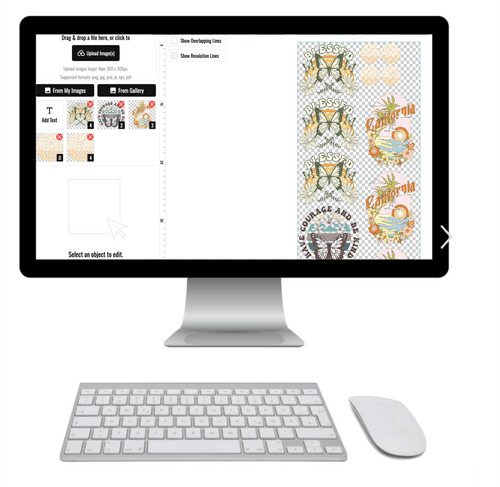
Simplify Your Workflow with Our Auto-Build Gang Sheet
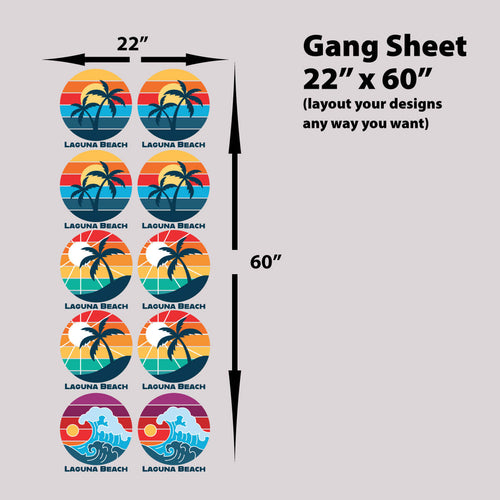
A common shop scenario looks like this. The colors are corrected, the artwork is approved, and the file is finally ready to print. Then the job stalls because someone still has to arrange left chest logos, full backs, sleeve prints, and neck labels by hand on the gang sheet.
That last step affects real production outcomes. A crowded layout can make trimming harder. Loose spacing can waste film. A rushed manual build can turn a clean, print-ready file into a costly rework.
Why gang sheet building matters after color work
Color prep and sheet layout solve different problems, but they support the same result. You want the transfer that comes off the press to match the plan on screen and fit the job profitably.
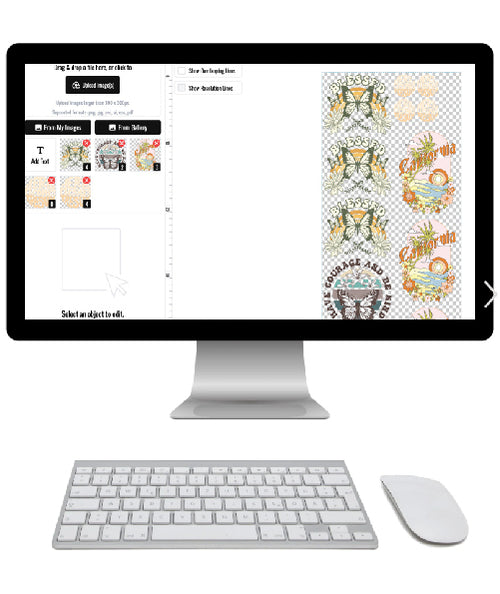
An Auto-build gang sheet builder works like a packing plan for your artwork. Once each graphic is already prepared for print, the builder helps organize pieces in a way that uses film space more efficiently and reduces manual placement errors. For DTF apparel work, that matters because efficiency is not only about speed. It also affects margins, repeatability, and how easily a shop can process reorder jobs.
Where it helps most
Auto-building is especially helpful for jobs like these:
- Multiple sizes of one design that need to stay organized on the same sheet
- Mixed print locations such as left chest, full back, sleeves, and neck labels
- Small brand runs with many logos or tag graphics grouped together
- Repeat orders where the same layout needs to be rebuilt consistently
For teams using Lion DTF Transfers, the Auto-build gang sheet builder gives a practical way to turn approved artwork into a production layout without rebuilding every sheet from scratch. That is useful for shops trying to keep colors predictable on the garment while also controlling film use and order time.
Good color conversion gets the art ready. Good sheet building gets the job out the door with fewer avoidable mistakes.
Frequently Asked Questions About Color Conversion
A few questions come up in almost every shop once the basics are in place.
Why do the same CMYK values look different in Photoshop and Illustrator
Because the numbers alone aren't the whole story.
If profiles are missing or mismatched, software has to guess what those CMYK numbers are supposed to mean. That can produce different previews and different conversions across documents or applications. This explanation in a video on why CMYK conversions vary across workflows gets to the core issue: accurate conversion depends on a profile-aware workflow, not just the numbers.
Should I design in RGB first or CMYK first
It depends on the job.
If the design is heavily photographic or built for both web and print, starting in RGB can make editing easier, as long as you proof and convert deliberately before production. If the artwork is print-only and color-critical, starting with the print target in mind often reduces surprises.
What is rich black and when should I use it
Rich black is a black built from K plus supporting CMY values, instead of using 100 percent black ink alone.
Designers usually use it for large dark areas that need a fuller appearance. For small text, thin lines, or fine detail, a simpler black build is often safer because registration issues become more visible when multiple channels stack in tiny shapes.
Why does my bright blue keep shifting
Because vivid screen blues are common out-of-gamut colors.
When the printer can't hit that exact RGB blue, conversion compresses it into the nearest printable option. If blue is central to the brand, proof it early and adjust the hue intentionally rather than waiting for the RIP or printer to make the decision for you.
Can one RGB or hex color map to one perfect CMYK value
Not reliably.
A lot of people expect a universal formula, but that expectation causes trouble. The result depends on the output target, embedded profile, rendering intent, substrate, and workflow. The better question is not "what is the CMYK equivalent?" but "what is the best CMYK target for this print condition?"
How should I handle Pantone or spot colors
Treat them as targets, not promises.
If the job will print in standard process color, your software still has to translate the spot reference into the available print gamut. For brand-sensitive work, compare proofs carefully and ask whether a standard four-color process is appropriate for that design.
What's the biggest beginner mistake in CMYK color conversion
Skipping proofing.
Most bad outcomes don't come from one dramatic error. They come from small assumptions. The designer works in RGB, exports quickly, ignores profile settings, and assumes the printer will sort it out. Sometimes the file survives. Sometimes it doesn't.
The safest workflow is simple. Use the right profile, proof the real output target, and adjust known problem colors before you upload.
If you're ready to turn color-corrected artwork into press-ready apparel transfers, Lion DTF Transfers offers DTF ordering, gang sheets, and an Auto-build gang sheet builder that can help simplify file submission and sheet layout after your CMYK prep is done.