
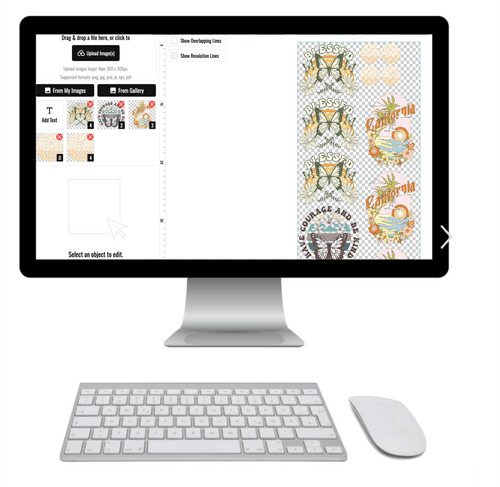
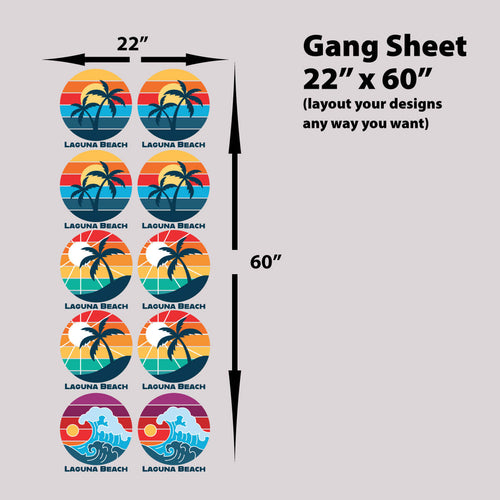
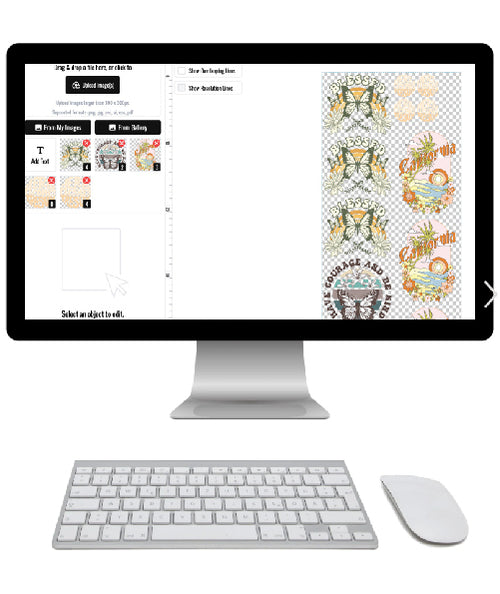
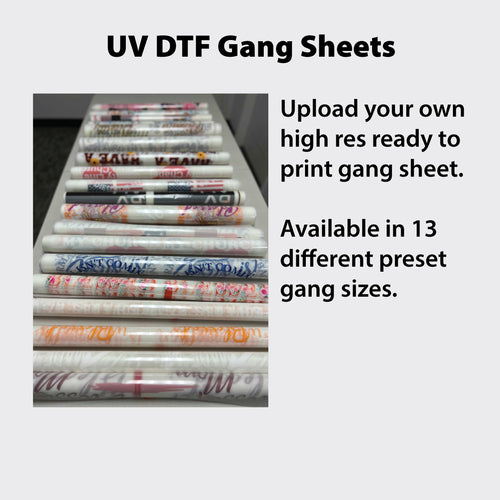
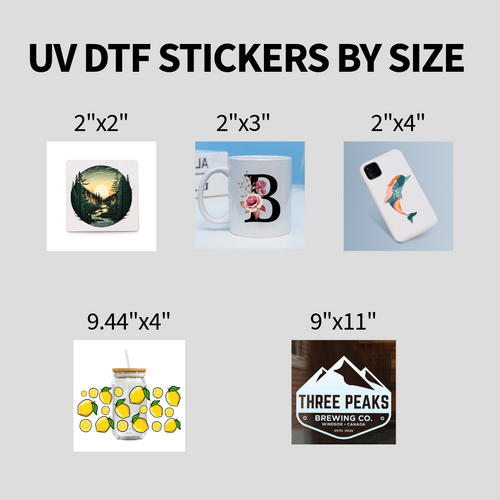
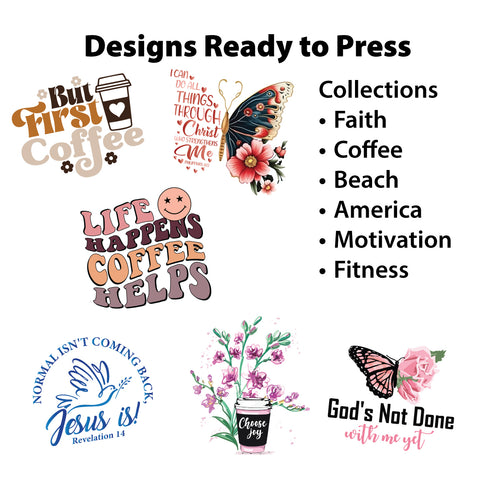


A UV DTF gang sheet builder is the tool that lets you arrange a bunch of different sticker designs onto one large printable sheet. It's all about maximizing your material, cutting down on costs, and making it easy to create custom stickers for hard goods like tumblers, phone cases, and just about anything else.
Why a UV DTF Gang Sheet Builder Is Your New Best Friend for Profit
Think about what it would mean to cut your material costs in half while getting more custom stickers out the door than ever before. That’s exactly what a UV DTF gang sheet builder does. For any business selling custom hard goods, this tool is less about fancy features and more about directly boosting your bottom line.

Turning Wasted Space Into Cash
The biggest financial win comes from using every single square inch of your UV DTF transfer film. When you print designs one by one, you end up with a ton of expensive, unused material around each sticker. Gang sheets put an end to that by consolidating everything together. This cuts down on waste, which is a major profit-drain in the custom printing game.
Let's say you get an order for 50 branded tumblers for a corporate event. Each one needs a company logo and a smaller tagline sticker. Printing those separately means a whole lot of small, inefficient print jobs, wasting both your time and pricey film. With a UV DTF gang sheet builder, you can fit all 100 designs onto one or two large sheets, which immediately drops your cost per sticker.
Let Automation Handle the Heavy Lifting
Manually arranging designs to fit perfectly is like a frustrating game of Tetris that nobody has time for. This is where a good tool really proves its worth. Our Auto-build gang sheet builder, for example, automates the whole layout process for maximum ease of use and cost effectiveness. You just upload your designs, and the software fits them together for the best possible use of space. This saves you serious design time and ensures you’re not leaving money on the table.
When you automate the layout, you aren't just saving a few minutes. You're getting back hours that you can put into marketing, talking to customers, or creating new products. Moving from manual work to smart automation is how small shops really start to grow.
The numbers back this up. In the printing world, using gang sheets has been shown to slash production costs by up to 50%. On top of that, shops often see production time drop by 30%. We've even seen that 45% of printers who switch from old-school vinyl methods report a profit margin boost of 20% or more.
Real-World Financial Impact
Let's look at the numbers in a real-world scenario. A small business gets an order for 200 custom stickers for a local coffee shop. The order includes:
- 50 large logos (4x4 inches)
- 100 medium-sized slogans (3x2 inches)
- 50 small QR code stickers (1x1 inch)
Printing these one by one would be a headache. But by using our cost-effective Auto-build gang sheet builder, all 200 stickers can be nested onto a single large transfer sheet. This one print run combines the costs for film, ink, and labor, turning a low-margin job into a very profitable one. If you want to dive deeper, you can learn more about the fundamentals of creating a dtf gang sheet in our detailed guide.
Preparing Designs for Flawless UV DTF Prints
The difference between a sharp, professional UV DTF sticker and a blurry, disappointing mess often comes down to one thing: your file preparation. Before you even touch our Auto-build gang sheet builder, getting your artwork right is the single most important part of the process.
This is where you prevent the common mistakes that can waste an entire print run. Let's walk through what you need to do to get your files ready for a flawless print.
It all starts with resolution. For any professional print job, and especially for UV DTF, 300 DPI (dots per inch) is the minimum. Don't even think about using a 72 DPI image you pulled from a website—it will look blocky and pixelated once it’s printed, no matter how sharp it seems on your screen.
Starting with a 300 DPI canvas in your design software ensures every detail, from tiny text on a keychain to an intricate logo on a tumbler, comes out perfectly crisp. It’s the first rule of printing.
Color Accuracy: CMYK vs. RGB
Have you ever printed a design and the colors looked completely off? That's usually a color profile problem. Screens use RGB (Red, Green, Blue), a color model made for light-emitting digital displays. Printers, on the other hand, use CMYK (Cyan, Magenta, Yellow, Key/Black) to apply ink to a physical surface.
When you send an RGB file to a CMYK printer, the colors have to be converted, and the results can be unpredictable. That vibrant electric blue might turn into a dull navy, or a bright green can become a muddy olive. To avoid this, always set your design software's color mode to CMYK from the very beginning.
This one step ensures the colors you see on your screen are a much closer match to the final printed sticker. If you want to learn more about preparing artwork for different transfer types, check out our guide on creating custom heat transfer designs.
The Power of Transparency and a White Underbase
UV DTF stickers are meant to look like they were printed directly on the product, which means they should never have a background. If you see a white box around your logo, it’s a classic sign of a file that wasn't prepared correctly.
Your final designs must have a transparent background. This tells our printers to only print the actual artwork, not the empty space around it. In programs like Adobe Illustrator or Affinity Designer, just make sure you export your file as a PNG with the transparency option turned on.
A white underbase is the unsung hero of UV DTF printing. It's a layer of white ink printed directly beneath your colored design, and it’s essential for making your colors pop, especially on dark or non-white surfaces.
Without that white layer, your colors would look translucent and get lost on anything but a white surface. Think about a red design on a black tumbler—it would look dark and murky. The underbase acts as a primer, guaranteeing your colors stay bright and true no matter what you stick them on.
At Lion DTF, our printers automatically add this white underbase for you. All you need to do is give us a clean, transparent file. Once these details are handled, you can use our easy-to-use Auto-build gang sheet builder knowing your designs are set up for success.
Mastering the Art of Nesting Your Designs
Efficiently arranging, or nesting, your designs is how you get the most value out of a gang sheet. Think of it like a game of Tetris, where the goal is to leave as little empty space as possible. Every gap you fill is money back in your pocket.
This is how you turn a single print job into dozens of custom stickers, which seriously lowers your cost for each one. For a small business, this isn't just a good idea—it's a core strategy for making sure every order is as profitable as it can be.
Manual Nesting Strategies for Maximum Value
When you're arranging designs by hand, the goal is to fit them together like puzzle pieces. This takes a bit of creative thinking. You can rotate logos, flip text around, and tuck smaller graphics into the empty spaces left by the bigger ones.
For example, say you have a large circular logo for a tumbler. Instead of leaving the area around it blank, you could squeeze in several small QR code stickers or your website URL. This is how you turn wasted film into more products you can sell or use for your own branding.
- Rotate and Flip: Don't hesitate to turn your designs 45, 90, or 180 degrees. Sometimes a quick rotation is all it takes to get a design to fit perfectly next to another.
- Interlock Shapes: Fit designs with concave shapes into those with convex ones. If you have a C-shaped graphic, you can place a smaller round or square sticker right inside the curve.
- Vary Your Sizes: The best gang sheets mix large, medium, and small designs. This variety gives you the smaller "filler" pieces you need to use every last square inch of the film.
One crucial rule here is to always leave a small, consistent gap between each design. A buffer of about 0.1 to 0.25 inches is perfect. This space is essential so you can easily cut the stickers apart later without accidentally slicing into the design next to it.
The Shortcut: Our Auto-Build Gang Sheet Builder
While nesting by hand gives you complete control, it can also take up a lot of your time. For true efficiency and a perfectly optimized, cost-effective layout, nothing beats an automated tool. This is exactly why we created our Auto-build gang sheet builder.

Our builder takes all the guesswork out of the process. The tool analyzes the size of every file you upload and instantly arranges them into the tightest layout possible, saving you time and ensuring you get the most out of the material with just one click. It's designed for ease of use and maximum cost effectiveness.
For small businesses and high-volume shops, time is money. An automated gang sheet builder pays for itself almost immediately by freeing up hours that would otherwise be spent manually arranging files. It's not just a convenience; it's a competitive advantage.
A Real-World Nesting Example
Let's imagine a local band needs stickers for their merch table. They want:
- 25 large band logos (5x4 inches) for laptops and gear cases.
- 50 medium-sized album art stickers (3x3 inches).
- 100 small social media handle stickers (2x0.5 inches).
Using our easy-to-use Auto-build gang sheet builder, all 175 of these stickers would be intelligently arranged onto a single, cost-effective sheet. The software would automatically tuck the tiny social media handles into the gaps between the larger logos and album art, making sure no film goes to waste.
The result? The band gets all their stickers in one shot, and your cost per sticker drops to just pennies. This is the economic power of smart nesting. If you're designing in other programs, our guide on how to create a DTF gang sheet in Canva has some extra tips that can help with layout preparation.
Alright, you've put in the work—your designs are laid out perfectly on the gang sheet, and you're ready to turn that digital file into a real-world product. This is where all that careful prep in the builder starts to pay off.
Let's walk through the final steps to get those crisp, vibrant UV DTF stickers from our press into your hands and onto your products.

Exporting Your Gang Sheet the Right Way
Whether you nested your designs by hand or used our cost-effective Auto-build gang sheet builder, the last thing you do inside your software is export the file. This isn't just a simple "save." You're packaging all the critical data—resolution, colors, and transparency—so our printers can read it perfectly.
For this, PNG (Portable Network Graphics) is the format you need. A high-quality PNG file is your best friend because it supports transparency, which is key to making sure your stickers are cleanly cut without any weird background boxes.
Before you export, run through this quick checklist:
- File Format: PNG
- Resolution: 300 DPI
- Background: Transparent
Getting these settings right ensures that all the effort you put into designing and nesting pays off in the final print. Now your file is ready to upload.
Placing Your Order with Us
With your print-ready PNG file saved, it’s time to place your order. Just head over to our Auto-build gang sheet builder, upload your finished sheet, and you’ll get an instant preview. This is your final chance to give it a once-over and make sure everything looks exactly how you want it.
Next, choose the shipping and turnaround that fits your deadline. We get it—sometimes you need things yesterday.
- Standard Shipping: Our go-to option that gets your prints to your door in just a few business days.
- Next-Day Air: For those rush jobs that can’t wait.
- Same-Day Pickup: If you’re local to our California facility, order before noon and you can grab it the very same day.
Once you check out, our team takes over. We’ll get your UV DTF gang sheet printed, cured, and on its way to you.
A quick tip from our print pros: The quality of your application is just as important as the print itself. A sticker that’s applied well looks professional and lasts for years. Rushing this final step can lead to peeling or bubbling, so take your time.
Applying Your New UV DTF Stickers
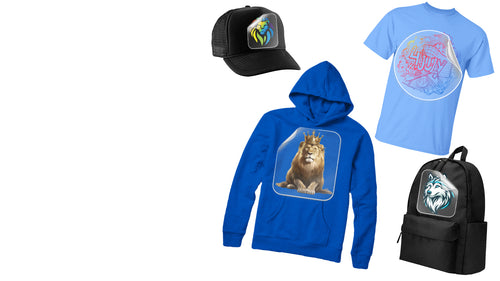
When your order arrives, you’ll have a single sheet packed with all your stickers. The final move is getting them onto your hard goods—whether that's glass, metal, treated wood, or plastic.
Don't Skip the Surface Prep
Honestly, this is the one step people skip the most, and it makes all the difference. For the adhesive to bond properly, the surface has to be perfectly clean. Any dust, finger oils, or leftover residue will cause problems down the line.
First, wipe the surface down with isopropyl alcohol and a lint-free cloth. Then, make sure it’s completely dry before you even think about applying the sticker. Any moisture left behind will get in the way of a good stick.
The Application Process
Applying the sticker is a deliberate process. Rushing it will only lead to mistakes that are tough to fix.
Start by cutting the individual sticker you need from the larger gang sheet. Place it design-side up and burnish it by rubbing firmly over the entire design with a squeegee. This helps the sticker adhere to the clear carrier film.
Next, carefully peel the white paper backing away. The design should stick to the clear film. If any part of it starts to lift with the backing, just lay it back down and burnish that spot again.
Now, line up your sticker and place it on the clean surface. Be precise here—once it's down, that adhesive grabs on tight.
Give it one final, firm burnish with your squeegee, working from the center outward to push out any air bubbles. Then, slowly peel back the clear carrier film. You'll be left with a perfectly applied, professional-looking design.
Solving Common UV DTF Problems
Look, even the most seasoned pros run into snags with UV DTF prints now and then. It happens. When a sticker doesn't apply right or a print comes out looking strange, it’s frustrating. But the good news is, the fix is usually way simpler than you think.
This guide is your go-to for figuring out what went wrong and how to get back on track quickly.
Nine times out of ten, when a print doesn’t turn out as expected, the problem started back in the original design file. A small oversight during setup can cause a big headache on the final product, but these are almost always easy to sort out once you know what to look for.
Print Quality Headaches
Nothing derails a project faster than dull colors or fuzzy images. Most of the time, these issues are completely preventable with a few quick checks before you ever upload your file to our easy-to-use Auto-build gang sheet builder.
When Your Colors Look Dull or Washed Out
You spent hours perfecting a vibrant design on screen, but the printed sticker looks flat and the colors feel off. This is a classic sign of a color profile mismatch. Your screen shows colors in RGB (Red, Green, Blue light), while our printers use CMYK (Cyan, Magenta, Yellow, Black ink).
The fix is simple: always set up your design software's document to CMYK before you even start. This ensures the colors you're choosing on screen are a much more accurate preview of how they'll actually print, preventing any unwelcome surprises.
When Your Print is Fuzzy or Pixelated
Your design looks crisp and clean on your monitor, but the final sticker comes out blurry with jagged edges. This is a tell-tale sign of a low-resolution file. Web images are often 72 DPI (dots per inch), which looks fine on a screen but is nowhere near enough detail for a high-quality physical print.
To avoid this, make sure every design you upload is created at a minimum of 300 DPI. This guarantees that every line, curve, and piece of text comes out looking sharp and professional.
Pesky Design and Application Issues
Beyond the print itself, you might hit a snag with how the sticker looks or how it applies to the surface. Let’s tackle those common frustrations.
The Dreaded White Box Around Your Sticker
Your sticker printed beautifully, but it's stuck inside a solid white box instead of being a clean, custom-cut shape. This completely ruins the professional, "printed-on" look you were going for.
This happens when the background of your design file wasn't truly transparent. You likely saved it on a white artboard, which our system interpreted as part of the design to be printed. Always double-check that you are exporting your file as a PNG with transparency enabled. In your design program, a transparent background should look like a grey and white checkerboard.
The Sticker Just Won't Stick
You’ve pressed it down, but the sticker starts peeling up at the edges or refuses to adhere to the surface at all. This is an incredibly common—and frustrating—application error.
The number one cause of adhesion failure isn't the sticker—it's the surface. A clean, properly prepped surface is non-negotiable for a permanent bond. Any dust, oil, or residue will act as a barrier between the adhesive and the product.
Before you do anything else, thoroughly clean the surface with isopropyl alcohol and a lint-free cloth. And just as important, make sure it is 100% dry before you try to apply the sticker. For trickier materials like low-energy plastics or waxy surfaces, it’s always a good idea to test a small, hidden area first.
Bubbles Trapped Under the Sticker
You’ve finished the application, only to notice tiny air bubbles are trapped underneath that you can’t seem to smooth out. This usually means air got trapped while you were pressing the sticker onto the surface, often from working too quickly or applying pressure unevenly.
The trick is to be slow and methodical. Use a squeegee to burnish the sticker down firmly, working from the center outward. This technique pushes any potential air bubbles toward the edges before they can get trapped.
UV DTF File Prep Checklist
Before you upload your design to our Auto-build gang sheet builder, run through this quick checklist. Getting these settings right from the start is the best way to guarantee a perfect, cost-effective print.
| Checklist Item | Required Setting | Reason |
|---|---|---|
| Color Profile | CMYK | Ensures the colors you see on screen closely match the final ink-on-film result. |
| Resolution | 300 DPI (minimum) | Guarantees sharp, crisp lines and prevents pixelation or blurriness in the print. |
| Background | Transparent | Avoids the unwanted "white box" and ensures your sticker is a clean, die-cut shape. |
| File Format | PNG | This format supports transparent backgrounds, which is essential for custom shapes. |
This simple four-point check can save you a world of trouble and ensure your files are optimized for our UV DTF printing process.
If you’ve walked through these fixes and you're still stuck, don't hesitate to reach out. The Lion DTF support team is here to help. Contact us via call, text, or email at info@liondtf.com or 949-229-1164 for expert assistance.
Frequently Asked Questions
When you're diving into the world of UV DTF printing, a few questions are bound to pop up, especially when you're aiming to get every project just right. We get these questions all the time, so we’ve put together the answers our customers ask most about using a UV DTF gang sheet builder.
Getting these details sorted out from the start is the key to moving from your design file to a professional, finished product without any headaches.
What File Types Are Best for the Gang Sheet Builder?
The absolute best and most reliable file type to upload to our easy-to-use Auto-build gang sheet builder is a PNG with a transparent background. This format is the gold standard because it completely avoids that unwanted white box showing up around your designs.
Just as important, make sure your PNG file is saved at 300 DPI. This high resolution is what gives your final stickers that sharp, crisp, professional look, free from any blurriness or pixelation.
While other file types might seem to work, a 300 DPI transparent PNG is the industry standard for good reason. It neatly packages all the crucial information—high resolution and transparency—into a single file that our printers can read perfectly, every single time.
Can I Use the Auto-Build Feature for Any Designs?
Absolutely. Our Auto-build gang sheet builder was designed to handle pretty much anything you can throw at it, making your job easier and more cost-effective. You can upload a mix of different logos, text-based art, and even intricate graphics all at once.
The software gets to work analyzing each file and arranging them for the tightest fit possible. This is a game-changer for maximizing your print area and cutting down on material waste. Honestly, the automation is a huge time-saver and ensures you squeeze the most value from every sheet you print.
What Surfaces Can I Apply UV DTF Stickers To?
UV DTF stickers are incredibly versatile and stick to a huge range of non-porous, hard surfaces. It’s easy to just think of drinkware, but the real possibilities are much bigger.
- Metals: Stainless steel tumblers, aluminum water bottles, and metal signs.
- Glass: Windows, glassware, and mirrors.
- Plastics: Phone cases, laptops, and acrylic sheets.
- Treated Wood: Any wood with a varnish or painted finish.
- Ceramics: Mugs, plates, and tiles.
The secret to a perfect application on any of these surfaces is all in the prep work. Always give the area a thorough wipe-down with isopropyl alcohol to get rid of any oils, dust, or residue before applying the sticker.
How Do I Know My Designs Will Fit?
If you're building a sheet manually or prepping your files in a program like Illustrator, you’ll want to set your canvas size to match the gang sheet dimensions you plan to order. As you place each design, you can see exactly how they fit together.
For the most efficient and cost-effective use of space, though, our Auto-build gang sheet builder takes all the guesswork out of it. You just pick your sheet size, upload your designs, and the tool automatically nests them for you. If your designs don't fit, it will flag it for you. From there, you can either remove a few images or just jump up to the next largest sheet size.
Ready to create stunning, durable custom stickers with unmatched efficiency? At Lion DTF Transfers, our state-of-the-art, cost-effective Auto-build gang sheet builder makes it simple to produce professional-quality prints for any hard surface. Explore our UV DTF solutions and start building your custom gang sheet today!