



TL;DR: Yes, PNG is a lossless format by design, meaning it compresses files without losing any original image data. It was released in 1996 as a patent-free replacement for GIF, and it supports full 24-bit color plus an alpha channel for transparency, which makes it ideal for DTF printing when your file also has strong resolution, a true transparent background, and correct color settings.
You’re probably here because a file looked fine on your screen, then turned into a disappointing transfer. Maybe the edges came out rough. Maybe the artwork looked soft. Maybe the design printed with a white box around it when you expected clean transparency.
That’s where a lot of new apparel sellers get tripped up. They ask, is png a lossless format, get a quick “yes,” and assume that means any PNG will print perfectly. It won’t.
PNG can protect image data during compression, but it can’t fix a weak file. If the artwork started blurry, the PNG will preserve that blur perfectly. If the background wasn’t transparent, the PNG will preserve that too. If the color setup is off, the transfer can still miss the look you wanted.
The Big Question About Your Print Files
A failed print usually starts long before the printer touches film. It starts when someone exports the wrong file, uploads a screenshot instead of the original art, or saves a design with a white background because it “looked transparent enough” on a checkerboard canvas.
For DTF, file prep affects three business issues right away. Quality, because soft edges and bad transparency show up fast on finished garments. Cost, because reprints waste material and time. Speed, because every file problem creates back-and-forth that slows production.
Practical rule: A good print file doesn’t just need the right format. It needs the right content inside that format.
That’s why the answer to “is png a lossless format” needs context. Yes, PNG protects the image data you give it. But your transfer only looks as good as the artwork, resolution, transparency, and export settings you started with.
New business owners often focus on file extension first. They ask, “Should I send PNG or JPEG?” That matters, but not as much as they think. A clean PNG from proper artwork usually works well for DTF. A sloppy PNG made from a low-quality image causes problems just as reliably as the wrong format.
Here’s the mindset that helps:
- Format choice matters when you need sharp edges and transparency.
- Artwork quality matters more because PNG won’t invent missing detail.
- Prep habits matter most because repeatable results come from consistent file setup.
If you sell custom shirts, team apparel, or event merch, learning this once saves you from the same mistakes over and over. It also makes you faster when customers send mixed-quality files and expect professional results.
Understanding Lossless and Lossy Compression
The easiest way to understand this is to think about copies.
A lossy file is like making a photocopy of a photocopy. Each time you save and re-save, a little information gets thrown away. You may not notice it right away on a phone screen, but text, outlines, and fine details start to suffer.
A lossless file is more like putting a document into a zip folder. The file gets compressed for storage, then rebuilt exactly when opened. Nothing is discarded.

What lossy means in real print terms
JPEG is often the first format encountered. It’s convenient, small, and common. The problem is that JPEG reduces file size by throwing away some image information.
That tradeoff can be fine for casual photos online. It’s not ideal for many DTF graphics. Logos, lettering, sticker-style art, clip art, and designs with bold outlines need clean edges. JPEG often adds fuzziness or visual artifacts around those edges, especially after multiple edits and exports.
If you’ve ever zoomed in on text and seen little halos or broken edge detail, that’s the kind of damage lossy compression can introduce.
What lossless means for PNG
PNG works differently. According to this explanation of PNG file basics for designers and printers, it’s commonly used when you need clarity and transparency. PNG is lossless by design, using a two-stage compression process of pre-compression filtering and DEFLATE compression that guarantees exact reconstruction of the original pixel data, bit-for-bit, across compression levels from 0 to 9 (technical PNG compression explanation).
That’s the key distinction. PNG shrinks the file without changing the actual image data.
A PNG doesn’t “look almost the same” after compression. It can be reconstructed exactly.
For a print workflow, that matters whenever you revise artwork. If you open a PNG, adjust placement, fix a spelling error, and save again, the format itself isn’t degrading the image each time. That gives you a safer working file than a lossy export.
Why this matters to a small shop
If you run a small apparel brand, you probably handle files in a messy real-world mix. Some come from Canva, some from Illustrator, some from customer screenshots, and some from old logos pulled off websites.
Use this rule of thumb:
- Choose PNG for graphics, logos, text-heavy art, and anything needing transparency.
- Be cautious with JPEG for print graphics, especially when edges must stay crisp.
- Don’t confuse file size with quality. A smaller file isn’t automatically better for printing.
Compression answers only one part of the question. The next part is why PNG became the go-to option for artwork that needs to stay clean.
How PNG Achieves Lossless Quality
Yes, PNG is a lossless format. That answer is settled by how the format was built.
PNG was officially released in 1996 as a patent-free replacement for GIF. It added full 24-bit color support and an alpha channel for transparency, while preserving original image data without quality deterioration during compression and re-saving (history and technical overview of PNG).

The compression side
PNG doesn’t preserve quality by being uncompressed. It preserves quality by compressing intelligently.
The format analyzes pixel patterns, organizes the data in a way that compresses efficiently, and then rebuilds it exactly. That’s very different from a format that removes “less noticeable” details to save space. For print work, exact reconstruction is what you want when the design includes small text, thin outlines, texture details, or layered graphic elements.
If your artwork has a sharp edge between black text and a transparent background, PNG can keep that edge intact. That’s a major reason it’s widely used for print-ready graphics.
The transparency side
For DTF, transparency is often the bigger advantage.
A lot of beginners think transparency is just “no white background.” It’s more precise than that. PNG supports an alpha channel, which allows variable transparency instead of the simple one-color transparency limitation that older GIF files had. That means soft shadows, smoke effects, faded edges, and clean cutouts can all be stored more accurately.
This matters when a design has:
- Soft edge fades around artwork
- Glow effects behind text
- Cut-out shapes that need to sit cleanly on a shirt
- Layered graphics that shouldn’t carry a visible background box
If your design needs to blend into the fabric instead of sitting inside a rectangle, PNG is usually the practical file choice.
Why printers ask for PNG so often
Print shops don’t ask for PNG because it’s trendy. They ask for it because it solves everyday production problems.
A PNG can hold sharp graphics, preserve edits without generation loss, and support transparent areas cleanly. That combination makes it dependable for logos, chest prints, sleeve graphics, names, numbers, and gang sheets made from multiple isolated designs.
Still, a technically correct PNG can produce a bad transfer if the artwork inside it is weak. That’s the part many people learn after they’ve already lost time on a bad order.
Common Pitfalls with PNG Files for Printing
The biggest misunderstanding about PNG is simple. People hear “lossless” and assume “print-proof.”
That’s not how it works. Lossless means the format won’t throw away image data during compression. It doesn’t mean the original file was prepared well.

A PNG can preserve a bad source perfectly
One of the most common mistakes is starting with low-quality art. Someone downloads a tiny web logo, saves it as a PNG, and thinks the problem is solved. It isn’t.
If the source image is pixelated, the PNG will keep every pixel exactly as it is. You won’t get added sharpness just because the extension changed. This shows up most often in customer-submitted logos, screenshots, and social media graphics pulled from online previews.
A quick practical check helps. Zoom in before uploading. If curves look stair-stepped and text edges look rough on your screen, they’ll usually print that way too.
White background versus true transparency
This is the second major issue. A design can appear isolated on a white artboard and still not be transparent.
When that file prints, the transfer may carry a visible box or unwanted background area. That’s especially frustrating on dark garments, where the mistake becomes obvious immediately.
Use this simple test before upload:
- Turn off the background layer in your design program.
- Place the artwork over a dark color to spot leftover white halos.
- Look at shadows and glows carefully because these areas often hide background remnants.
Shop-floor reminder: “No background” and “white background” are not the same file condition.
Jagged edges and rough cut lines
Another issue is edge quality. Some artwork is exported with poor anti-aliasing, or it started from a rough cutout. The result is a choppy border around the design.
That border may not seem serious on a small screen. On a transfer, especially with bold colors or dark garments, it becomes visible fast. If you sell premium merch, these little flaws are often what separate a homemade look from a polished one.
A few habits reduce this problem:
- Start from original artwork, not screenshots.
- Clean up selections before export.
- Check the edge against both light and dark backgrounds.
- Avoid over-sharpening effects that create ugly halos.
This walkthrough can help you spot the file issues that show up after upload:
Color surprises
Color creates a different kind of frustration. The file may be crisp and transparent, but the print can still feel off if the color setup wasn’t handled carefully. Bright digital colors don’t always behave the way people expect once they move from screen art into a print process.
That doesn’t mean PNG failed. It means file format and color management are separate issues. PNG protects pixel data. It doesn’t guarantee that every display and every workflow interprets color the same way.
Comparing PNG to Other Popular Image Formats
For DTF work, file format is a tool choice. Each format does something well. The mistake is using a format built for one job on a completely different kind of artwork.

Quick comparison for print use
| Format | Compression style | Transparency | Best use for DTF | Main drawback |
|---|---|---|---|---|
| PNG | Lossless | Yes | Logos, text, cutout graphics, layered art | Larger files than newer formats |
| JPEG | Lossy | No | Some photographic previews | Artifacts around sharp edges |
| WebP | Can be lossless | Yes | Useful in some digital workflows | Less universal in print handoff |
| TIFF | Commonly used for high-quality imaging | Can support advanced data | High-end master files in some workflows | Often heavier than needed for routine apparel jobs |
| GIF | Limited color format | Limited | Simple web graphics only | Not suitable for quality print graphics |
PNG versus JPEG
This is the comparison most buyers care about.
JPEG works well for photos because it can keep file sizes smaller. But DTF orders often involve logos, text, badge designs, mascot art, and graphic layouts with clean shape boundaries. That’s where JPEG tends to disappoint. It doesn’t support transparency, and its lossy compression can damage the edges you need to stay crisp.
PNG is usually the safer submission format for these jobs because it keeps those edges cleaner and supports transparent backgrounds.
PNG versus newer lossless options
Modern formats can compress more efficiently. Benchmarks on graphics show PNG has ~30 to 50% worse compression ratios than lossless WebP or JPEG XL, according to the PNG comparison reference on Wikipedia. But those same notes also point out why PNG remains valuable for graphic-heavy DTF work: it preserves edge sharpness without JPEG artifacts and is suitable for vibrant designs that need exact color fidelity.
That’s the tradeoff in plain business terms:
- PNG files may be bigger
- Encoding can be slower in some workflows
- Compatibility is excellent across common tools and browsers
- Artwork handoff is simpler when everyone recognizes the format
If you want a deeper comparison of file choices for apparel production, this guide on what file format is best for printing is a useful reference point.
Bigger files aren’t automatically wasteful if they reduce production mistakes.
PNG versus TIFF
TIFF has a place in professional imaging. If you work with advanced prepress systems or archival-quality master assets, TIFF can make sense. But many small shops and apparel sellers don’t need that extra weight for routine DTF graphics.
For everyday transfer uploads, PNG often hits the practical middle ground. It preserves image quality, handles transparency well, and stays manageable for common design workflows.
The everyday recommendation
If the artwork includes sharp text, solid shapes, clean outlines, or transparent background areas, PNG is usually the most practical choice. If the file is a plain photograph with no need for transparency, JPEG may be acceptable for some purposes, but it’s still not the first choice for many print graphics.
Your Checklist for Print-Ready PNGs
A good PNG starts before export. The strongest results come from a clean setup, not from trying to rescue a weak file at the end.
Use this checklist before you upload anything for DTF.
Start with strong artwork
Don’t build a print file from a screenshot, social media thumbnail, or copied website image if you can avoid it. Start with original art, a properly exported design file, or a clean high-quality raster image.
Check the file at zoom. Small flaws are easier to fix before they reach production than after a transfer arrives.
Confirm real transparency
Don’t assume the canvas is transparent because the artboard looked empty.
Place the file over both black and white backgrounds. If you see a box, haze, or light fringe, clean it up before export. Designs with soft fades deserve extra attention because hidden background pixels often sit in those transition areas.
Keep color workflow consistent
Color confusion often starts when people move files between apps without checking settings. If your workflow involves digital artwork for print, it helps to understand how screen color and print color differ. This overview of RGB and CMYK differences for print preparation is useful when you’re trying to avoid surprises.
The important business point is simple. Don’t treat color mode, monitor appearance, and printed output as if they’re all the same thing.
Inspect edges before you export
Use a short preflight routine:
- Zoom into curves and lettering to catch pixel stair-stepping.
- Check for white halos around dark artwork.
- Look at drop shadows closely so they fade naturally.
- Avoid accidental flattening that merges your art into a background layer.
Build gang sheets efficiently
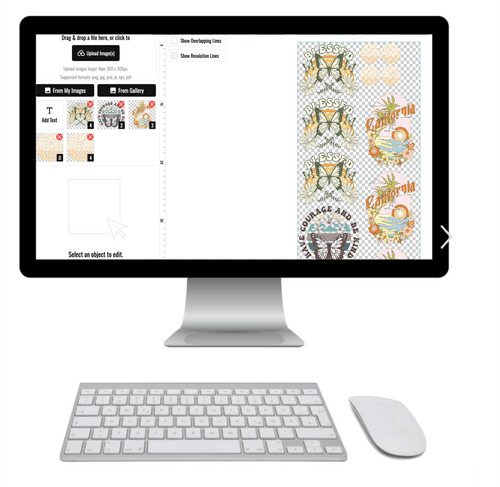
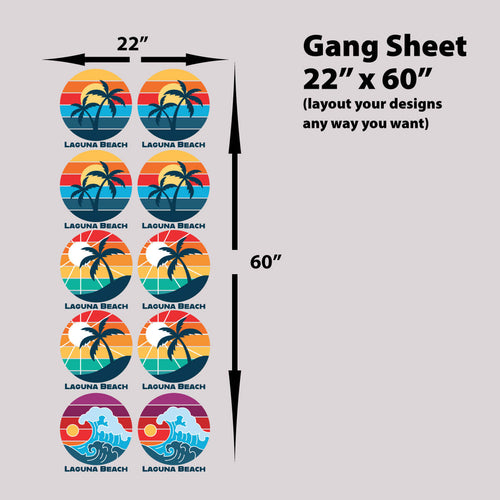
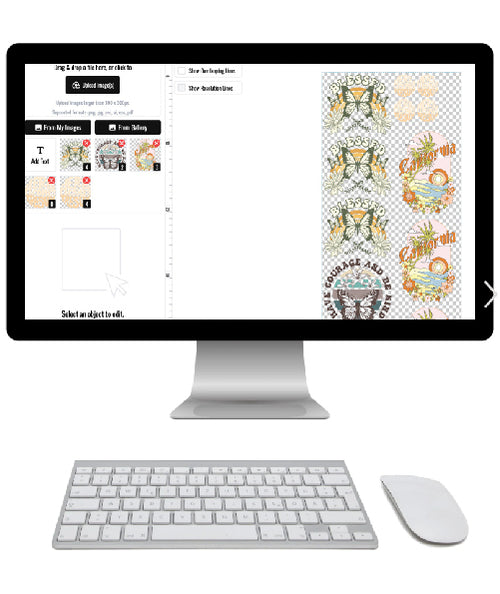
Once your PNGs are ready, layout becomes the next place where shops lose time and money. If you’re placing multiple designs on a sheet, an automated tool can reduce spacing mistakes and wasted material. The Auto-build gang sheet builder from Lion DTF Transfers is one option for arranging multiple print-ready files in a way that’s easier to manage and more cost-effective than building every layout by hand.
Clean files save reprints. Clean layouts save material.
That combination is what helps a small business stay profitable. You’re not just trying to make a file “work.” You’re trying to create a repeatable process that protects margin and keeps orders moving.
Why Mastering PNGs Elevates Your Prints
The short answer to is png a lossless format is yes. The useful answer is more specific.
PNG protects image data during compression, supports transparency well, and fits the kind of artwork most DTF sellers use every day. That makes it a dependable choice for logos, text-based designs, isolated graphics, and layered art. But the format alone doesn’t guarantee a clean transfer.
Professional-looking DTF results come from combining the right format with the right preparation. Sharp source art, real transparency, clean edges, and sensible color handling matter just as much as choosing PNG in the first place.
Once you understand that, file prep gets simpler. You stop asking whether PNG is “good” in the abstract and start asking the better questions. Is the artwork clean? Is the background transparent? Will the edges hold up on fabric? That’s the level where print quality improves.
If you’re building a brand, selling custom shirts, or running orders for teams and events, these habits help you deliver work that looks more polished and creates fewer avoidable problems.
If your artwork is ready and you need dependable DTF production, Lion DTF Transfers offers custom transfers, gang sheets, and upload-based ordering for print-ready files, along with options that fit both small test runs and larger apparel workflows.