


You’re usually searching for illustrator image resize at the exact moment something has gone wrong. A logo looks stretched. A customer sent a tiny PNG that needs to print bigger. Your chest graphic fits on screen but won’t fit cleanly on the gang sheet. Or the artwork looked fine in Illustrator, then came out soft, bloated, or off-balance after export.
That’s the key issue with resizing in Illustrator. It isn’t just a design task. It’s a print quality task. Every resize decision affects edge sharpness, stroke weight, spacing, placement, and whether the final DTF transfer looks clean on a shirt.
The good news is that Illustrator gives you the right tools if you use them in the right order. The bad news is that a lot of users still resize by feel, drag from the wrong handle, or trust a low-res image too far. That’s where production problems start.
The Foundational Principles of Resizing in Illustrator
Illustrator handles two very different kinds of artwork. Vector graphics are built for scaling. Raster images are built from pixels, so they have limits. If you don’t separate those two in your mind first, resizing gets messy fast.
For DTF work, that distinction matters because a vector logo can scale cleanly, while a low-resolution PNG can fall apart as soon as you enlarge it. The software may let you make it bigger, but the print won’t forgive a weak file.
Start with the Selection Tool and bounding box
Most resizing starts with the Selection Tool (V). Click the object, and Illustrator shows the bounding box handles. Dragging a corner changes the size. Dragging a side handle changes one dimension more directly, which is exactly how people accidentally distort artwork.
The habit that saves more bad files than anything else is simple. Hold Shift while dragging a corner handle. According to this Illustrator resizing tutorial, the Shift key locks the aspect ratio during freehand scaling, and 85% of print shops report distortion as a top resize issue in files they receive from clients. That same source notes this approach has been a core Illustrator resizing method since Illustrator 9 (2000) standardized non-destructive transforms.
Practical rule: If you’re dragging to resize and you’re not consciously protecting proportion, stop and reset before you go further.
That one shortcut prevents stretched circles, warped type, and logos that instantly look amateur.
What works and what doesn’t
In production, good resizing habits are boring on purpose. They’re repeatable. They don’t depend on guesswork.
A few rules hold up every time:
- Use corner handles for proportional resizing: This gives you control and keeps the object’s shape intact when combined with Shift.
- Avoid side-handle scaling for finished artwork: That’s useful for specific edits, but it’s also the fastest route to skewed logos and oval badges.
- Zoom in before you trust the result: A design can look acceptable at a normal view and still have obvious proportion issues when you inspect edges and spacing.
- Undo early: If the artwork looks even slightly wrong after a drag, don’t force it back by eye. Undo and resize properly.
Why this matters for DTF transfers
DTF graphics have to read cleanly at actual print size. A small distortion on screen becomes obvious on a shirt, especially with badges, circular layouts, mascot marks, and text-heavy designs. Customers may not know why a print feels off, but they’ll notice it.
That’s why the first resizing skill isn’t advanced. It’s disciplined. Use the right tool, grab a corner, hold Shift, and treat proportional scaling as essential.
Handling Vector Graphics vs Raster Images
The biggest resizing mistake isn’t technical. It’s assuming every image behaves the same way. It doesn’t.
A vector logo and a raster PNG can sit next to each other in the same Illustrator file, but they respond very differently when you enlarge them. If you’re prepping DTF artwork, that difference decides whether the print stays crisp or turns soft.

Why vectors are the better file for print
Vector art is made from paths, not pixels. That means Illustrator can scale it up or down without creating blur from interpolation. For logos, wordmarks, clean icon sets, and most simple apparel graphics, vector is the strongest starting point.
That’s also why experienced shops prefer AI, EPS, SVG, or properly built PDF artwork when available. If the design began as vector, keep it vector as long as possible.
A quick comparison helps:
| Artwork type | Best use in Illustrator | Resize behavior | DTF result |
|---|---|---|---|
| Vector | Logos, text-based art, clean shapes | Scales cleanly | Sharp edges and stable detail |
| Raster | Photos, textured graphics, screenshots | Limited by original pixel data | Can become soft or pixelated when enlarged |
If you’re unsure whether your placed image is embedded pixel art or editable vector, checking file structure early saves time. This guide on how to embed an image in Illustrator is helpful when you’re cleaning up linked artwork before production.
When a raster file starts failing
Raster images include JPEGs, PNGs, PSD exports, and screenshots. They can print well if the file starts strong enough for the final size. The trouble starts when someone sends a small web image and expects it to scale like a logo built in vector.
Adobe reports that Image Trace is used in 65% of professional print workflows to convert raster images to scalable vectors, and that process avoids the 40% to 60% quality degradation that comes from enlarging a raster image, according to this Image Trace walkthrough.
A raster file can be acceptable at the right size. It becomes a problem when you ask it to be something it was never built to be.
When Image Trace is the right call
Image Trace isn’t magic, and it won’t rescue every file. It works best on logos, icons, line art, and graphics with clean edges. It’s a poor fix for detailed photographs or heavily compressed artwork.
Use this workflow when the source image is simple enough:
- Place the raster image into Illustrator.
- Select the image so the trace options appear.
- Choose an Image Trace preset that matches the artwork style.
- Preview the result and look closely at corners, small letters, and enclosed shapes.
- Expand the traced result so it becomes editable vector artwork.
- Clean the paths if needed before resizing further.
Trade-offs that matter in production
Image Trace can save a job, but it can also create too many anchor points, rough curves, or ugly text shapes if the original file is poor. If a customer sends a low-quality logo, tracing may make it usable for print, but it may not make it perfect.
That’s the practical line. Use vector whenever possible. Trace when the art is simple and worth salvaging. Rebuild from scratch when the traced result still looks dirty.
Using the Transform and Artboard Panels for Precision
Freehand scaling is fine when you’re roughing out a layout. It isn’t enough when a left chest logo must hit a specific width or when multiple graphics need to export at exact dimensions for gang sheet placement.
That’s where the Transform panel and Artboard tools do the work. They remove guesswork.

Use the Transform panel instead of eyeballing size
Open the Transform panel and resize with numbers, not mouse feel. This is how you keep designs consistent across a production run.
The panel lets you enter exact width and height values, and it also lets you scale by percentage. For print work, that matters because you can match a placement spec instead of dragging until it “looks about right.”
Use it like this:
- Select the object first: The panel only helps if the right artwork is active.
- Lock proportions before changing dimensions: If the design needs to stay proportional, keep width and height linked in practice, even if you’re manually checking both values.
- Enter the target size directly: If a chest print needs a certain width, type it in and let Illustrator scale to that dimension.
- Check units before committing: Inches, millimeters, and pixels can all appear in production files. Don’t assume the document is using the unit you expect.
Shop-floor habit: Mouse resizing is for draft layout. Numeric resizing is for final output.
This is also where grouped artwork helps. If text, icon, outline, and backing shape belong together, group them before resizing so they act like one piece instead of shifting independently.
Artboard size affects export quality and cleanup
A lot of bad exports come from a simple oversight. The art is resized correctly, but the artboard is still wrong. That leaves extra transparent space, awkward cropping, or placement headaches once the file reaches gang sheet assembly.
Use the Artboard tool when the artwork itself is done. Then fit the artboard tightly to the final design or to the intended export boundary. That gives you a cleaner file and more predictable PNG output.
A solid production check looks like this:
| Checkpoint | Why it matters |
|---|---|
| Artwork size | Confirms the design prints at the intended dimensions |
| Artboard fit | Prevents wasted transparent space around the graphic |
| Grouping | Keeps multi-part designs aligned during scaling |
| Unit review | Avoids inch-to-pixel mistakes before export |
When repeated sizing needs an Action
If you resize the same type of graphic again and again, Actions are worth using. They’re useful when several logos need the same treatment, or when your workflow repeatedly calls for a common prep step before export.
The key is to build the Action only after you know the manual process is correct. Automation helps consistency. It doesn’t fix a flawed resize method.
For illustrator image resize work tied to DTF output, precision beats speed most of the time. Fast is good. Exact is better.
Exporting Resized Art for Flawless DTF Transfers
A lot of artwork problems don’t start in design. They start in export.
You can size a file correctly in Illustrator and still send out something that prints poorly because the background wasn’t transparent, the file format was wrong, or the canvas included extra dead space. For DTF transfers, export is not an afterthought. It’s part of production.

Export settings that hold up in real print workflows
If the artwork is ready, export with discipline. The goal is simple. Deliver a clean file that prints exactly as intended.
These are the settings worth checking every time:
- Final dimensions match the intended print size: Don’t rely on the printer to interpret your scale correctly.
- Transparent background stays transparent: DTF graphics usually need clean isolation around the art.
- The file format supports production needs: PNG is common for transparent artwork. Some workflows also use TIFF depending on the print environment.
- Color mode is checked before export: Print files need a color workflow that matches production expectations.
- The artboard is trimmed correctly: Extra empty canvas can create placement issues later.
A useful reference when deciding how artwork structure affects output is this breakdown of raster vs vector for print files. It helps explain why some files survive export better than others.
Why gang sheet prep changes the resizing conversation
Once single designs are resized correctly, the next challenge is layout efficiency. Many users lose time at this stage. They manually tile graphics, leave unnecessary gaps, or rebuild sheet layouts more often than they should.
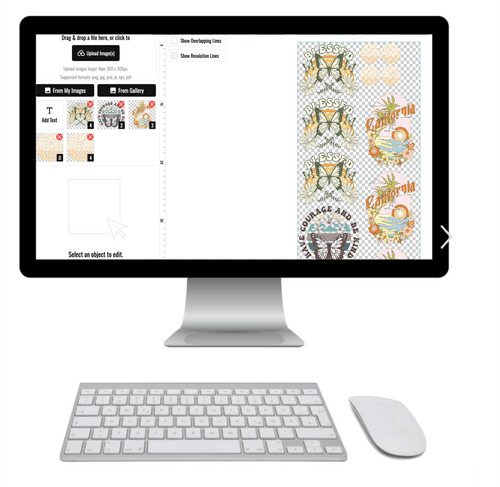
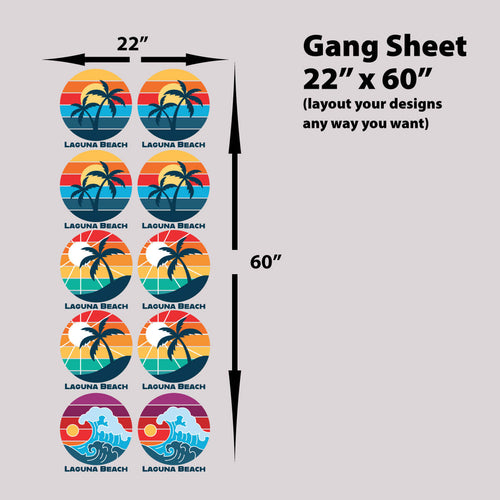
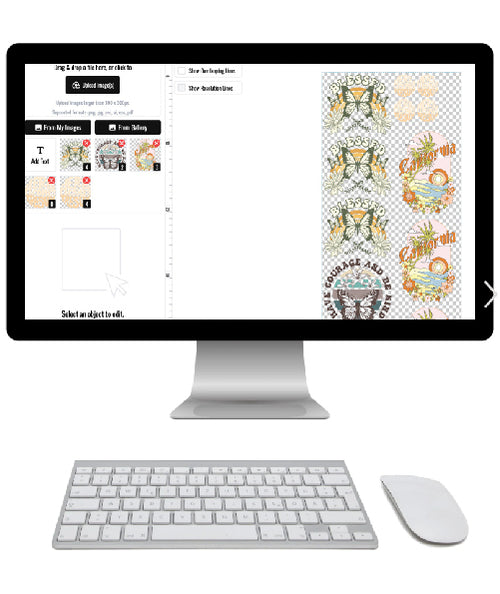
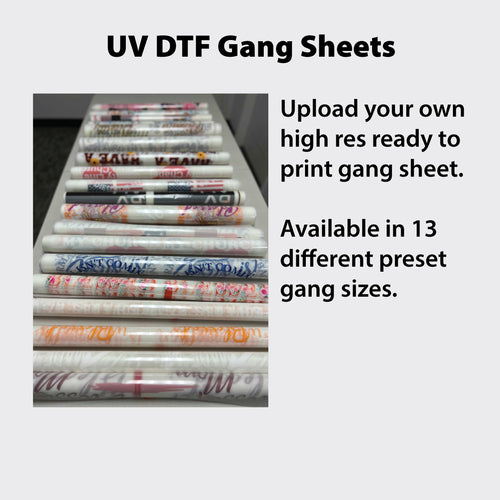
That’s why an Auto-build gang sheet builder is such a practical final step. Instead of arranging every print by hand inside Illustrator, you can export your correctly sized artwork and let the builder place the pieces more efficiently. That reduces layout friction and helps control cost because wasted space adds up quickly in gang sheet production.
Good Illustrator work gets the art ready. A good gang sheet workflow gets the order ready.
This is especially useful when you’re juggling mixed sizes, repeated logos, left chest prints, sleeve marks, and full-front graphics in the same order. Illustrator is still where you control the artwork. The auto-builder is where you simplify the packing.
A short pre-flight checklist before upload
Before you send a file into any gang sheet workflow, run through this list:
- Open the exported file and inspect it at high zoom. Look for halo edges, broken curves, or soft details.
- Confirm the canvas is tight to the graphic. Extra margin creates unnecessary spacing problems later.
- Make sure transparency exported. Don’t assume it did.
- Check that strokes, outlines, and shadows still look intentional. Export can expose issues you didn’t notice inside Illustrator.
- Name files clearly. Organized file names make gang sheet building much easier when an order has multiple designs.
What works better than manual sheet assembly
Manual gang sheet building inside Illustrator still has a place. It gives full control. But it also introduces more chances for uneven spacing, missed duplicates, and wasted room on the sheet.
For ease of use and cost effectiveness, this is one of the few areas where handing off the layout step makes sense. Resize the art correctly in Illustrator, export clean files, then use an Auto-build gang sheet builder to handle arrangement. That split keeps the quality control where it belongs and removes repetitive layout work that doesn’t need to be manual.
If you’ve ever spent more time packing a gang sheet than preparing the actual art, that change pays for itself in saved effort alone.
Common Illustrator Resizing Pitfalls and How to Fix Them
Most resizing errors aren’t advanced mistakes. They’re small habits that keep slipping into production files. The trouble is that each one shows up loudly on a finished transfer.

Fat strokes and bloated effects
A common complaint goes like this. The shape scaled correctly, but the outline got too heavy and the whole graphic feels clumsy. That usually points to Scale Strokes & Effects.
Forum analyses cited in this resizing reference say this issue causes noticeable layout distortion in 60% of novice resizing workflows, and a 1pt stroke can become 1.5pt on a 150% scale-up if the setting isn’t managed correctly.
Fix it by checking your preferences before a major resize, especially on badge designs, outlined text, and layered logos. If stroke weight is part of the design language, review it after scaling instead of assuming it stayed balanced.
Non-uniform scaling that breaks the design
The other regular problem is uneven width and height. The art technically got larger, but circles became ovals and type spacing started looking wrong. The same source reports accidental non-uniform scaling affects 40% of new users, leading to 15% to 25% dimensional errors in final artwork.
If you catch it early, the fix is simple:
- Undo the resize if possible.
- Select the artwork again with the Selection Tool.
- Resize proportionally instead of pulling from a side handle.
- Use numeric scaling in the Transform panel if the job needs accuracy.
If the file has already been edited after the distortion happened, replacing the affected asset may be cleaner than trying to visually correct it.
Distorted art is rarely improved by dragging it back the other direction. It usually gets worse.
Fuzzy raster art that still looks bad after resizing
Many people waste time enlarging a small PNG, sharpening it, exporting it, and hoping the printer can smooth it out. Usually, it still looks weak.
If the source image is raster and detail is breaking down, stop resizing and reassess the file itself. For logos and simple graphics, rebuilding or tracing may be the only reliable fix. For more on output-friendly file choices, this guide to the best file format for printing is worth reviewing before you re-export.
A quick visual explanation can help if this problem keeps showing up in your files:
Clipping masks that resize unpredictably
Clipping masks can trip up even experienced users. Sometimes you mean to resize the art inside the mask. Other times you mean to resize the visible crop area. Those are not the same move.
When a masked object behaves strangely, slow down and confirm what is selected. Use isolation mode if needed. Resize the mask boundary when you want to change the crop window. Resize the contents when you want the image itself larger or smaller inside that frame.
That one distinction prevents a lot of “why did my image jump?” moments.
From Screen to Shirt Your Resizing Workflow
Good illustrator image resize work is less about one feature and more about a clean sequence. Keep artwork proportional. Know whether you’re working with vector or raster. Use the Transform panel when size has to be exact. Trim the artboard before export. Catch stroke scaling and distortion before they reach print.
That workflow is what separates a design that only looks fine on screen from one that presses cleanly on fabric. DTF production rewards files that are organized, sized correctly, and exported with intent.
If you want less manual layout work after the artwork is ready, use an Auto-build gang sheet builder as the final step. It’s one of the simplest ways to turn well-prepped Illustrator files into efficient, print-ready gang sheets without spending extra time arranging everything by hand.
Get the file right first. The print gets easier after that.
If you want fast, reliable DTF output after you finish your Illustrator prep, Lion DTF Transfers makes the handoff simple. You can upload print-ready files, build gang sheets, or use the Auto-build gang sheet builder for a faster and more cost-effective layout process. For shops, brands, schools, and makers who need consistent results, Lion DTF Transfers is built to keep artwork sharp, ordering easy, and turnaround practical.