



You're probably here because you've already seen the problem firsthand. A shirt looks great off the press, then a few washes later the print starts peeling at the edges, cracking across the chest, or fading into a dull version of the original artwork.
That usually isn't just a pressing problem. It starts much earlier. The quality of your heat transfer designs for shirts depends on a chain of decisions, from the artwork you build, to the file you upload, to how you size, place, and press the transfer. If one step is weak, the finished shirt tells on you.
New business owners often focus on the heat press first. I'd reverse that. Start with artwork that's built for apparel, prepare a clean print-ready file, lay it out efficiently on gang sheets, then press it correctly. That's how you get shirts that look retail-ready instead of homemade.
Why Your Shirt Designs Deserve a Better Transfer
You press a shirt, it looks sharp, and the customer is happy. Two weeks later, they send a photo of cracked ink, lifted edges, or a print that already looks tired. At that point, the problem is no longer a bad shirt. It is a refund, a replacement, and a customer who may not order again.
That is why transfer choice needs to be treated like a production decision, not a supply-line afterthought. The transfer has to match the artwork, the fabric, the order size, and the margin you need to keep. If those pieces do not line up, the shirt may still leave the shop looking good, but it will not hold up well enough to protect your reputation.
For many small shops, DTF opens up more room to work than HTV. It handles full-color art, small details, and mixed garment types without the cutting and weeding time that slows HTV down. HTV still earns its keep on basic names, numbers, and simple one-color jobs. I still use it in the right lane. But once you start producing chest graphics, event shirts, staff uniforms, or short-run merch with multiple sizes, the labor math changes fast.
What usually goes wrong
The failure usually starts upstream.
- Artwork is built for a screen, not a shirt: Tiny text, thin lines, weak contrast, and crowded layouts tend to lose clarity on fabric.
- Files are prepared carelessly: Low-resolution exports, rough edges, and leftover backgrounds create avoidable print problems.
- Press settings are inconsistent: Bad temperature, pressure, or dwell time can ruin a solid transfer.
- Layout decisions waste money: Manual gang building, inconsistent sizing, and guesswork on placement eat into profit on every run.
Shop rule: If the design file is weak, the finished shirt will show it.
Better transfers protect both durability and margin
New shop owners often treat design, print prep, and pressing as separate tasks. In production, they are tied together. A cluttered file takes longer to clean up. Poor sizing leads to reprints. Inefficient gang sheets waste film. A transfer that is harder to press consistently increases spoilage.
Good workflow fixes that before the shirt hits the platen. Clean art, correct sizing, and efficient sheet layout produce transfers that are easier to apply and easier to repeat. That matters even more when order counts start climbing.
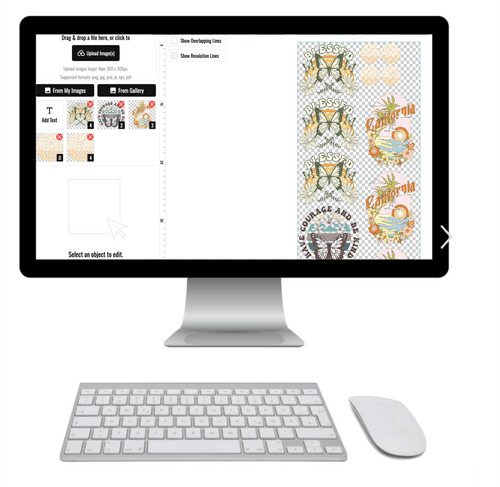
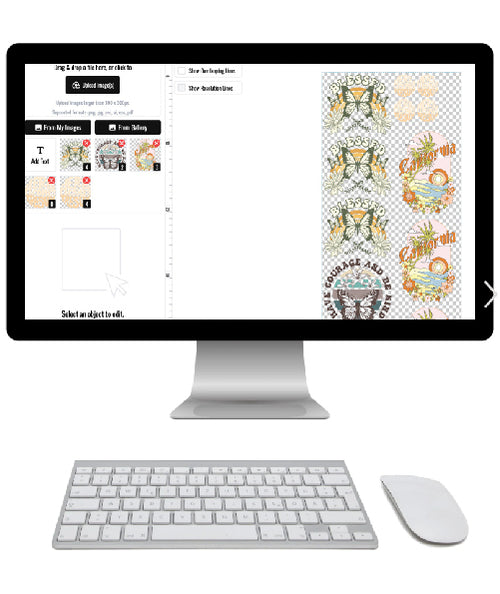
Tools that reduce manual setup help here. Lion DTF's Auto-builder, for example, speeds up gang sheet layout so the file you send to print is closer to how the job needs to run in the shop. That saves time, but the bigger benefit is consistency. Consistent setup usually leads to fewer mistakes, stronger-looking prints, and healthier margins.
Core Principles of Great Shirt Designs
Good apparel art isn't the same as good digital art. A shirt moves, folds, stretches, and gets viewed from a distance. That changes what works.

Modern DTF printing draws from older transfer methods like plastisol, and one reason decorators like it is color payoff. 3rd Rail Clothing's guide to heat transfers notes that modern DTF printing often achieves 20-30% more saturated hues than other digital methods because of the solid ink and underbase layer, and it can be tested to last over 100 washes. That extra vibrancy helps, but it won't rescue weak design decisions.
Design for fabric, not for the screen
A lot of new sellers make artwork too busy. They zoom in to 200%, add tiny textures, thin outlines, micro text, and layered effects, then wonder why the shirt looks muddy.
Fabric rewards clarity.
A strong shirt design usually has:
- Clear contrast: Light art on dark garments, dark art on light garments, or controlled color blocking that keeps elements readable.
- Controlled detail: Enough detail to feel polished, not so much that the image collapses at normal viewing distance.
- Shape hierarchy: A main focal point, secondary support elements, and breathing room around both.
- Negative space: Empty areas that help the eye read the graphic fast.
Contrast beats complexity
If you print on black, navy, forest, or heather colors, weak contrast disappears. That's why chest graphics need bold separations. Beige text on an athletic heather tee might look subtle on a mockup, but subtle often becomes unreadable in real life.
Think in terms of distance. If someone stands six feet away, can they understand the graphic immediately? If not, simplify it.
The shirt is the background. Use it on purpose, not by accident.
Negative space is part of the design
Designers who are new to apparel often try to fill every inch. That's a mistake. On shirts, negative space gives the print shape and keeps it from feeling heavy.
Here's the difference in practice:
| Design choice | What happens on a shirt |
|---|---|
| Dense artwork with no spacing | Looks crowded and harder to read |
| Small details packed together | Can print as visual noise |
| Clear main shape with open space | Reads faster and looks cleaner |
| Limited color zones | Helps artwork hold together on fabric |
Good shirt art usually has one job
For merch, team shirts, brand apparel, and event work, the best design often communicates one thing well. A slogan. A mascot. A logo lockup. A bold graphic. Not all four fighting for space.
If you're adapting an existing logo or illustration for heat transfer designs for shirts, simplify before you print. Thicken fragile lines. Remove unnecessary shadows. Increase separation between elements. A cleaner design usually looks more premium once it's worn.
Perfecting Your Print-Ready File
A customer approves the mockup, you print the transfer, press the shirt, and then the problems show up. Fuzzy edges. A white box around the art. Small text that looked fine on a laptop but turns to mush on fabric. In my shop, that usually traces back to file prep, not the film or the press.
Good DTF results start long before the first sheet prints. The file decides how clean the transfer looks, how fast you can build gang sheets, how many edits your shop has to make, and whether the final shirt feels worth the price you charged. If the art is sloppy, production gets slower and margin gets thinner.
Start with the right file at the right size
Use artwork built for print, not something pulled from a website or a social post. Screenshots and web graphics are one of the fastest ways to get soft edges and disappointed customers.
For apparel, 300 DPI at final print size is the safe standard. Vector files like AI or EPS are better for logos, line art, and type because they hold their shape when resized. PNG works well too, but only if it was exported cleanly at the exact size you plan to print. If you want a more detailed breakdown, keep this file format guide for printing handy.
A simple rule keeps a lot of orders out of trouble:
- Use PNG for finished artwork with a real transparent background at final size.
- Use AI or EPS for logos, text-based designs, and artwork that may need edits or multiple size versions.
- Avoid JPG, screenshots, and copied web images for production art.
Transparency has to be real
New sellers often send a file on a white or black background and assume the printer will ignore it. It will not. If the background is in the file, it prints.
Check the file before upload, not after the transfer arrives:
- Real transparency. No solid artboard hiding behind the design.
- Clean outer edges. No halo, glow, or stray pixels.
- Correct canvas size. The design should sit on a canvas that matches the intended print area.
- Readable detail. If small text or thin lines look weak on screen at full size, they will look worse after pressing.
I always tell new apparel sellers to zoom to actual print size and stop judging the art while it is blown up on a monitor. That one habit catches a lot of expensive mistakes early.
Build artwork for DTF, not for a backlit screen
DTF uses a white underbase, and that affects how your design prints on the shirt. Soft fades, low-opacity shadows, and tiny distressed specks can look tasteful on screen but break apart or print heavier than expected once white ink sits underneath.
Clean shapes hold up better. Clear shadows hold up better. Deliberate edges hold up better.
That matters for durability too. Fragile detail is more likely to look rough after washing, and artwork that needs manual cleanup slows production before the shirt ever reaches the press. Design choices at the file stage directly affect how long the print lasts and how profitable the order is.
A few shop-tested rules help:
- Make thin elements thicker than you think they need to be.
- Use gradients carefully and test them at actual size.
- Remove decorative effects that do not add value on fabric.
- Keep distressed textures bold enough to read as texture, not noise.
Clean files save money
Bad files cost money in quiet ways. An art cleanup here. A reprint there. Ten extra minutes rebuilding a gang sheet because the uploaded canvas is oversized and the art is off-center. Over a week, that adds up.
Clean production files do three things well. They print faster, they reduce corrections, and they make layout tools more useful. If you are building multiple logos, left chest prints, and sleeve hits into one order, file consistency matters. Tools like Lion DTF's Auto-builder work best when the artwork is already sized correctly, trimmed cleanly, and ready to place without repair work.
That is the bigger workflow a lot of new shops miss. Better file prep is not just a design issue. It affects print quality, press efficiency, remake rates, and profit on every shirt.
Sizing and Placement for Professional Results
Most homemade-looking shirts don't fail because the transfer was bad. They fail because the print is too small, too low, off-center, or all three.
Placement is what customers notice first, even if they can't explain it. When a front graphic sits slightly left or an upper back print rides too high, the whole garment feels wrong. That's why sizing and alignment deserve a repeatable system.
Crooked placement creates waste fast
Beginners and home-based sellers report waste rates as high as 20-30% due to poor alignment, and simple folding methods or downloadable guides can reduce those errors and help prevent the 1-2 cm skewing that can happen during pressing, according to this alignment tutorial reference on YouTube.
You don't need expensive tools to improve this. You need consistent reference points.
Start with a practical sizing chart
Use this as a starting point, not a law. Different brands, fashion fits, and design styles may need adjustments. But if you don't have a baseline yet, this will keep you out of trouble.
| Placement | Adult (S-XL) | Youth (M-L) | Toddler (2T-4T) | Vertical Position |
|---|---|---|---|---|
| Full Front | 10-12 inches wide | 8-9 inches wide | 5-7 inches wide | Centered on chest |
| Left Chest | 3-4 inches wide | 2.5-3.5 inches wide | 2-3 inches wide | Slightly below collar seam |
| Upper Back | 10-12 inches wide | 8-9 inches wide | 5-7 inches wide | High between shoulder blades |
| Center Back | 10-12 inches wide | 8-9 inches wide | 5-7 inches wide | Centered below upper back area |
| Sleeve Print | 3-4 inches wide | 2.5-3.5 inches wide | 2-3 inches wide | Centered on sleeve face |
If you want a more visual reference, this DTF sizing chart is useful for comparing common placements.
Simple alignment beats eyeballing
Forget guessing from the neckline. Use physical landmarks on the garment.
A reliable basic method:
- Fold the shirt vertically: Match shoulder seams and press a light center crease.
- Use the center crease as your anchor: Align the design's visual center, not just the canvas center.
- Check from the collar down: This helps keep the print from drifting too high or too low.
- Re-check after placement: Some films can shift slightly when you move the shirt or close the press.
For multi-location prints, lay out the full job before pressing anything. Front, upper back, sleeve, neck label. Once you establish one reference system for that garment, every location gets easier.
A shirt can be perfectly printed and still look cheap if the placement is off.
Size the art to the garment, not your preference
A common beginner move is printing every design at one width and forcing it onto every garment size. That creates tiny graphics on adult shirts and oversized art on youth sizes.
Instead, think in terms of proportion:
- Broad chest print for adult standard tees
- Slightly reduced scale for youth
- Simplified, smaller layout for toddler sizes
- Narrower treatment for women's fashion cuts if needed
Also remember that not every design wants the same placement. A badge logo should sit differently than a concert back print. A stacked typographic design usually needs more vertical room than a circular logo. The print should fit the shape of the artwork and the shape of the shirt together.
Maximizing Value with Gang Sheet Optimization
A new seller usually notices gang sheets after the first messy mixed order. One left chest logo, a few sleeve hits, several names, a back print, and a small reorder from last week. Build that by hand a few times and the profit leak shows up fast.
Manual gang sheet setup burns time in two places. You spend extra minutes arranging art, then more time on the back end sorting cuts that were packed too tightly or grouped poorly. That problem starts before the press. If the file prep is sloppy, production slows down and reorders get harder to repeat accurately.

Why gang sheets matter for small runs
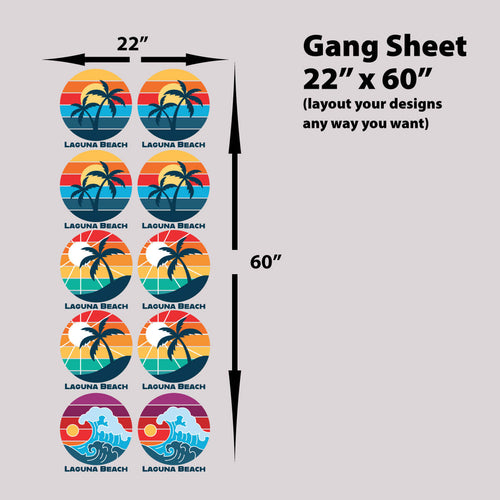
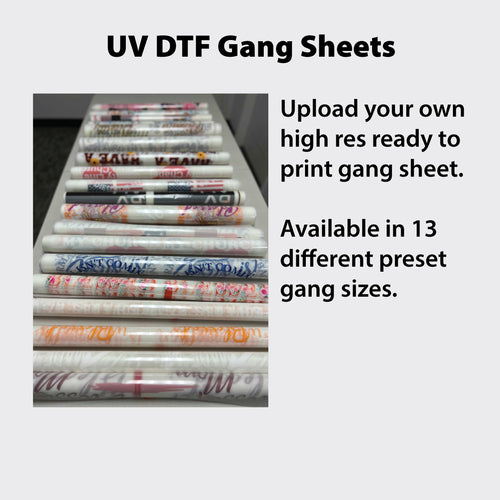
Gang sheets protect margin because they turn scattered art into one organized production file. That matters most for small businesses printing short runs, sample orders, brand drops, school merch, and repeat logo work. A clean sheet lets you combine sizes, placements, and customer variations without treating every graphic like a separate setup.
The primary value is workflow control. Design decisions made earlier, such as final print size, transparent background cleanup, and consistent file naming, carry straight into gang sheet efficiency. Get those details right and your sheet builds faster, cuts cleaner, and presses with fewer surprises.
What efficient gang sheet planning looks like
Good gang sheet planning balances material use with production speed. Saving a little film is not worth creating a cutting headache or mixing up customer parts at the trimming table.
A practical workflow usually includes:
- Grouping by order or garment set: Keep each customer or shirt style together so pack-out stays clean.
- Rotating art only when it still cuts cleanly: Tight nesting helps, but awkward angles slow fulfillment.
- Leaving realistic cut space: A crowded sheet may look efficient on screen and waste time in production.
- Checking every final size before upload: One wrong dimension can ruin an entire batch, not just one print.
- Keeping repeat jobs consistent: If a design sold once, save the layout logic so the reorder matches the first run.
That last point matters more than many new shops expect. Repeatability is where profit improves. If every reorder requires rebuilding the sheet from scratch, the design stage keeps eating into the margin you thought you saved on film.
Why auto-building beats manual layout
Auto-building helps because it removes the slowest, least valuable part of gang sheet prep. Instead of dragging logos around a canvas and second-guessing spacing, you upload the files and let the builder arrange them around the sheet size you need.
If you want to see how that process works in practice, Lion DTF explains it well in this guide to DTF gang sheets. For shops using Lion DTF Transfers, the Auto-build gang sheet builder handles online layout in a way that reduces prep friction, especially for small multi-design orders and frequent reorders.
I have seen new businesses lose money here without realizing it. They focus on transfer cost per sheet and ignore the 20 to 40 minutes spent rebuilding art layouts, checking spacing, and fixing preventable mistakes. Auto-building cuts that waste and gives you a more repeatable path from approved design to finished shirt.
The most profitable gang sheet is the one that saves time in art prep, cutting, and reorder setup, not just the one with the least empty space.
When manual layout still makes sense
Manual layout still earns its place for a few jobs:
- you need strict grouping for customer pack-outs
- you are planning specific cut paths
- you are arranging art for a special production requirement
For routine shirt work, auto-building is usually the better call. It keeps the workflow tighter from digital file to press-ready transfer, lowers layout errors, and makes it easier to run the same job again without rebuilding everything from zero.
From Digital File to Finished Shirt
A lot of shirts fail in the last 15 seconds.
The art is clean. The gang sheet is built right. The transfer itself is fine. Then the shirt goes on the press with moisture in the fabric, uneven pressure on the platen, or settings copied from a different blank. That is how new shops end up remaking orders they already did the hard work to prepare.

Good production starts before the press closes. Design choices affect how the shirt feels, how easily the transfer applies, and how likely it is to hold up after washing. Large solid fills need more care than lighter artwork. Fine details need steady pressure and a clean peel. If you used a tool like Lion DTF's Auto-build gang sheet builder to speed up layout, finish the job with the same discipline at press time. Fast prep only helps if the final application is repeatable.
The pressing sequence that works
Use the same order on every job so problems are easier to spot.
-
Pre-press the shirt
Press the blank briefly to flatten the surface and drive off moisture. This one step prevents a lot of edge lift and weak bonding. -
Position the transfer carefully
Set the print in place and check height, center, and rotation before pressing. A crooked logo usually starts with a rushed setup, not a bad transfer. -
Press with tested settings
Use the transfer supplier's recommended settings for that film and garment type. Cotton, blends, and polyester can all need different heat, time, and pressure. -
Peel the carrier the way the transfer is built for
Hot peel means peel hot. Warm peel and cold peel need different timing. If you ignore that, release problems show up fast. -
Finish with a short post-press when needed
A finishing press can smooth the hand feel and help lock the print down, especially on larger designs.
Where shops usually lose money
Pressing mistakes are expensive because they wipe out the value of the work that came before them. You already paid for art time, transfer production, blank garments, and labor. One bad press turns all of that into a remake.
I see the same pattern often. A shop gets a new blank, keeps the old settings, and adds extra dwell time when the first shirt does not look right. That usually creates a second problem instead of fixing the first one. Handle troubleshooting one variable at a time: temperature, pressure, time, or peel timing.
A few common failure points show up over and over:
- Too much heat or time: garments can scorch, dye can migrate, and adhesive can get overworked
- Too little pressure: parts of the print bond while other areas lift
- Moisture in the shirt: steam interferes with a clean application
- Wrong settings for the fabric: performance polyester does not behave like ring-spun cotton
- Artwork that is too heavy for the use case: big dense prints can feel stiff and take more care to apply cleanly
Press settings are a production standard. Change one variable at a time and write down what worked.
A visual demo helps if you're training staff or dialing in a home setup:
A fast troubleshooting checklist
If a shirt comes off the press looking wrong, check process first.
| Problem | Likely cause | What to check |
|---|---|---|
| Edges lifting | Low heat, weak pressure, or moisture in the blank | Recheck pre-press, platen pressure, and press temperature |
| Shirt scorched | Heat or dwell time is too high | Lower settings and test on the same garment type |
| Print looks crooked | Placement shifted before pressing | Check alignment method and how the shirt is loaded on the platen |
| Surface looks uneven | Pressure is inconsistent across the print area | Inspect press calibration and platen contact |
| Design feels heavier than expected | The artwork has large solid coverage or the finish press was too aggressive | Revisit the art file and post-press approach |
The best operators test before they scale. Run a sample when you switch blanks, change transfer types, or adjust artwork density. That habit protects durability and profit at the same time.
If you want a simpler way to turn artwork into ready-to-press transfers, Lion DTF Transfers offers custom DTF transfers, gang sheets, and an Auto-build gang sheet builder that helps streamline layout for small runs, mixed designs, and repeat orders.