



You’ve probably had this happen. The artwork looked clean on screen, the colors looked right, and the transfer seemed fine out of the package. Then the shirt came off the press crooked, the edges didn’t bond, or the print looked tired after the first wash.
That gap between a good design file and a finished shirt is where most heat press transfer designs fail. Not because DTF is unreliable, but because small production mistakes stack up fast. Resolution gets overlooked. Placement is guessed. Pressure isn’t consistent. Gang sheets are built manually with too much dead space. One rushed step turns a sellable shirt into a remake.
DTF changed that workflow for a lot of shops. It emerged in the late 2010s and gives decorators a way to apply full-color designs on cotton, polyester, and blends without pretreatment, while the global heat transfer printing machine market is projected to grow at a 5.90% CAGR from 2023 to 2030 as apparel customization keeps expanding (Wunderlabel’s history of DTF transfers).
The shops that get consistent results don’t rely on luck. They build a repeatable process from artwork prep through pressing. That’s what this guide focuses on. Not theory. The practical decisions that keep prints sharp, aligned, durable, and profitable.
From Digital Design to Durable Apparel
A lot of failed prints start long before the press closes.
The file may be low resolution. The art may have a stray background. The design may be sized for one shirt and blindly reused across every garment in the run. By the time the transfer reaches the platen, the mistake is already baked in.

Why decent artwork still fails in production
Heat press transfer designs live in two worlds. First as a digital file, then as a physical decoration on fabric that stretches, shrinks, holds moisture, and reacts to heat differently by garment type.
That’s why a design that looks perfect on a laptop can still press poorly. Fine details can soften. Placement can drift. Adhesion can suffer if the press isn’t calibrated or the shirt wasn’t prepared.
Practical rule: If the shirt looks wrong after pressing, don’t assume the transfer is the only problem. Check the file, the garment, the alignment method, and the press setup as one system.
What DTF fixes and what it doesn’t
DTF solved a lot of limitations decorators used to fight with. It handles complex, full-color artwork well. It works across common apparel fabrics. It also gives shops and small brands a much more flexible route for short runs, name drops, event shirts, and online merch.
What it doesn’t do is rescue sloppy production habits.
Hot-peel DTF still depends on disciplined prep and pressing. If your file is weak, your alignment is rushed, or your pressure is uneven, the final result will show it. In real shop work, the biggest gains come from tightening the boring parts. File quality. repeatable placement. clean gang sheet layout. exact press settings.
The standard that matters
Customers don’t judge your process. They judge the shirt in their hands.
They notice whether the print sits straight. They notice whether the colors stay strong. They notice whether the hand feel is smooth or plasticky. Durable apparel starts with a design file, but it only becomes a reliable product when every production step supports it.
That’s the mindset behind professional heat press transfer designs. Treat the file, transfer, garment, and press as one workflow. Once you do that, results stop feeling random.
Preparing Your Artwork for Flawless DTF Printing
Most production problems are cheaper to fix on your screen than on a shirt.
If the artwork is clean, sized correctly, and built for print, pressing gets easier. If the file is sloppy, every step after that gets more expensive. Reprints, wasted film, wasted shirts, wasted time.

Start with resolution, not hope
For DTF, 300 DPI minimum is the floor. That’s the point where artwork stays sharp enough for clean transfer quality, with 95%+ fidelity cited for sharp multi-layer DTF designs at that resolution. Files under 200 DPI can cause 30% detail loss, and print shop data cited in this breakdown of heat transfer print quality factors says low-resolution files contribute to 40% of all rework.
That matches what shops see every day. Soft edges don’t get sharper in production. Tiny details don’t magically return at press time.
A quick file check prevents most of this:
- Check actual size: A file can say 300 DPI and still be unusable if it’s tiny and being scaled up.
- Zoom in hard: Jagged curves, fuzzy edges, and rough shadows will print that way.
- Watch screenshots: A screenshot of artwork is usually not production art.
Low-resolution art wastes time twice. First when you try to make it work, then again when you have to reprint it.
Build files that survive production
A good design file isn’t just attractive. It’s stable.
Use a transparent background. If there’s a hidden white box or leftover background layer, it will show up around the design. That mistake slips through more often than people think, especially with exported PNGs from beginner tools.
Convert text to outlines before upload when possible. That keeps fonts from shifting if the original font file isn’t embedded or available. For logos and wordmarks, that matters more than people realize.
Keep thin details realistic. Hairline strokes, distressed specks, and tiny separated elements may look stylish in software, but they can become weak points in print. If a detail only works when you’re zoomed in on a monitor, it may not hold up as apparel decoration.
A simple file audit should include:
- Transparent background: Open the file over a colored background to confirm nothing hidden remains.
- Readable small text: If you have to squint on screen at intended print size, the shirt buyer will too.
- Clean edges: Remove stray pixels and accidental marks outside the design boundary.
- Correct orientation: Especially for text-heavy art, double-check before gang sheet placement.
- Consistent color intent: If you designed in RGB, keep your previews and exports consistent so surprises are limited later.
For more examples of what makes a file usable in production, these custom heat transfer design tips are worth reviewing before you upload.
Color and background choices that press better
Designers often focus on the graphic and ignore the garment color it will live on. That’s a mistake.
A graphic that pops on white may feel flat on athletic heather. Dark outlines that feel strong on black can disappear on navy. Off-white elements that look intentional on cream can look dirty on ash gray. Before sending art to print, place it on mockups that resemble the actual garment color family.
The same goes for transparent effects. Soft fades and glow effects can work well in DTF, but only if the transition is intentional. Muddy transparency around edges usually comes from bad exports, not design style.
What I’d fix before uploading any file
Some file issues are so common that they deserve a last pass every time.
| File check | What goes wrong if you skip it |
|---|---|
| Resolution | Blurry prints and softened edges |
| Transparency | White boxes or unwanted halos |
| Text outlines | Font changes or broken lettering |
| Canvas crop | Extra space makes placement harder |
| Stray pixels | Random marks appear in final transfer |
A production mindset beats a design-only mindset
Good art isn’t enough. Good production art is.
That means designing with the final shirt in mind. Will the smallest detail still read? Will the edges stay clean? Does the artwork fit the placement it’s meant for, or are you planning to resize it later and hope it still works?
That last-minute resizing habit creates a lot of bad heat press transfer designs. Build the file for the actual use case. Front chest. full back. sleeve hit. pocket area. gang sheet repeat. The cleaner the intent, the fewer surprises when the transfer arrives.
Strategic Sizing and Placement for Professional Results
Crooked placement ruins good artwork faster than almost anything else.
A strong print can still look amateur if it sits too high, too low, or slightly off-center. That’s why placement needs a method, not guesswork.

Alignment is where money disappears
A 2025 survey cited by the DTF Printers Association found that 42% of users report alignment issues as their top cause of failure, with wasted materials and reprints estimated at $0.05 to $0.10 per square inch. The same source notes that using alignment tools or pre-pressing shirts can deliver up to 92% perfect alignments versus 70% with basic manual methods (referenced here).
That’s why folding a shirt and eyeballing the center only gets you so far. It can work for casual one-offs. It breaks down on production runs, gang sheets, and mixed garment styles.
Placement has to match the garment
A crew neck gives you a reliable visual anchor near the collar. A V-neck doesn’t. A youth tee and an adult oversized tee cannot share the same visual proportions. A left chest logo that looks balanced on a small polo can feel lost on a hoodie if you don’t adjust.
What works in practice is building placement around the garment’s structure:
- Full front graphics: Center for visual balance, but don’t crowd the collar.
- Left chest prints: Keep them compact and consistent relative to the placket or collar seam.
- Full back art: Check where the shoulder blades sit, not just the neck seam.
- Sleeve hits: Account for taper and seam roll so the print doesn’t twist visually.
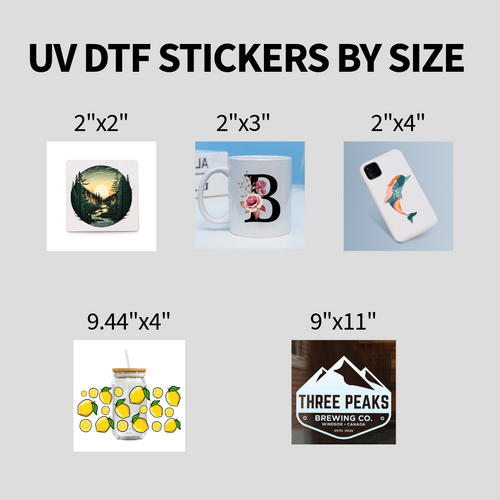
If you need a working reference before laying out a run, this DTF sizing chart helps standardize placement decisions.
Use pre-pressing as an alignment tool
Pre-pressing does more than remove moisture. It flattens the fabric and gives you a cleaner surface to read. On some garments, that alone makes the center line easier to see and the transfer easier to place accurately.
That matters even more with DTF film. If the shirt is wrinkled or distorted, the film can look straight while the garment underneath isn’t.
Don’t align to wrinkles. Align to a flattened garment after pre-pressing.
A simple workflow works well in shops:
- Pre-press the shirt.
- Lay it flat and check side seam balance.
- Use a guide, ruler, or laser alignment tool.
- Place the transfer and pause before pressing.
- Step back and look at it as a customer would.
That last step catches more mistakes than people admit.
Here’s a useful visual walkthrough for placement and setup:
Scale for the shirt, not your screen
One of the biggest sizing mistakes is making every design the same width across every shirt size. That’s easy for production. It rarely looks right.
A design should feel proportionate on the garment. Youth sizes need restraint. Extended adult sizes often need more visual presence. The same applies to tall blanks and fashion cuts. The shirt shape changes how the art reads.
Use one approved design concept, then size it intentionally for each garment category in the order. That gives the whole run a retail look instead of a rushed contract-print feel.
Building Cost-Effective Gang Sheets the Smart Way
Gang sheets separate hobby workflows from production workflows.
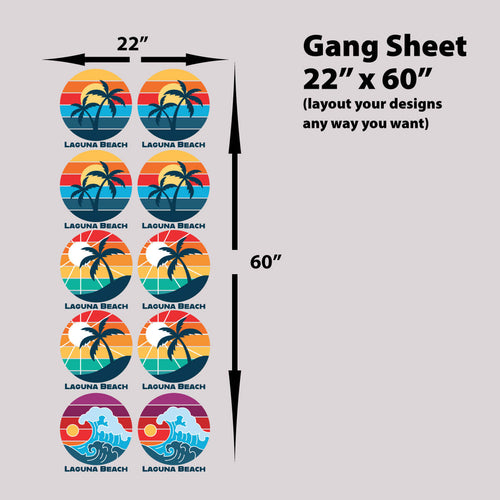
If you’re still arranging every piece by hand in a design program, you’re spending time on the wrong task. Manual layouts can work for a few transfers. They become a bottleneck the moment your order mix gets busier, your design count increases, or your sheet sizes vary.

Why manual gang sheet building causes avoidable errors
When decorators build a gang sheet by hand, the same issues show up repeatedly. Too much empty space. Inconsistent spacing between graphics. Accidental overlap. Tiny stray pixels tucked into the margins. One design placed at the wrong size. Text that wasn’t proofread after duplication.
None of those mistakes are dramatic on screen. They become expensive once the sheet is printed.
The cost isn’t just material. It’s attention. Every minute spent nudging art around is a minute not spent checking the file itself, confirming garment counts, or dialing in placement for the press.
What a smarter workflow looks like
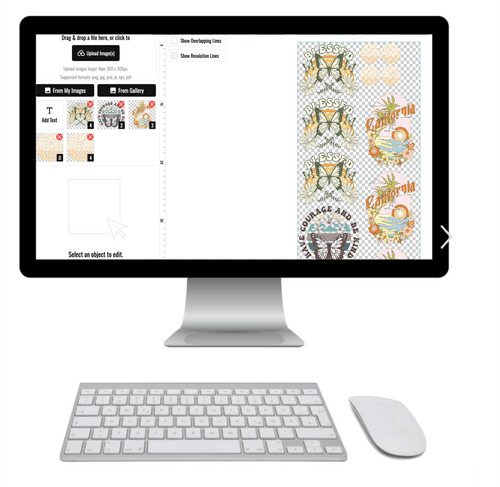
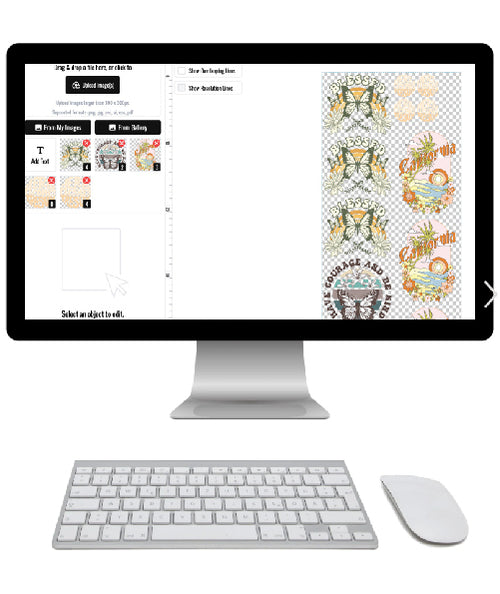
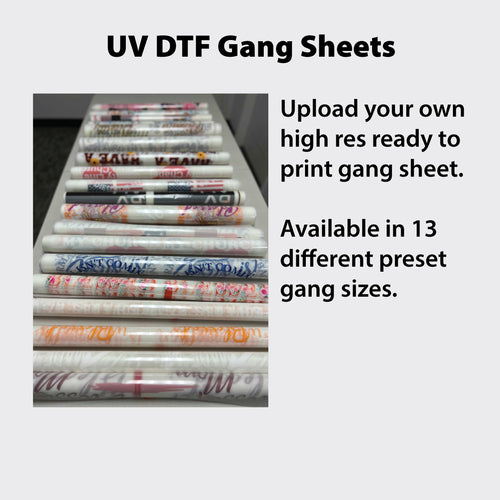
For most shops and sellers, the best approach is simple. Prepare each design file correctly, upload the files individually, and let the nesting process optimize the layout.
That’s where an auto-builder makes sense. Instead of turning gang sheet creation into a design project, it turns it into a production step.
A practical workflow looks like this:
- Prepare each PNG correctly: Transparent background, final orientation, final sizing intent.
- Separate design versions: Don’t mix “maybe” versions with approved versions.
- Upload individual files: Cleaner than flattening everything into one giant sheet file.
- Review the proof visually: Look for spacing, duplicates, and odd crops.
- Approve only after proofreading: Especially names, event dates, and team numbers.
This is also the point where a practical guide to the DTF gang sheet builder becomes useful, because the production logic is different from ordinary artboard design.
Where the Auto-build gang sheet builder saves time
The Auto-build gang sheet builder is valuable for one reason. It removes the tedious layout work that doesn’t improve the print.
Instead of manually arranging dozens of logos, chest hits, sleeve graphics, and back prints, you upload the approved files and let the builder nest them for space efficiency. That makes it easier to use more of the sheet, keep the workflow moving, and lower waste compared with the common habit of over-padding every design manually.
That matters a lot for shops doing:
- Mixed orders: Left chest logos, full backs, and sleeve hits in one sheet
- Brand drops: Several colorways or slogan variations at once
- Team and event jobs: Repeated names, numbers, and sponsor marks
- E-commerce replenishment: Small runs that need tight material control
Lion DTF Transfers offers that Auto-build gang sheet builder as one option for shops and sellers who want to upload individual files and automate the layout step instead of building every sheet manually.
The hidden advantage is consistency
The obvious benefit is cost control. The less obvious benefit is repeatability.
Manual gang sheet layouts depend on who built them and how carefully they were working that day. Automated nesting creates a more stable starting point. That reduces the chance of odd spacing choices, forgotten duplicates, or dead zones that make you pay for unused sheet area.
A gang sheet should behave like production equipment, not like a collage project.
Your pre-flight check before ordering
This is the last place to catch preventable problems. Slow down here.
Run through this checklist before final approval:
| Checkpoint | What to verify |
|---|---|
| Transparency | No hidden background blocks or white fill |
| Artwork edges | No stray pixels, fuzz, or accidental marks |
| Sizing | Each design is intended for its actual placement |
| Text | Names, dates, numbers, and spelling are final |
| Repeats | Duplicates are intentional, not copied by mistake |
| Orientation | Nothing is mirrored or rotated incorrectly |
What works and what usually doesn’t
Some gang sheet habits consistently pay off. Others create headaches later.
What works
- Grouping by purpose: Keep left chest designs together, full fronts together, names together.
- Using final-approved files only: Don’t upload drafts and promise yourself you’ll fix them later.
- Leaving enough breathing room: Tight packing is good. Reckless packing isn’t.
- Planning by order flow: Put the transfers you’ll press first where they’re easiest to cut and sort.
What doesn’t
- Building one giant flattened sheet from scratch: Harder to revise and easier to ruin with one mistake.
- Mixing unrelated jobs carelessly: Sorting becomes messy at the cutting table.
- Ignoring trim logic: If cuts are awkward, production slows.
- Trusting visual size without notes: Similar designs can be different dimensions in ways that only show up after pressing.
Gang sheets reward discipline
Heat press transfer designs become far more profitable when you stop treating every print as a standalone item. The gang sheet is where that shift happens.
You aren’t just organizing art. You’re organizing labor, material use, and order flow. Done well, gang sheets reduce waste, simplify cutting, and make multi-design production easier to manage. Done badly, they hide mistakes until they’re expensive.
That’s why the best gang sheet strategy is boring in the right way. Clean files. approved art. intentional sizing. automated layout where possible. final proof before purchase. Shops that stick to that process spend less time fixing preventable problems.
Pressing for Perfection and Troubleshooting Common Issues
Once the transfer is in your hand, the job becomes mechanical. That’s good news. Mechanical work can be repeated if you control the variables.
For DTF, a calibrated heat press produces 30 to 35% higher success rates than alternative heat application methods, and a professional setup can reach a 98% first-pass yield when it holds temperature in the 240-280°F range with medium pressure at 40 to 60 psi.
The pressing sequence that holds up
Hot-peel transfers reward consistency. Don’t improvise from shirt to shirt.
Use this sequence:
-
Pre-press the garment
Remove moisture and flatten the print area. A quick pre-press also makes placement easier because wrinkles and fabric distortion are reduced. -
Position the transfer carefully
Lay the transfer where it belongs after the shirt is flat and centered on the platen. Check that the film isn’t bridging over seams, collars, pockets, or folds. -
Press with controlled heat and pressure
Stay inside the proven range. For most DTF work, shops operate within that 240-280°F window and use 40 to 60 psi medium pressure. If your press can’t hold settings consistently, results won’t be consistent either. -
Hot peel properly
Peel in a smooth motion. If the design hesitates, stop, lay it back down, and reassess. Ripping upward too aggressively can lift areas that were close to bonding. -
Finish with a second press
Re-pressing helps complete the bond and improves the final feel. It also exposes weak adhesion early, while you can still correct it.
Fabric-by-fabric judgment matters
Cotton is forgiving. Polyester often isn’t.
Blends sit in the middle and usually behave well, but only if you respect the garment. Athletic fabrics and performance shirts can react badly if you push heat too high. Thick garments may need more attention to pressure and contact. Lightweight shirts can show marks if you overdo either one.
That’s why one “universal” setting is rarely a true production setting. The range matters. Your press, transfer, and garment combination still needs to be observed.
If you’re changing garment type, run a test press before committing the whole stack.
Common failures and the fix behind them
The design isn’t sticking
Start with pressure and temperature consistency. If the press isn’t delivering even contact across the platen, one area may bond while another lifts. Also check whether the shirt was pre-pressed. Moisture interferes with adhesion more often than people think.
Then review the peel itself. If you peeled too aggressively or before the transfer was ready, you can create a failure that looks like a pressing problem.
The print looks pressed, but edges lift later
That usually points to incomplete bonding, not just a bad transfer. Re-pressing matters here. So does making sure the design wasn’t sitting over texture, seams, or garment instability.
Pay attention to the corners and fine outer edges. They reveal weak setups first.
Polyester scorches or shows marks
Reduce heat within the workable range and watch dwell time closely. Polyester doesn’t forgive casual over-pressing. Use a cover sheet if your workflow calls for one, and make sure the garment is smooth before the press closes so you’re not embossing wrinkles into the fabric.
Parts of the design look uneven
That’s often a pressure distribution issue. Check the platen. Check garment thickness. Check whether the print area crossed a seam, zipper, placket, or collar rise. The transfer can only bond evenly if the surface underneath is even.
A quick troubleshooting table for the press station
| Problem at the press | Most likely cause |
|---|---|
| Lift during peel | Incomplete bond or rushed peel |
| Weak edges after cooling | Uneven pressure or insufficient finishing press |
| Shiny fabric marks | Too much heat or excess pressure on sensitive fabric |
| Patchy adhesion | Uneven platen contact or poor garment prep |
| Repeat failures on one side | Press calibration issue |
What separates a reliable setup from a frustrating one
The shops that get repeatable results treat the heat press like production equipment, not a guess-and-check tool.
They verify the press. They log settings by garment type. They test when the blank changes. They don’t assume a transfer that worked on a heavyweight cotton tee will behave the same way on a slick performance blend. That discipline is what makes hot-peel DTF feel easy.
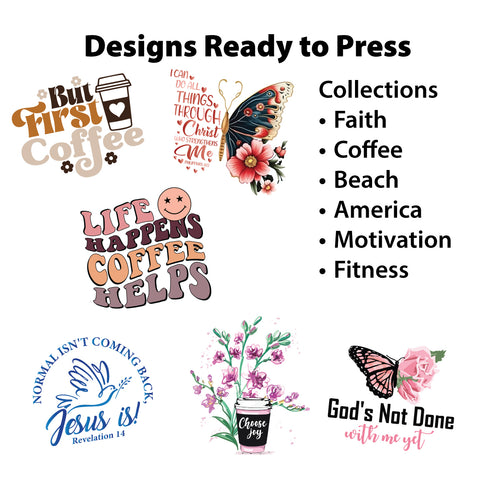
If you want fewer remakes, tighter gang sheet value, and more dependable hot-peel results, order Lion DTF Transfers when you need ready-to-press custom transfers, gang sheets, and a simpler upload workflow built around production use.